
Kubernetes powered PaaS that runs in your own cloud. https://porter.run
 Alexander Belanger
ce23b2bf35
add redirect param to login/create user response
Alexander Belanger
ce23b2bf35
add redirect param to login/create user response
|
5 éve | |
|---|---|---|
| .github | 0869e96e0d Update staging.yaml | 5 éve |
| build | e013a3ff6e update release builds for cgo | 5 éve |
| cli | d1cbf60969 trigger oauth flow from CLI | 5 éve |
| cmd | 6b809e354a invite backend done | 5 éve |
| dashboard | 5e2f9e312a fixed delete or register -> blank view | 5 éve |
| docker | 700e439e07 add remote dev nginx conf | 5 éve |
| docs | ff17b95702 Create GCR.md | 5 éve |
| internal | 37e3de96df Merge branch 'master' of https://github.com/porter-dev/porter into main | 5 éve |
| scripts | b133d644f8 portersvr with ldflag and proper overwrite | 5 éve |
| server | ce23b2bf35 add redirect param to login/create user response | 5 éve |
| .air.toml | f1ac0e4b69 cli major update | 5 éve |
| .dockerignore | d7b83fb445 onboarding with default sqlite | 5 éve |
| .gitignore | 507ba65d39 delete tf directory | 5 éve |
| LICENSE | 1f483861ca add MIT license | 5 éve |
| README.md | 656ea667c4 Update README.md | 5 éve |
| docker-compose.dev.yaml | a5c69a1bda stream ephemeral provisioning logs (no XACK) | 5 éve |
| go.mod | ece33b99f6 configured postrenderer and cred helper with do registry | 5 éve |
| go.sum | e5a719393c Merge pull request #227 from porter-dev/beta.3.integration-frontend | 5 éve |
README.md
Porter

Porter is a Kubernetes-powered PaaS that runs in your own cloud provider. Porter brings the Heroku experience to Kubernetes without compromising its flexibility. Get started on Porter without the overhead of DevOps and fully customize your infra later when you need to.

Why Porter?
A PaaS that grows with your applications
A traditional PaaS like Heroku is great for minimizing unnecessary DevOps work but doesn't offer enough flexibility as your applications grow. Custom network rules, resource constraints, and cost are common reasons developers move their applications off Heroku beyond a certain scale.
Porter brings the simplicity of a traditional PaaS to your own cloud provider while preserving the configurability of Kubernetes. Porter is built on top of a popular Kubernetes package manager called Helm and is compatible with standard Kubernetes management tools like kubectl, preparing your infra for mature DevOps work from day one.
Features
Basics
One-click provisioning of a Kubernetes cluster in your own cloud console
- ✅ AWS
- 🚧 GCP
- 🚧 Digital Ocean
Simple deploy of any public or private Docker image
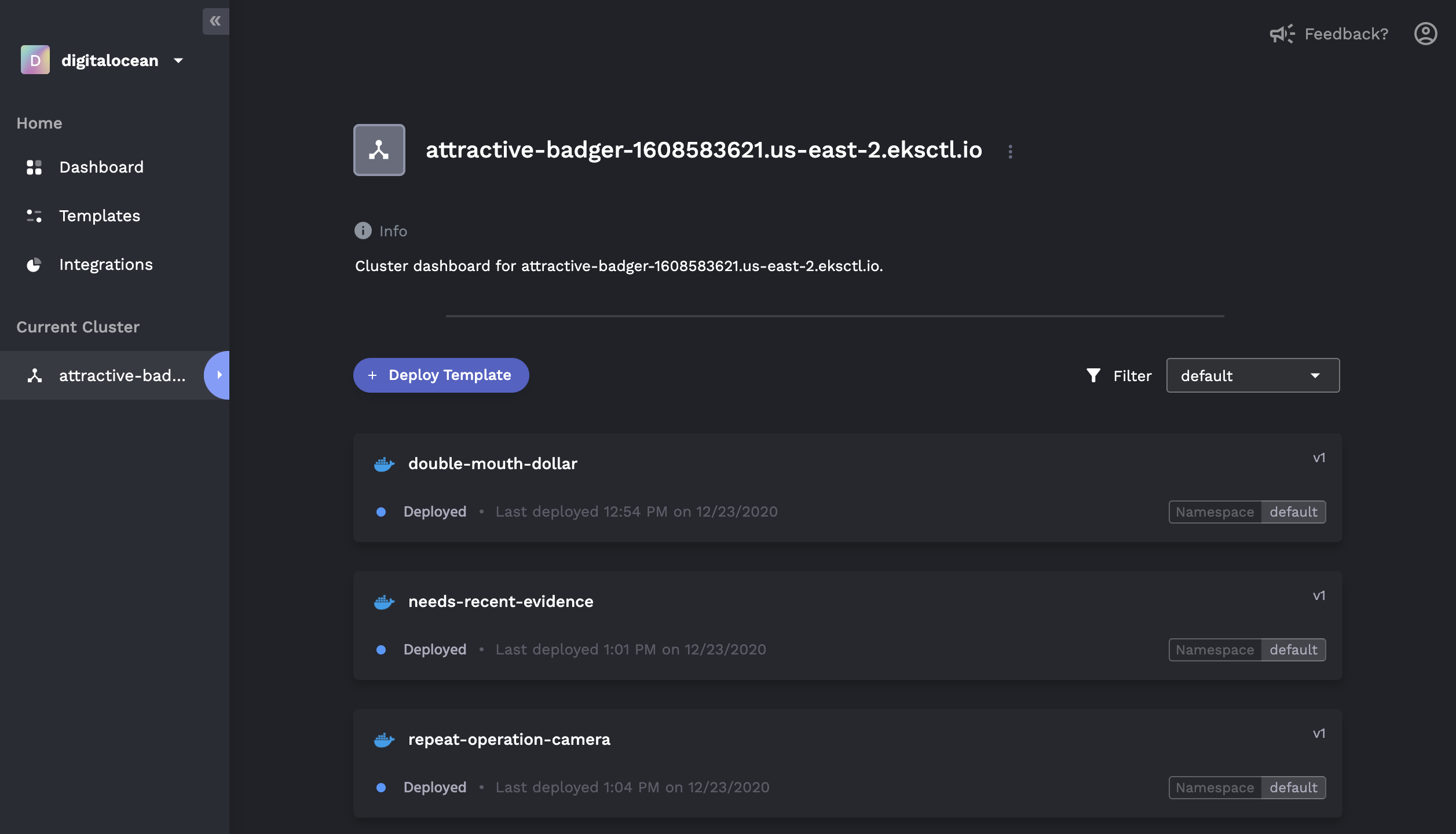
Heroku-like GUI to monitor application status, logs, and history
Marketplace for one click add-ons (e.g. MongoDB, Redis, PostgreSQL)
Application rollback to previously deployed versions
Native CI/CD with buildpacks (Coming Soon)
DevOps Mode
For those who are familiar with Kubernetes and Helm:
- Connect to existing Kubernetes clusters that are not provisioned by Porter
- Visualize, deploy, and configure Helm charts via the GUI
- User-generated form overlays for managing
values.yaml - In-depth view of releases, including revision histories and component graphs
- Rollback/update of existing releases, including editing of raw
values.yaml

CLI Installation
Mac
Run the following command to grab the latest binary:
{
name=$(curl -s https://api.github.com/repos/porter-dev/porter/releases/latest | grep "browser_download_url.*/porter_.*_Darwin_x86_64\.zip" | cut -d ":" -f 2,3 | tr -d \")
name=$(basename $name)
curl -L https://github.com/porter-dev/porter/releases/latest/download/$name --output $name
unzip -a $name
rm $name
}
Then move the file into your bin:
chmod +x ./porter
sudo mv ./porter /usr/local/bin/porter
For Linux and Windows installation, see our Docs.
Getting Started
Sign up and log into Porter Dashboard.
Create a Project and select a cloud provider you want to provision a Kubernetes cluster in.
Put in your credentials, then Porter will automatically provision a cluster and an image registry in your own cloud account.
Build and push your Docker image to the provisioned registry with the CLI.
From the Templates tab on the Dashboard, select the Docker template. Click on the image you have just pushed, configure the port, then hit deploy.
Want to Help?
We welcome all contributions. Submit an issue or a pull request to help us improve Porter!
