
slack-integration.md 1.4 KB
Enabling Slack Integrations
For order to set up a Slack integration on a self-hosted version of Porter, you must create a new Slack app in your workspace for sending Porter notifications.
Step 1: Create Application and Environment Variables
Navigate to https://api.slack.com/apps, and click Create New App. On the modal that pops up, select From Scratch and then enter your app name and workspace you want to develop in. On the page for the application, scroll down to App Credentials and take note of the following two values:

Copy these values into the following environment variables in your installation:
SLACK_CLIENT_ID=<client-id-above>
SLACK_CLIENT_SECRET=<client-secret-above>
Step 2: Setting up OAuth
The app also needs to be able to perform the OAuth flow with the right callback link. To do this,
navigate to OAuth & Permissions in the Slack developer settings and add the url https://yourdomain.com/api/oauth/slack/callback to the list of redirect URLs:
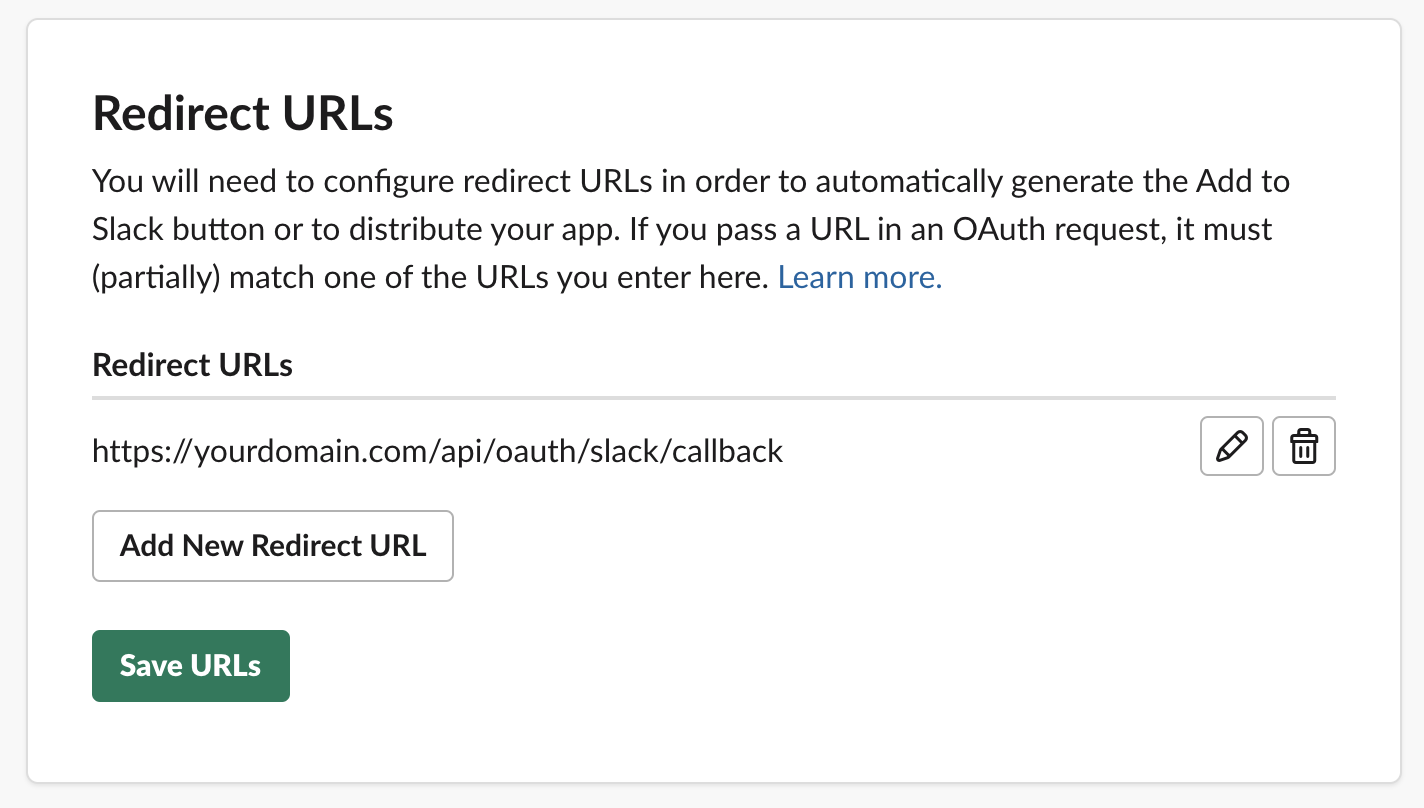
That's it! You can now follow this guide for setting up Slack notifications in Porter.