
preserving-client-ip-addresses.md 4.4 KB
AWS
🚧 Update: December 10 2021
Please note that clusters provisioned on Amazon EKS after December 10 2021 will have support for proxying external IPs configured by default.
🚧
Changing this configuration may result in a few minutes of downtime. It is recommended to set up client IP addresses before the application is live, or update it during a maintenance window. For more information, see this Github issue.
You will need to update your NGINX config to support proxying external IP addresses to Porter.
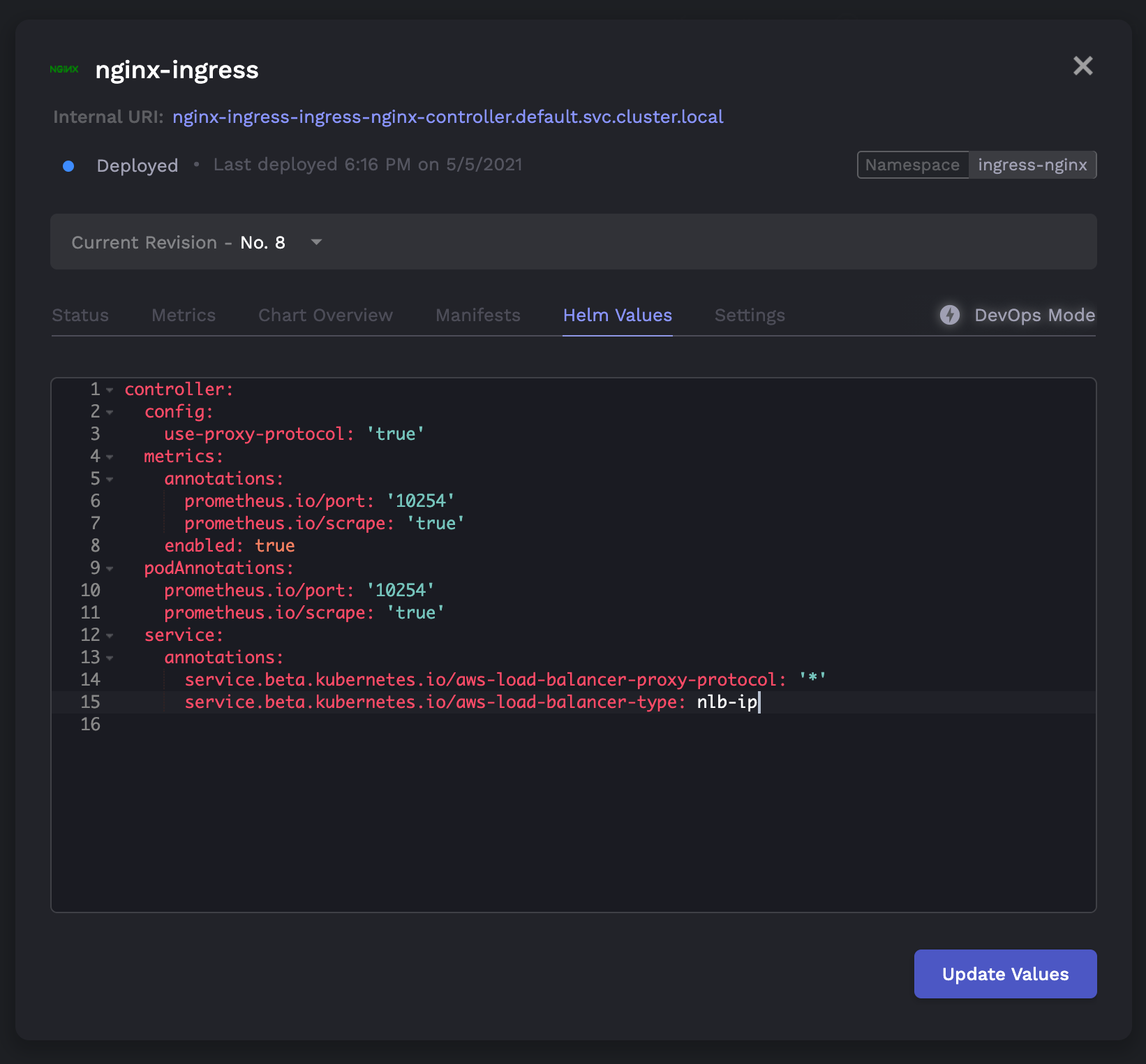
In the ingress-nginx application, you'll be modifying the following Helm values:
controller:
  config:
    use-proxy-protocol: 'true' # <-- CHANGE
  metrics:
    annotations:
      prometheus.io/port: '10254'
      prometheus.io/scrape: 'true'
    enabled: true
  podAnnotations:
    prometheus.io/port: '10254'
    prometheus.io/scrape: 'true'
  service:
    annotations:
      service.beta.kubernetes.io/aws-load-balancer-proxy-protocol: '*'  # <-- CHANGE
      service.beta.kubernetes.io/aws-load-balancer-type: nlb-ip
GCP
🚧 Prequisites
You must have a health check endpoint for your application. This endpoint must return a
200 OKstatus when it is pinged.
On Porter clusters provisioned through GCP, traffic flows through a regional TCP load balancer by default. These load balancers do not support a proxy protocol (only global TCP load balancers or regional/global HTTP(S) load balancers support this), and thus the client IP cannot be accessed by using the default load balancer. As a result, to get client IP addresses to your applications, you must create a new load balancer with a custom IP address. This guide will show you how to do that.
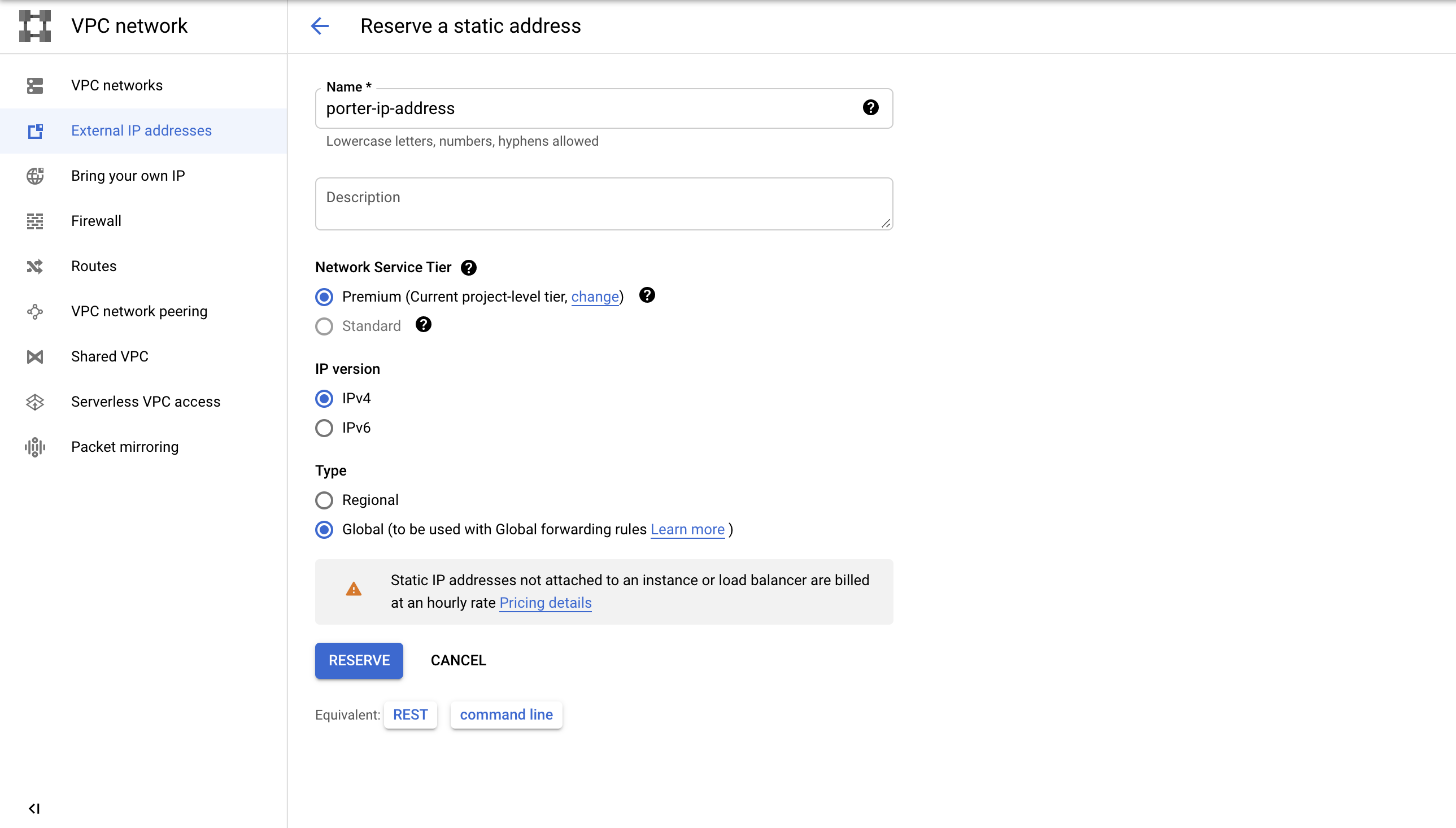
- You must first create a static global IP address in the GCP console. You can do this by navigating to External IP addresses (VPC Network > External IP Addresses), and clicking "Reserve External Address". Name this address something like
porter-ip-addressand select "Global" for the type:
Copy the created IP address to the clipboard.
In your DNS provider, configure a custom domain to point to that IP address, which you can do by creating an A record with your domain as the value. Check that the domain is pointing to the IP address through
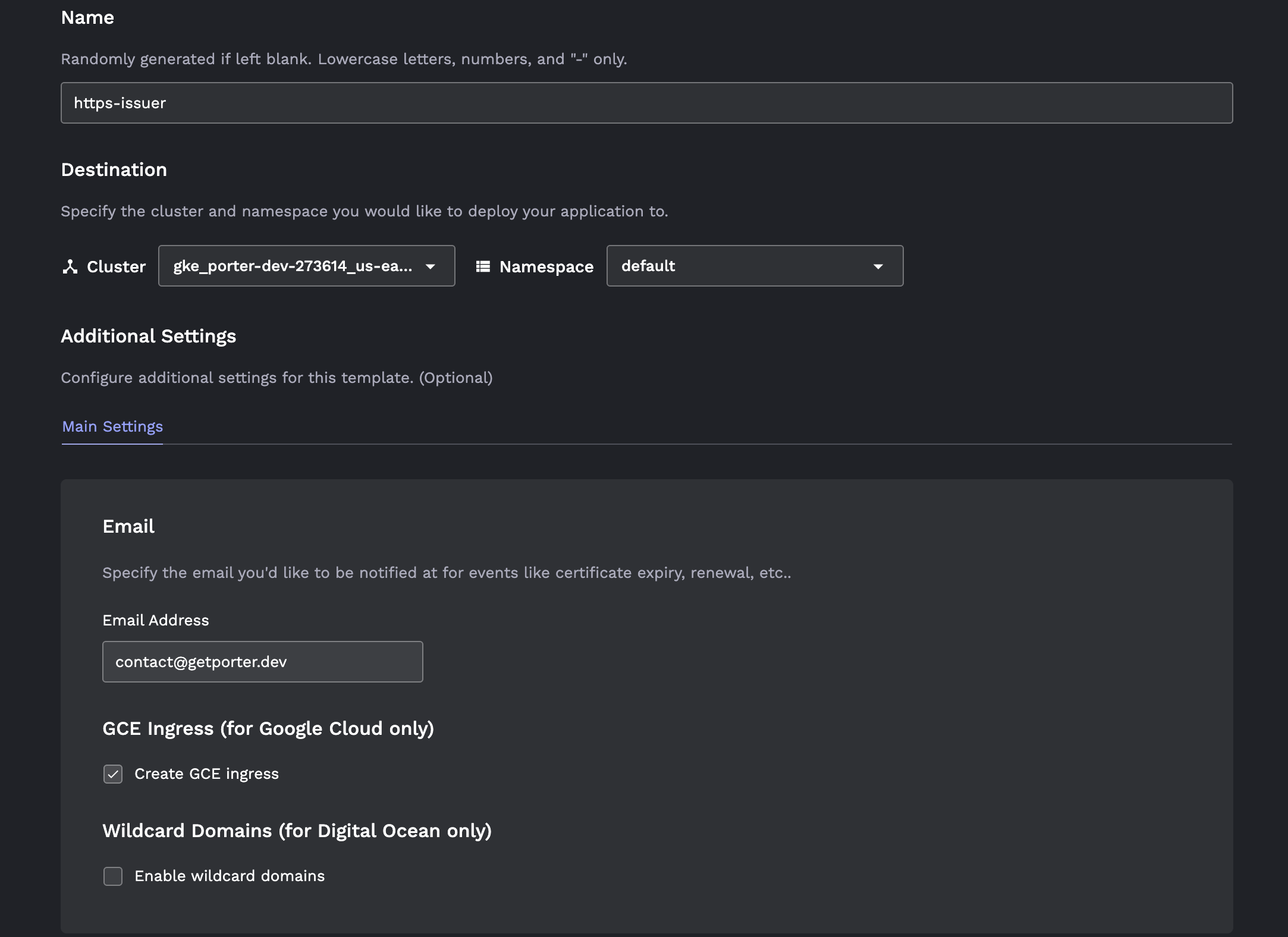
nslookup <domain>, where the address in the response should be the IP address you just created.Install an HTTPS issuer on the Porter dashboard by going to Launch > Community Addons > HTTPS Issuer. Toggle the checkbox Create GCE Ingress. If you have already installed the HTTPS issuer, you will have to delete your current issuer and create a new one.
- Create the web service by going to the Porter dashboard and navigating to Launch > Web service. Link up your source, and then configure the following three settings:
Toggle "Configure Custom Domain" at the bottom of the "Main" tab, and add your custom domain.
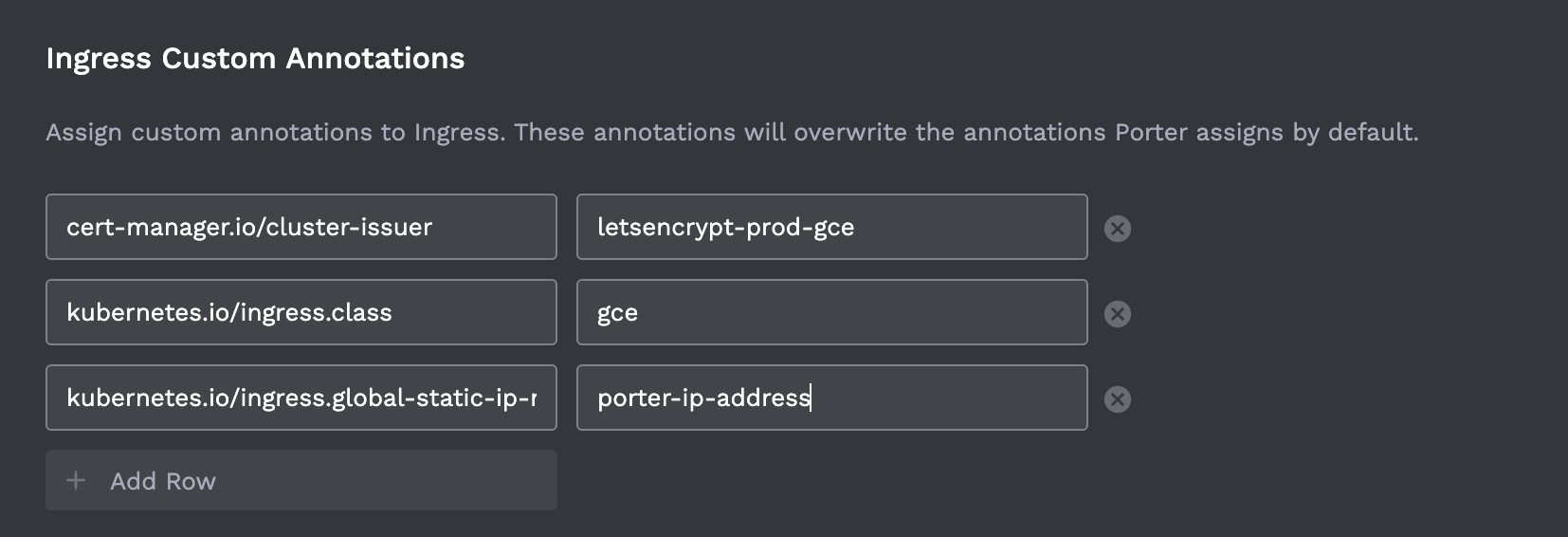
Go to the "Advanced" tab. In the "Ingress Custom Annotations" section, add the following three parameters:
cert-manager.io/cluster-issuer: letsencrypt-prod-gce
kubernetes.io/ingress.class: gce
kubernetes.io/ingress.global-static-ip-name: porter-ip-address # IMPORTANT: replace this with the name of your static ip address!
It should look something like this:
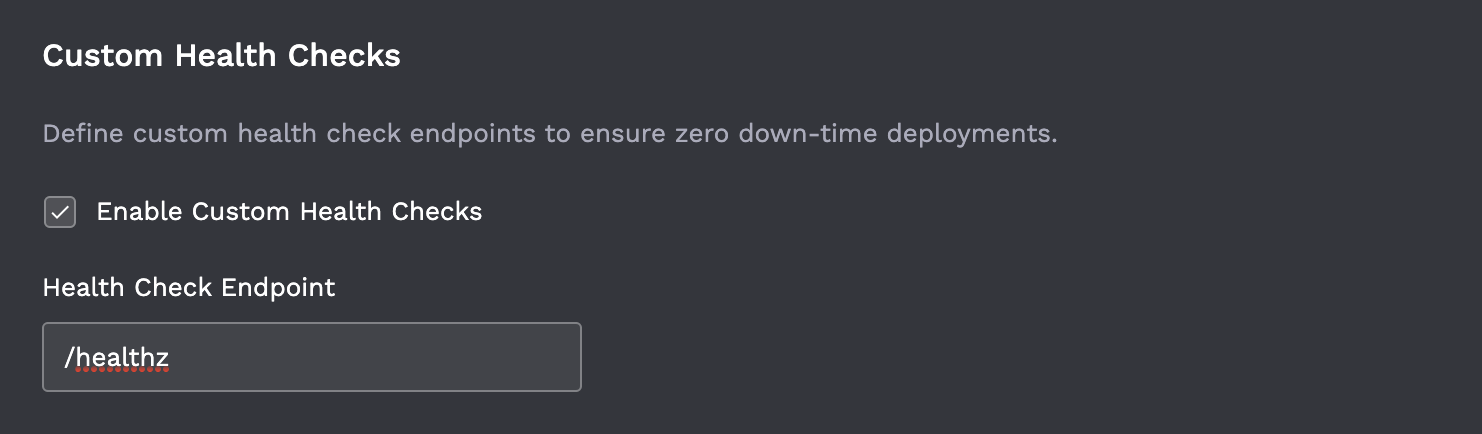
- Still in the "Advanced" tab, you must set up a custom health check at an application endpoint. This is by default set to
/healthz, but you can choose whichever path you'd like. This endpoint must return a200 OKstatus when it is pinged.
- Click "Deploy". It will take 10-15 minutes for the load balancer to be created and the certificates to be issued.