
jobs-and-cron-jobs.md 6.5 KB
You can create one-time jobs or cron jobs on Porter, which can be linked from your Github repo or from an existing Docker image registry. Cron jobs are meant to run on a schedule using a specified cron expression, while one-time jobs are meant to be triggered manually. Here are some use-cases for each type of job:
- Run one-time jobs for database migration scripts, data processing, or generally scripts that are designed to run to completion on an unpredictable schedule
- Run cron jobs for tasks that should run on a specified schedule, such as scraping data at a specified interval, cleaning up rows in a database, taking backups of a DB, or sending batch notifications at a specified time every day
Deploying a One-Time Job
To deploy a one-time job on Porter, head to the "Launch" tab and select the "Jobs" template. From this template, you can connect your source (Github repo or Docker image registry), specify the job command, and add environment variables. For example, to create a job that simply prints to the console from an environment variable, we can create a job with the following configuration:
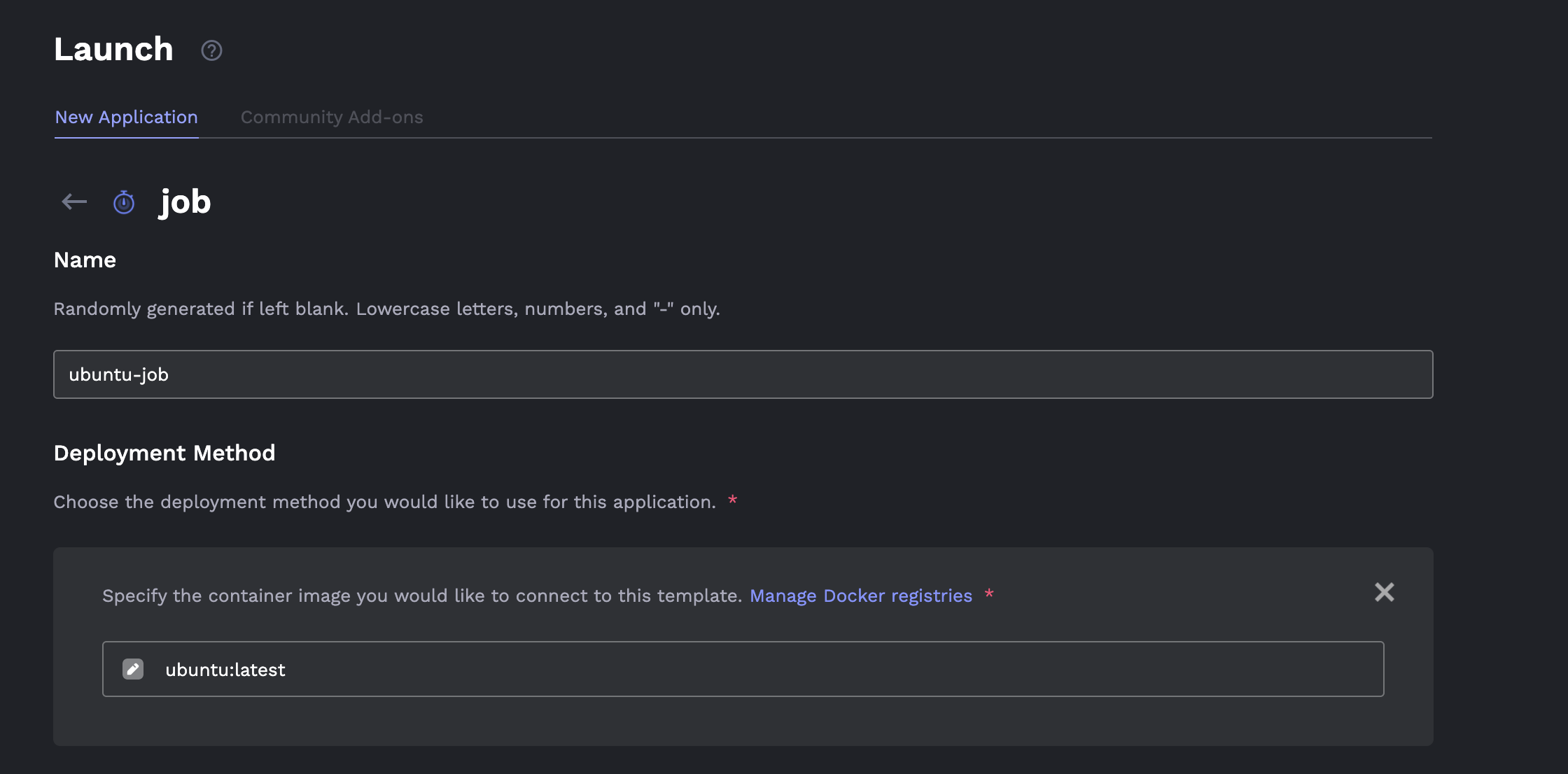
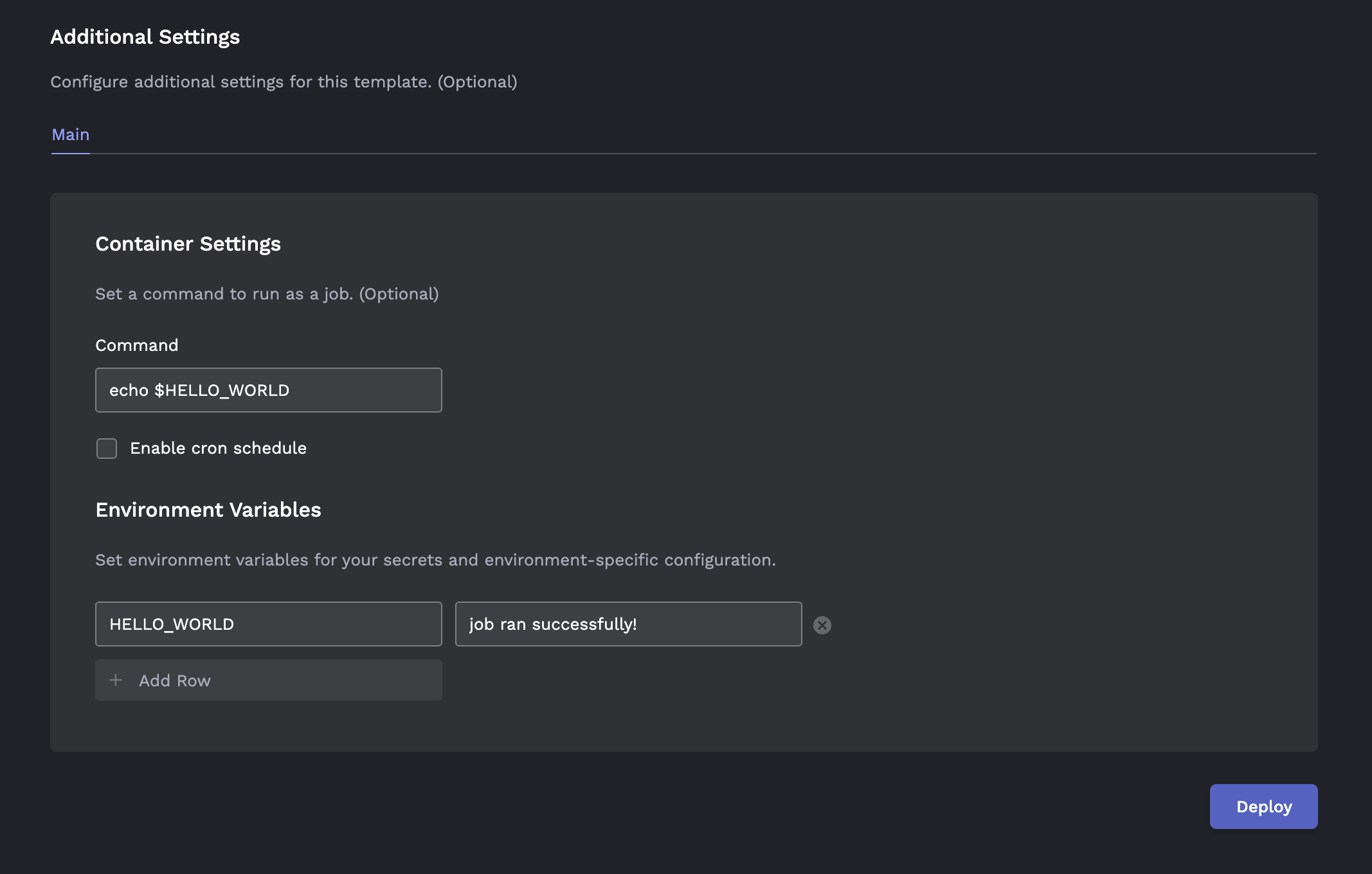
After clicking "Deploy" and waiting for the Job to run successfully, you will be redirected to the "Jobs" tab where your jobs are listed. Click into the job you would like to view (in this case, ubuntu-job), and the history of runs for that job will be shown. You can click on each job to view the logs:
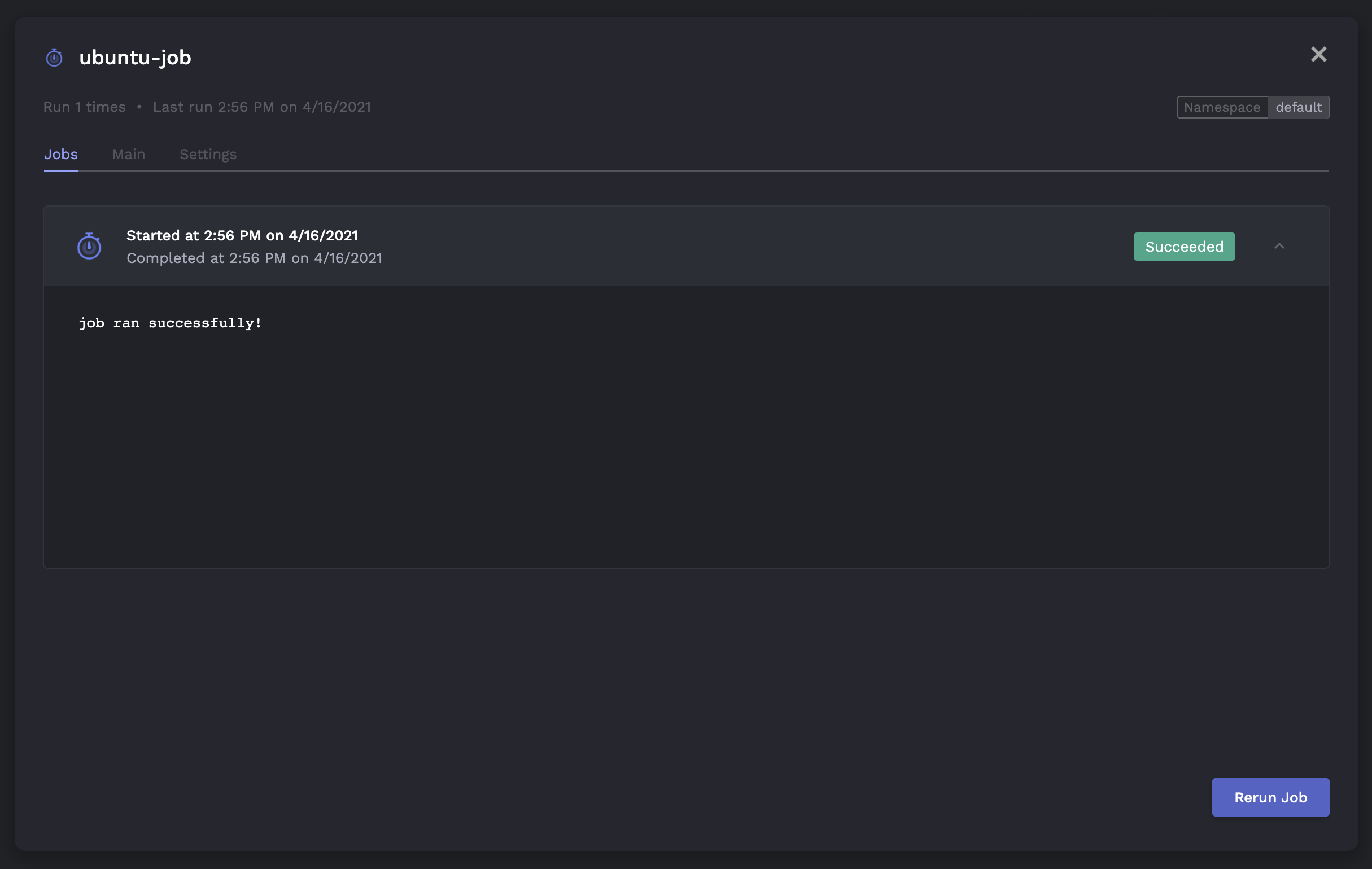
To re-run the job, simply click the "Rerun job" button in the bottom right corner, which will re-run the job using the exact same configuration as before. You can view the configuration for this job from the "Main" tab, and you can delete the job (along with the history of all runs of the job) from the "Settings" tab.
📘
Note: as an alternative to one-time jobs, you can also run a command using remote execution from the CLI. This is simpler to do, but lacks the benefit of getting the history of jobs along with logs and status for each job.
Running One-Time Jobs from Github Repositories
When you set up a one-time job to deploy from a Github repository, the job will not run automatically -- the Github action will simply update the image used to run the job.
To get the Github action to run the job automatically, you can use this Github action. For example:
# ... the rest of your Github action
    - name: Run Porter job
      uses: porter-dev/porter-run-job-action@v0.1.0
      with:
        job: <job-name> # TODO: replace w/ name of your job
        cluster: <cluster-id> # TODO: replace w/ cluster ID
        project: <project-id> # TODO: replace w/ project ID
        token: ${{ secrets.PORTER_TOKEN_12 }}
Deploying a Cron Job
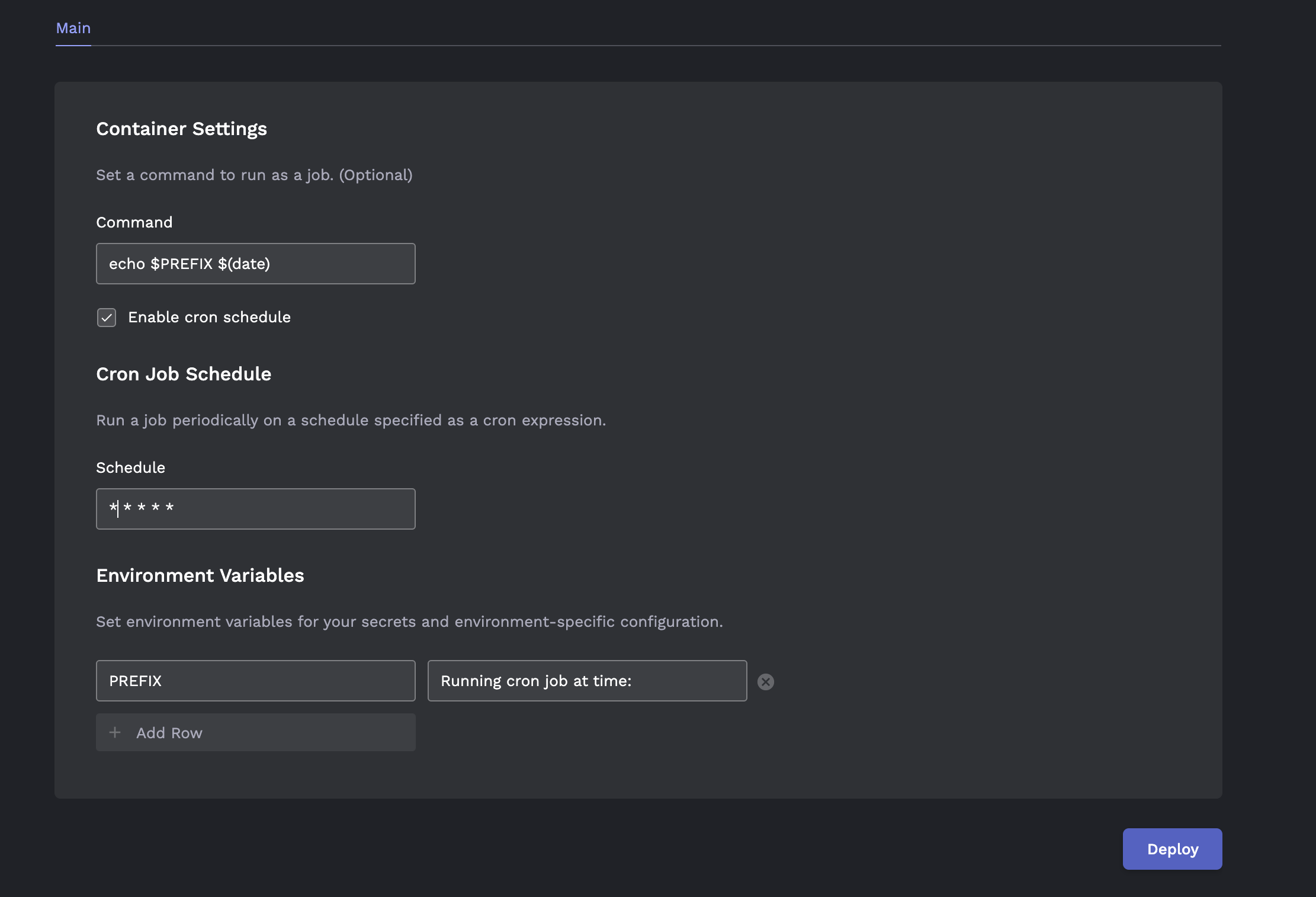
Deploying a cron job follows the same pattern as deploying a one-time job, but requires that you input a cron expression for the job to periodically run. To create cron expressions more easily, see this online editor for developing cron expressions.
As an example, we will once again create a job that simply prints to the console from an environment variable, but in this case we will create the job with a cron expression so that the job runs every minute:
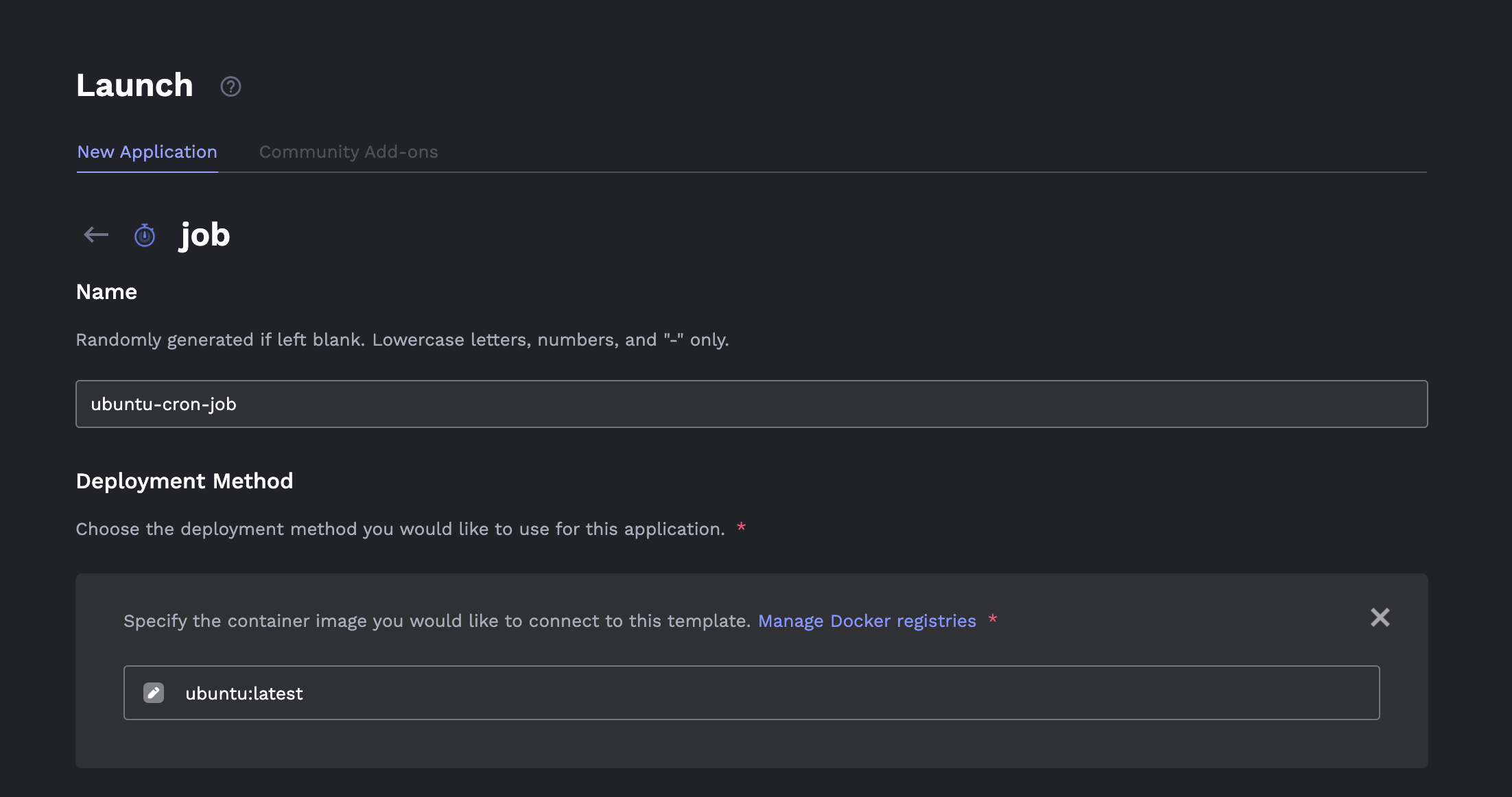
After the cron job successfully deploys, you can navigate to the "Jobs" tab and click on your deployed job (in this case, ubuntu-cron-job):
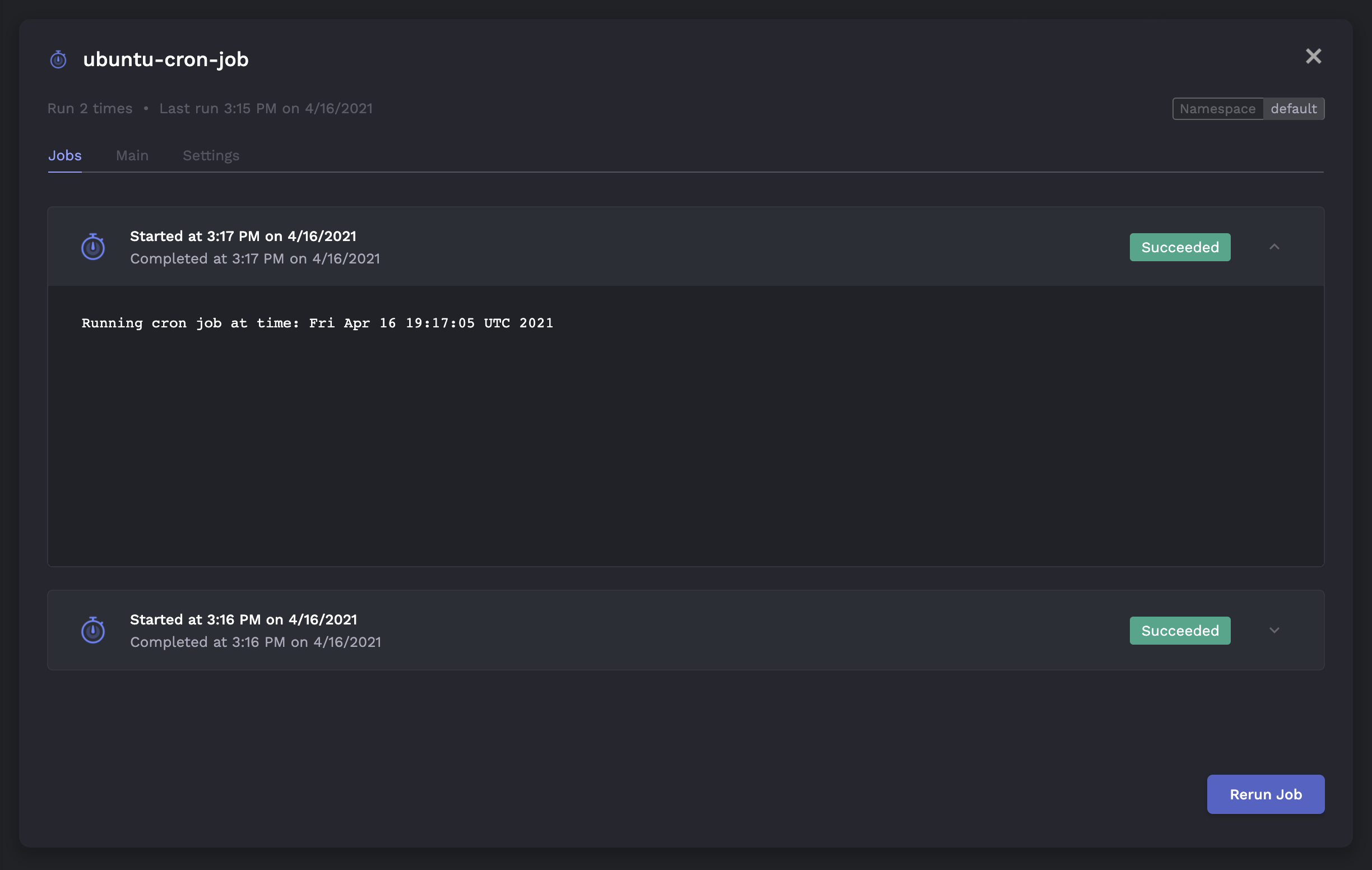
As you can see, the cron job runs every minute. By default, Porter will keep the history of the last 20 jobs run for that cron schedule.
Running Cron Jobs from Github Repositories
When you set up a cron job to deploy from a Github repository, the cron job will automatically rebuild on each push to your Github repository, so that the cron job uses the latest version of your application on each run. If you do not want the cron job to rebuild frequently, you should create a separate branch that you push to only when you want the cron job to rebuild and update.
🚧
Note: we are working on a better solution for deploying cron jobs from a Github repository, so that the cron job only rebuilds when you want it to. This will be addressed in an upcoming release.
Advanced Configuration Options
Stopping Jobs
Jobs can be stopped by clicking the stop icon on a job in a "Running" state:
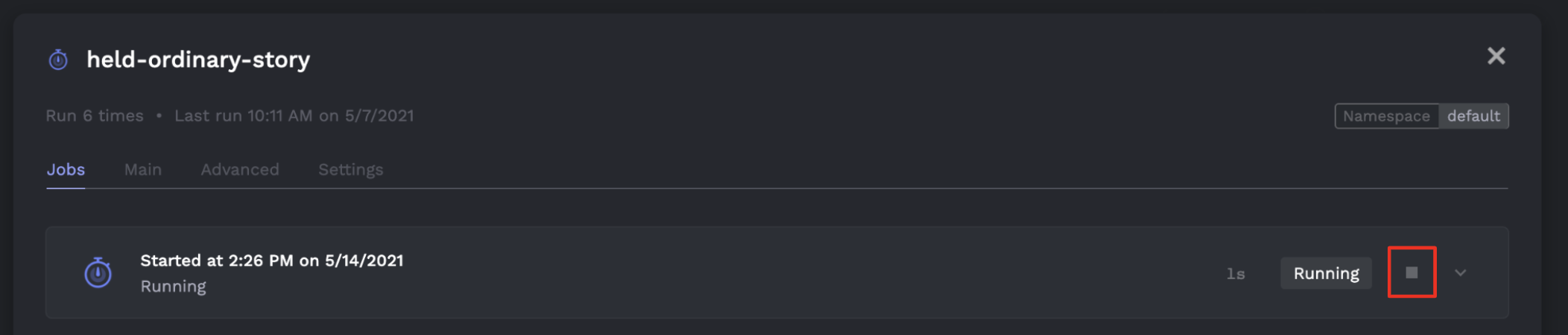
You can configure the stopping behavior of the job in the "Advanced" tab. By default, Porter will send SIGTERM to the job and all child processes of the job, wait for the job to terminate, and send SIGKILL if the job has not terminated after 30 seconds. The time between SIGTERM and SIGKILL can be configured, and you can avoid sending the signal to all child processes by toggling the "Propagate SIGTERM to child processes" checkbox.
Manual Runs of Cron Jobs
If you would like to trigger a manual run of a cron job, you can simply untoggle the "Enable cron schedule" checkbox in the "Main" tab of the Job. This will create a one-off run of the job, and will cancel the cron schedule until you toggle it back on.
Concurrency Limits for Jobs
You can prevent jobs from running concurrently by toggling the "Allow jobs to execute concurrently" checkbox in the "Advanced" tab. This may be desired if your jobs are writing to data sources, and you wish to prevent duplicate entries.