
GCR.md 1.5 KB
Google Container Registry (GCR) Connection
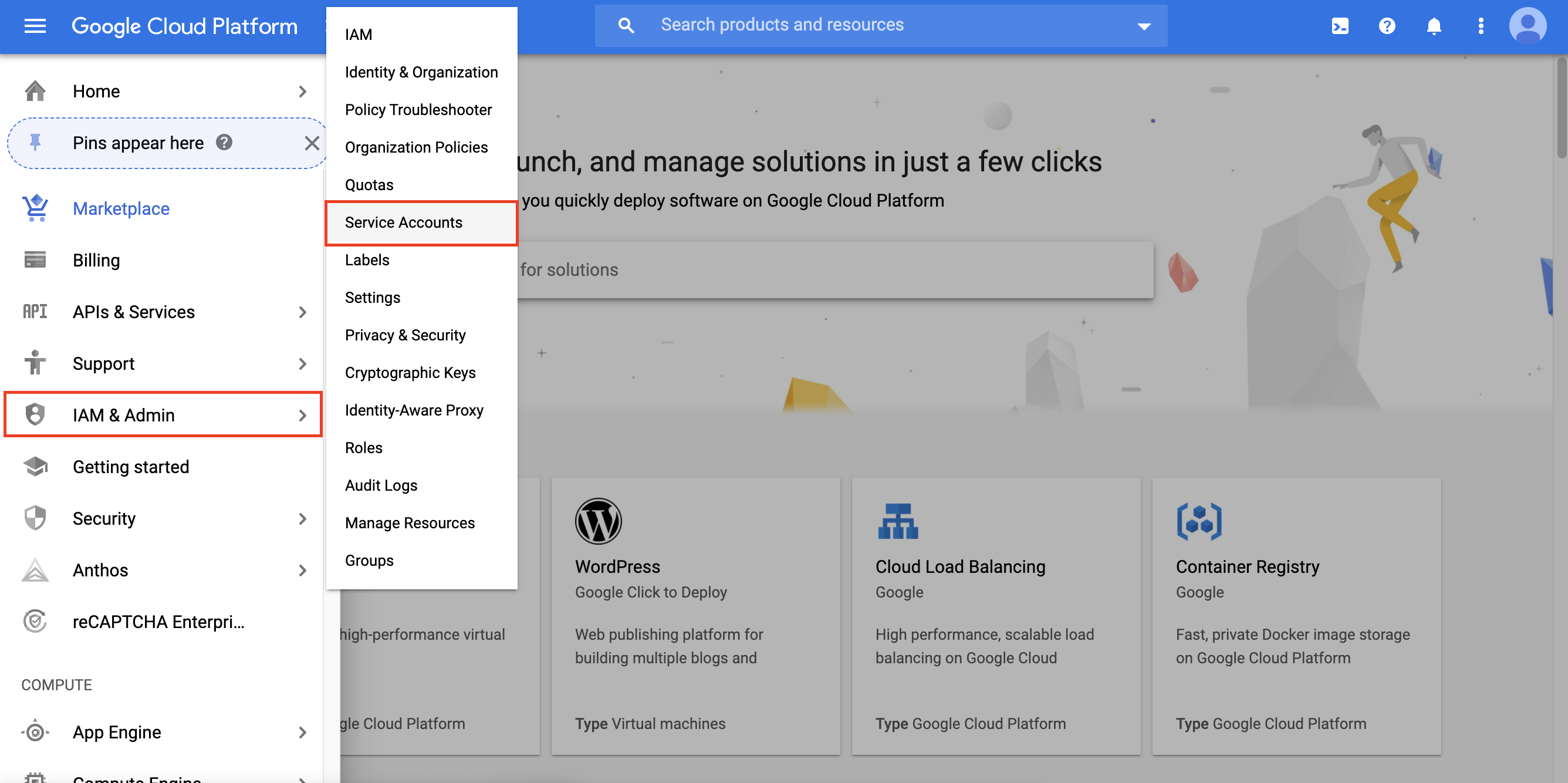
To authenticate a private GCR registry, you will first need a Google Cloud service account with registry viewing permissions. To create a new service account, go to your Google Cloud console and navigate to the IAM & Admin tab in the navigation menu and select Service Accounts:
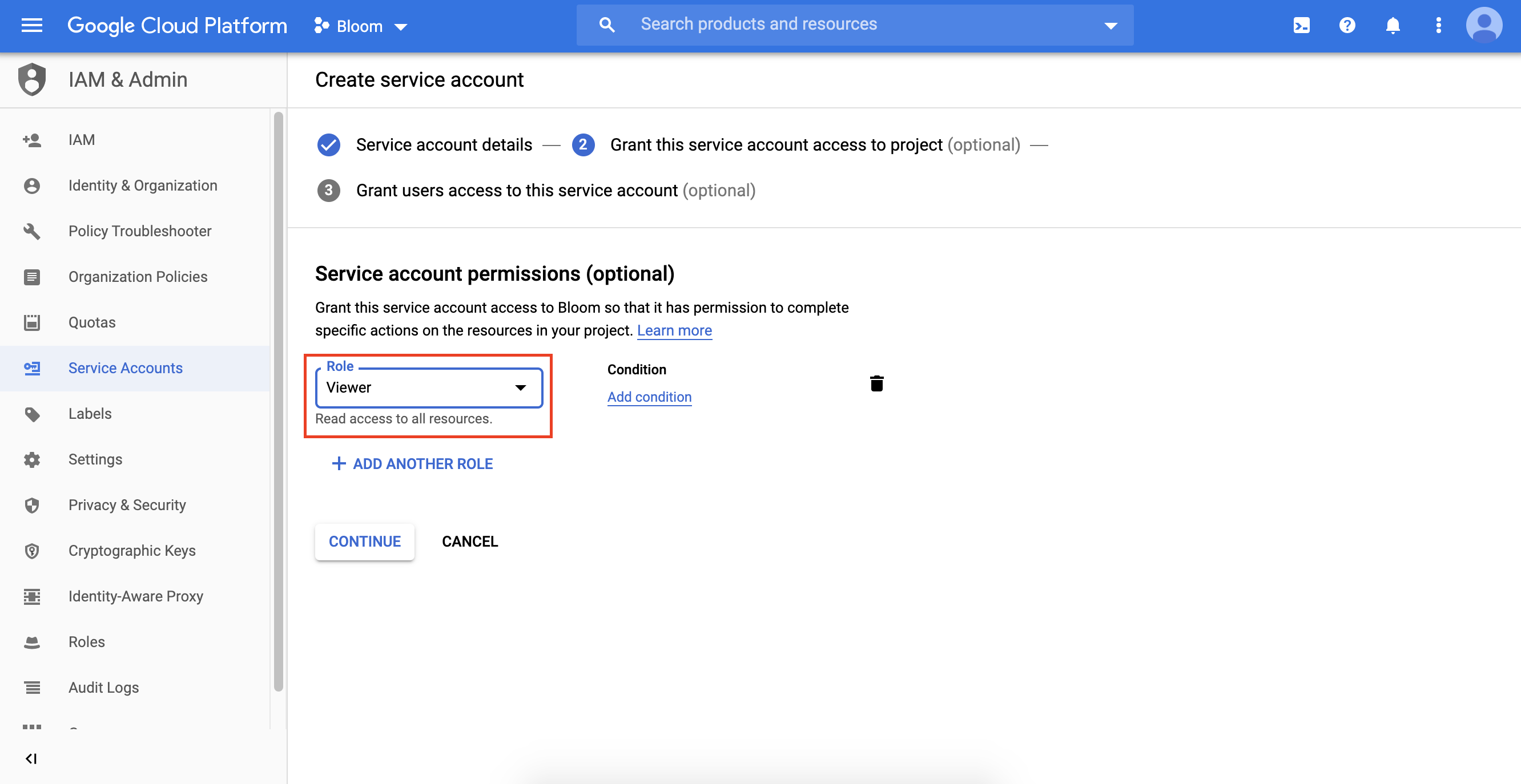
Select Create Service Account and provide a name and brief description for the new service account. Next, choose the role Viewer when you are prompted to grant permissions to your service account:
After the service account has been created, you need to create a JSON key for your service account by going to Actions -> Create key and then selecting JSON as your key type. Once your JSON key file has downloaded, use the porter connect gcr command to add the registry to your project.
For example, for a key named gcp-key-file.json on Mac:
$ cd ~/Downloads
$ porter connect gcr
Please provide the full path to a service account key file.
Key file location: ./gcp-key-file.json
+ created gcp integration with id 3
Give this registry a name: gcr-registry
+ created registry with id 16 and name gcr-test
+ Set the current registry id as 16
Having issues authenticating your private registry? You can reach us at contact@getporter.dev.