mongo.md 2.9 KB
Deployment
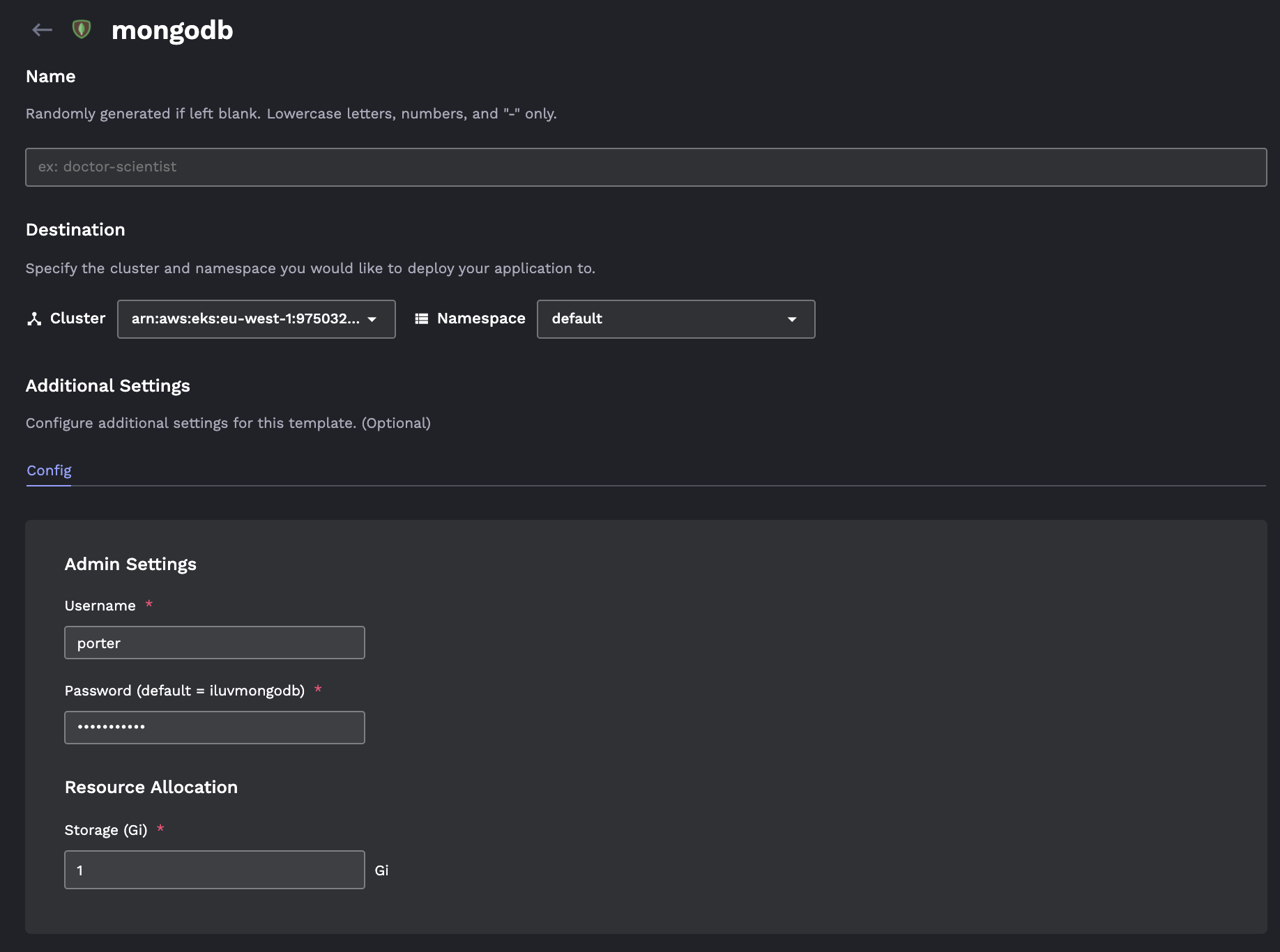
To deploy a MongoDB instance on Porter, head to the Community Add-ons tab. You must specify username and password for the instance. You can optionally modify the size of the persistent volume attached to the database.
Connecting to the Database
MongoDB on Porter is by default only exposed to internal traffic - only applications and add-on's that are deployed in the same Kubernetes cluster can connect to the MongoDB instance. The DNS name for the instance can be found on the deployment view as shown below. Note that MongoDB listens on port 27017 by default.

MongoDB provisioned through Porter has replica sets enabled by default. The connection URI for the MongoDB instance follows this format:
mongodb://root:${PASSWORD}@${REPLICASET_1}:27017,${REPLICASET_2}:27017/?authSource=admin&replicaSet=rs0
The REPLICASET_1 and REPLICASET_2 arguments are formed by the following:
REPLICASET_1=${pod_1}.${internal_uri}
REPLICASET_2=${pod_2}.${internal_uri}
So in this case, this would be:
REPLICASET_1=medicine-lucky-place-mongodb-0.medicine-lucky-place-mongodb.default.svc.cluster.local
REPLICASET_2=medicine-lucky-place-mongodb-1.medicine-lucky-place-mongodb.default.svc.cluster.local
And the full connection string would be:
mongodb://root:mongopassword@medicine-lucky-place-mongodb-0.medicine-lucky-place-mongodb.default.svc.cluster.local:27017,medicine-lucky-place-mongodb-1.medicine-lucky-place-mongodb.default.svc.cluster.local:27017/?authSource=admin&replicaSet=rs0
Deletion
To delete this add-on, navigate to the Settings tab of the deployment. Note that deleting from the Porter dashboard will not delete the persistent volumes that have been attached to your MongoDB instance. To delete these dangling volumes, see the next section.
Persistent Volumes
AWS
By default, Porter creates EBS volumes of type gp2 (general purpose SSD) volumes that are attached to the database. To view the volumes attached to your cluster, navigate to EC2 > Volumes tab in your AWS console.
❗️
The unnamed 100GB volumes are attached to your EKS cluster itself. Make sure to not delete them - this will make your cluster not functional.
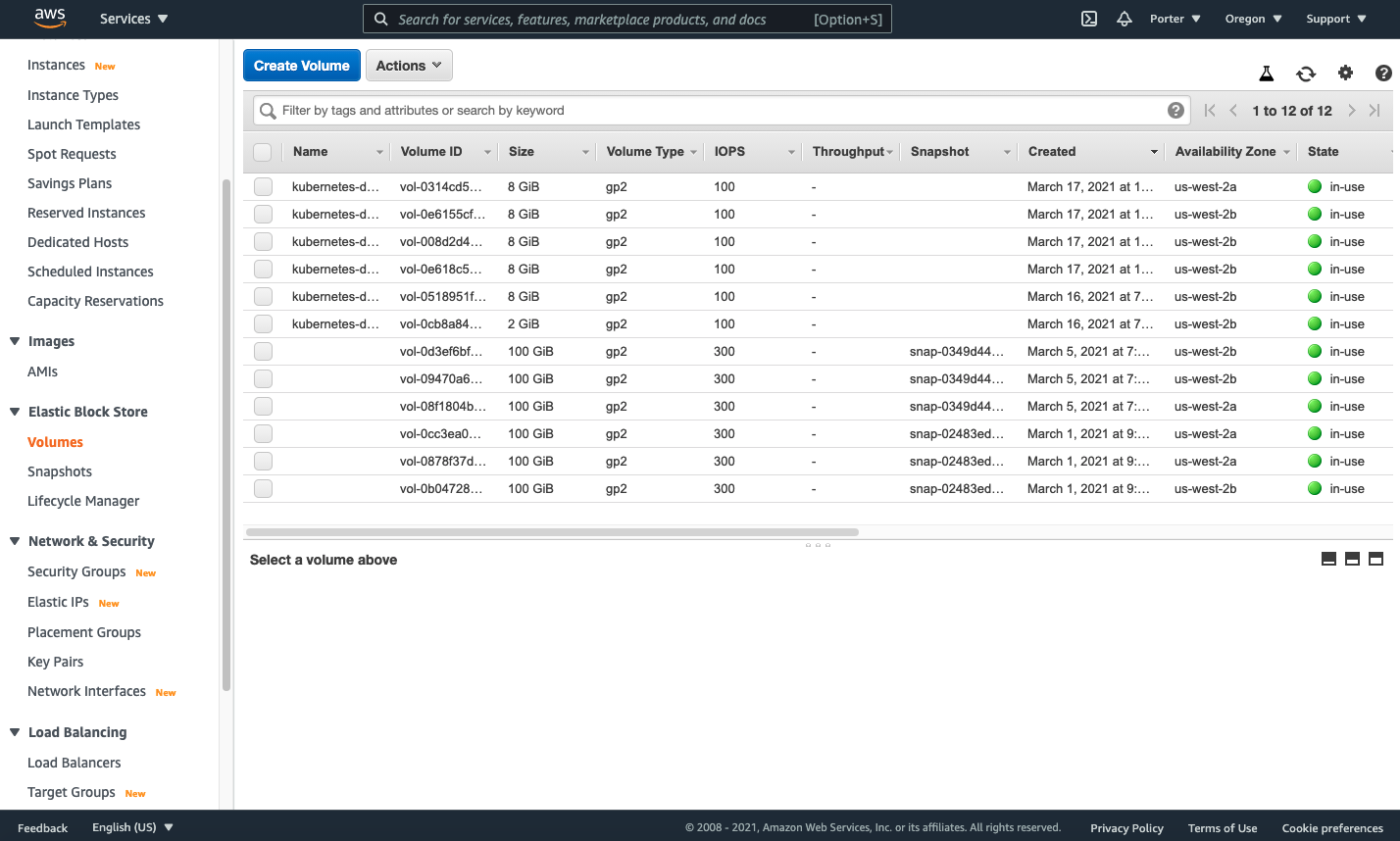
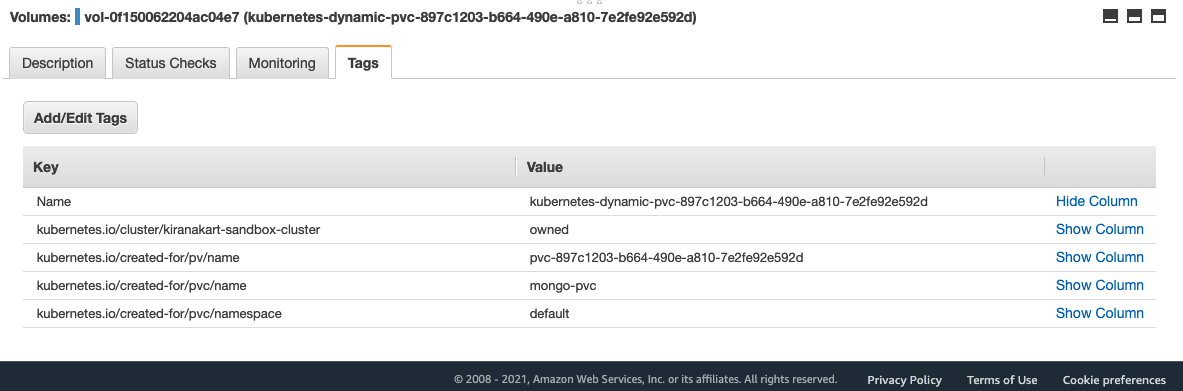
Click on the volume and navigate to the Tags tab to see which deployment the volume belongs to. You can modify, delete, and make a snapshot of this volume from the AWS console.