
https-and-custom-domains.md 14 KB
Porter secures application endpoints with HTTPS and sets up custom domains using cert-manager and lets-encrypt. Below are the steps to set up custom domains on each cloud provider.
Amazon Web Services (AWS)
Porter provisions a EKS cluster and an ECR registry in your AWS account by default. Along with these resources, it also deploys both the nginx-ingress controller and cert-manager on the provisioned cluster - there is no need to separately install these components.
Setting up HTTPS Issuer
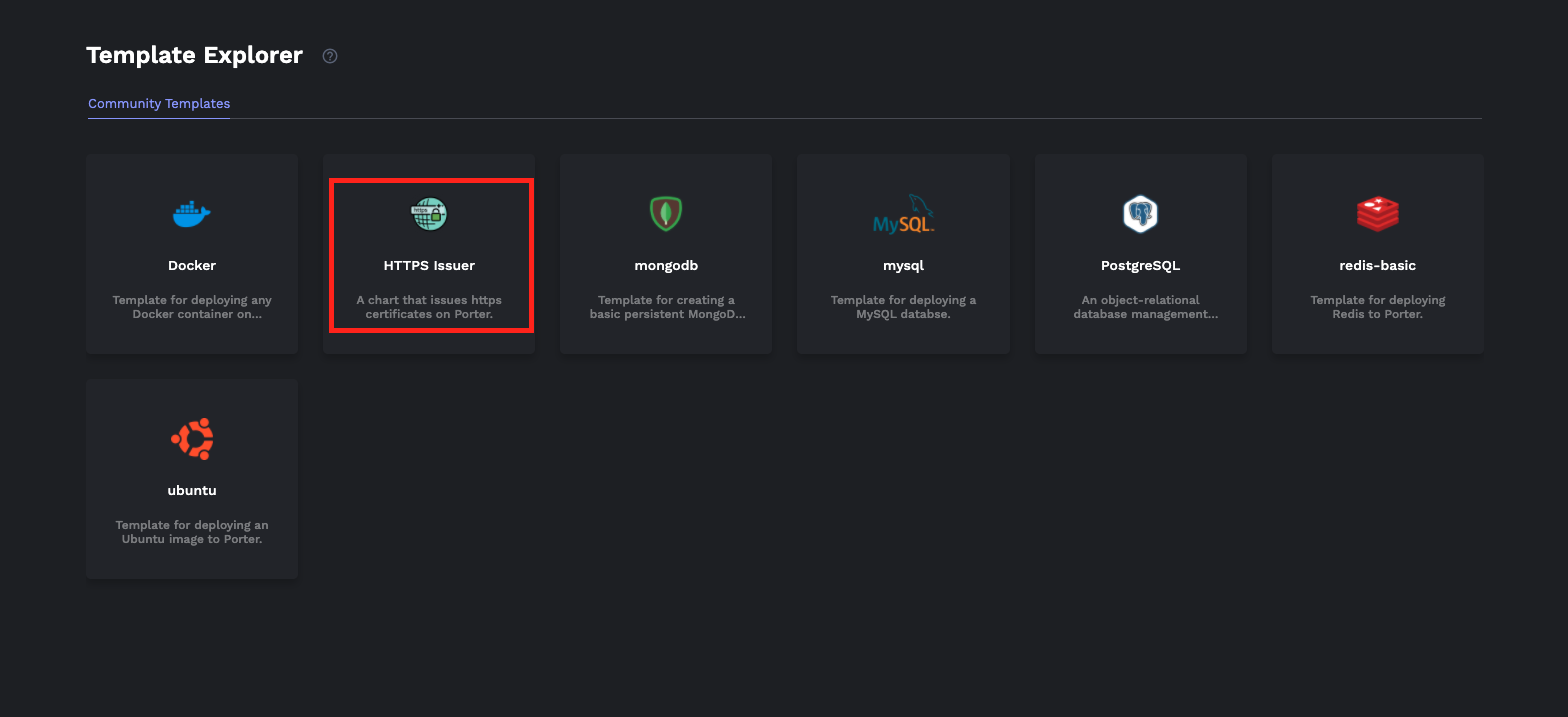
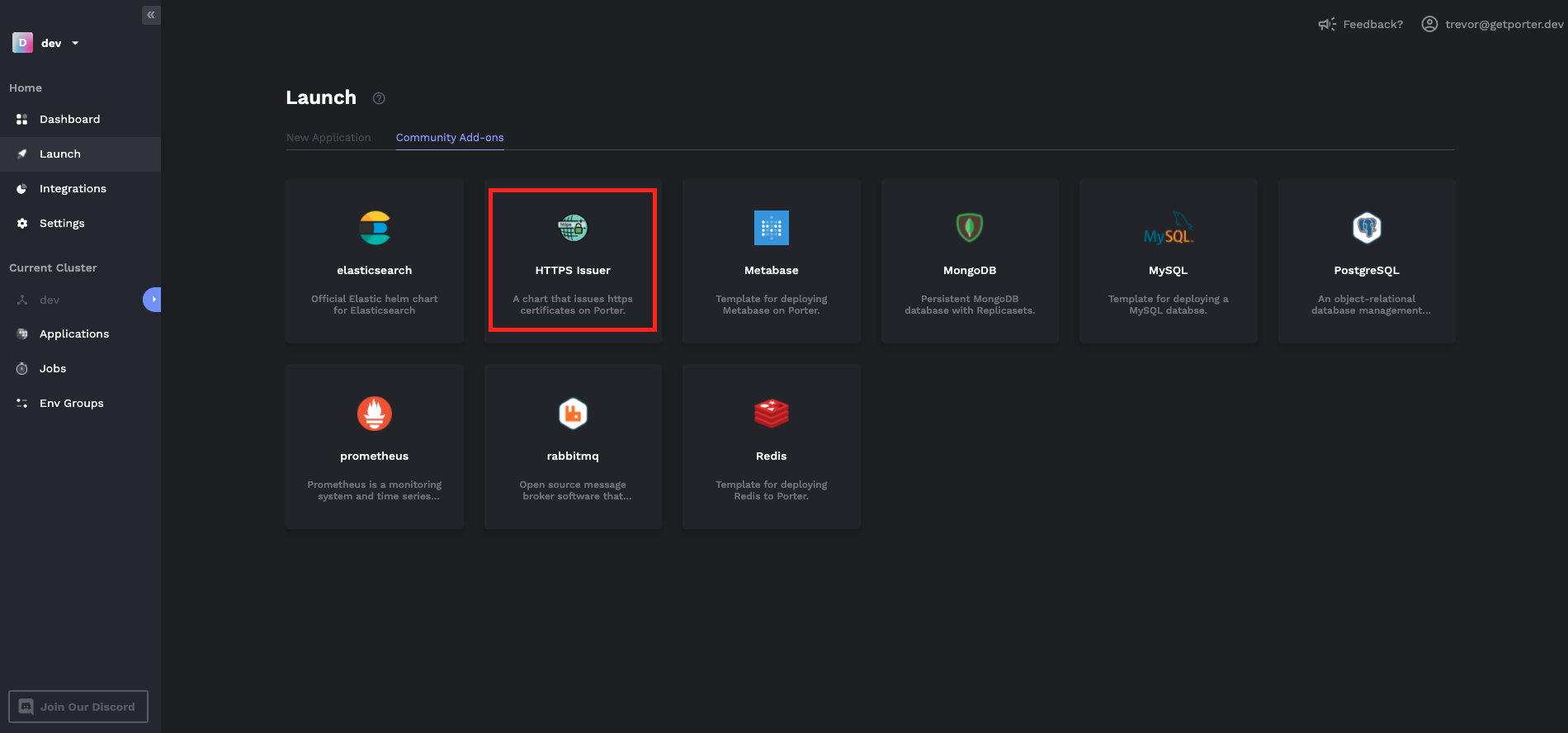
- Navigate to Templates tab and select the HTTPS issuer.
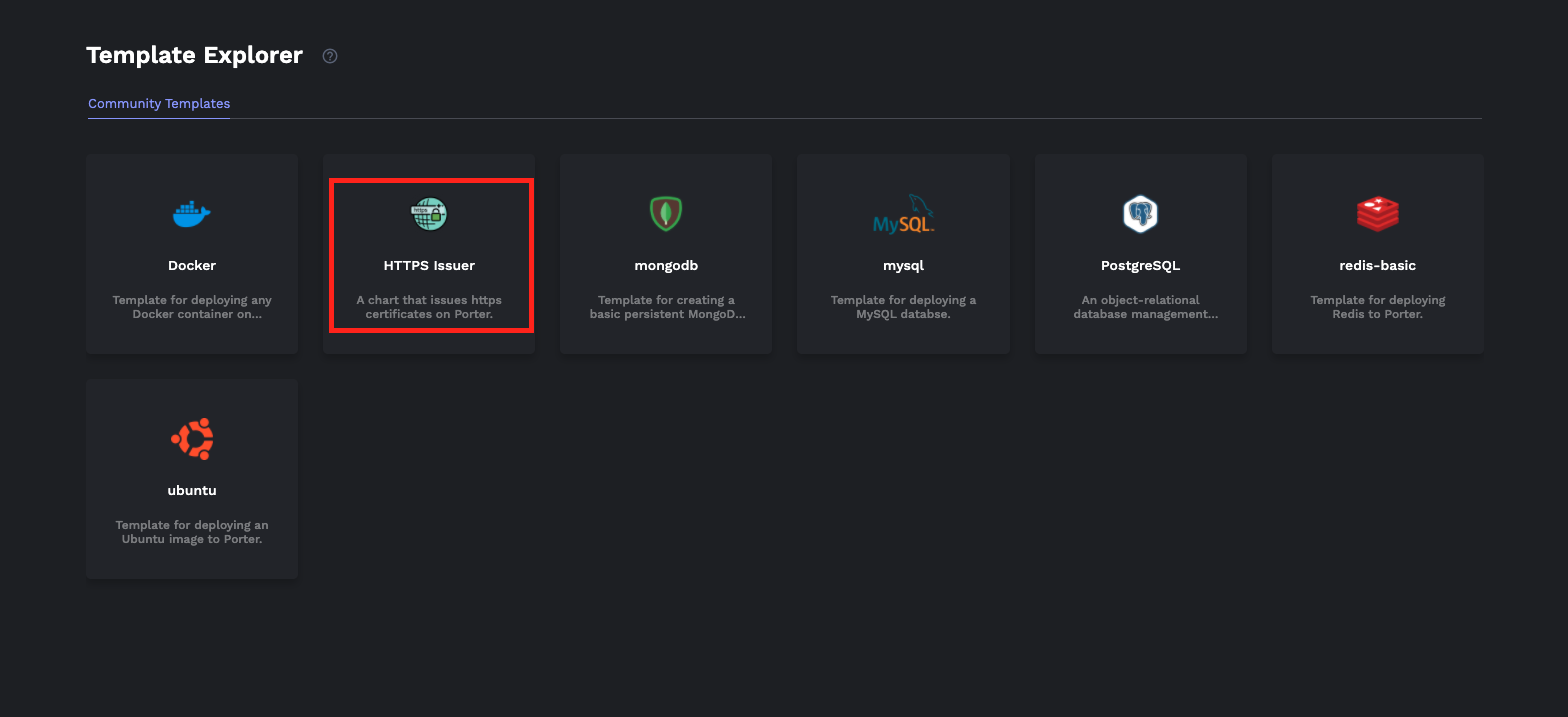
- From the Launch Template view, select the
cert-managernamespace. Enter the email you'd like to be contacted for HTTPS certificate related notifications, then hit Deploy. Now the cluster is ready to issue certificates for your endpoints.
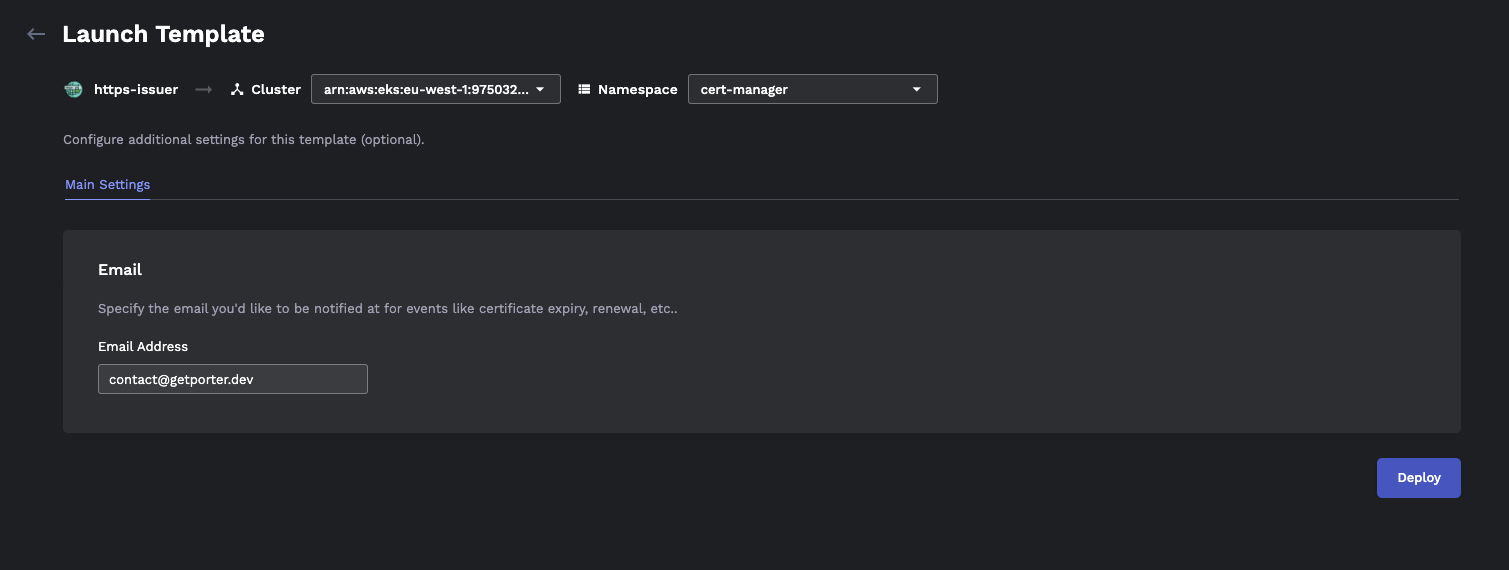
Follow the next section to start deploying with HTTPS and custom domains.
Managing DNS
Before you can secure docker containers with HTTPS, you need to first set up appropriate DNS records in your DNS provider. When Porter creates a Kubernetes cluster on AWS, it also creates a load balancer. We will create either a CNAME or an ALIAS record that points to the DNS name of that load balancer.
Using Route 53
To set up HTTPS on AWS via Porter on domain apex that is not a subdomain (e.g. getporter.dev ), we recommend you use Route 53 to manage DNS because it supports ALIAS records. Load Balancers on AWS are not assigned a static IP, which means your DNS record must point to a DNS name rather than an IP address. Route 53 supports ALIAS records that let you create an A record that points to another domain instead of an IP address. There are other DNS providers that support this feature, so please check with your DNS provider whether this is possible first.
If you've purchased your domain through another service like GoDaddy or Namecheap, you can still manage your DNS with Route 53 by simply changing the nameservers of your purchased domain. Please follow this guide to manage your existing domains with Route 53.
📘 ALIAS records are not necessary for subdomains
It is not necessary to use Route 53 or any DNS provider that supports ALIAS records if you only want to host subdomains on Porter. ALIAS records are only necessary for the domain apex.
Set up DNS
- You must first find the DNS name assigned to the load balancer of you cluster. Navigate to the EC2 page in your AWS console, then select Load Balancing > Load Balancer from the sidebar. Click on the load balancer to view its DNS name. Check the Instances tab to ensure the load balancer is assigned to the correct Kubernetes cluster.
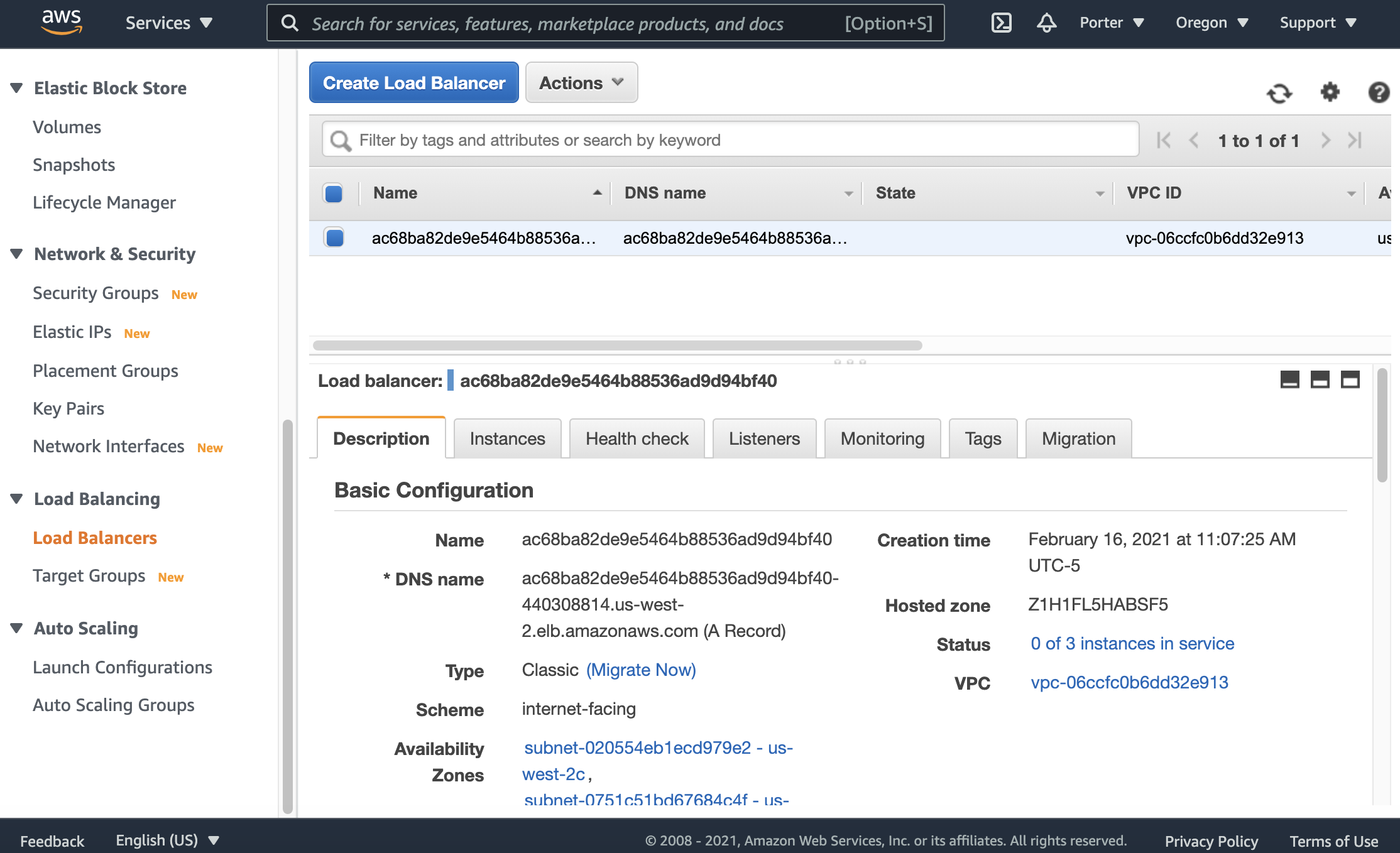
Set up a DNS record that points to the DNS name copied from above. If you are setting up a subdomain, follow step 3. If you're setting up a domain apex (i.e. root domain), follow step 4. Note that in this tutorial, I will be using Amazon's Route 53 as an example DNS provider.
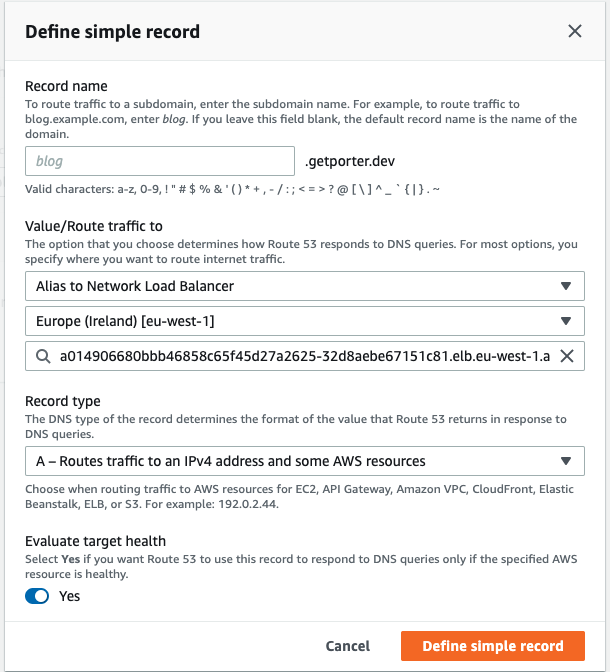
(For Subdomains) Click on Define simple record and create a CNAME record that points a subdomain to the URL you have copied from step 2. Make sure you exclude the protocol
http://and any trailing/from the URL string.
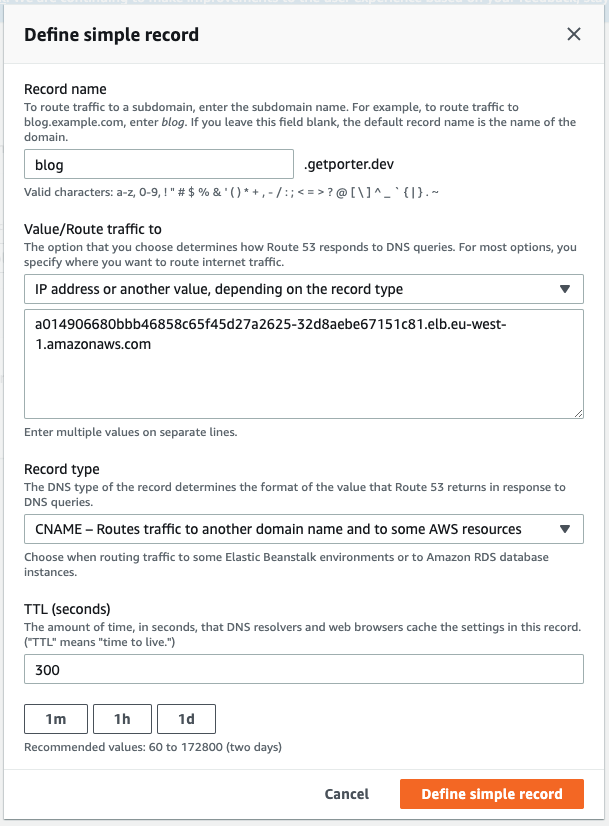
- (For the domain apex - the root domain that is not a subdomain) Leave the Record name empty and select the Alias to Network Load Balancer option. After you choose the region your EKS cluster is provisioned in, you will be able to select the URL you've copied from Step 2 from the dropdown menu. Set Record type as A record and create the record.
🚧 It may take up to 30 minutes for DNS records to propagate
After you complete the previous steps, it might take up to 30 minutes for DNS records to fully propagate. Please wait before deploying your applications until the DNS propagation is complete. You can check this using tools like dnschecker.org
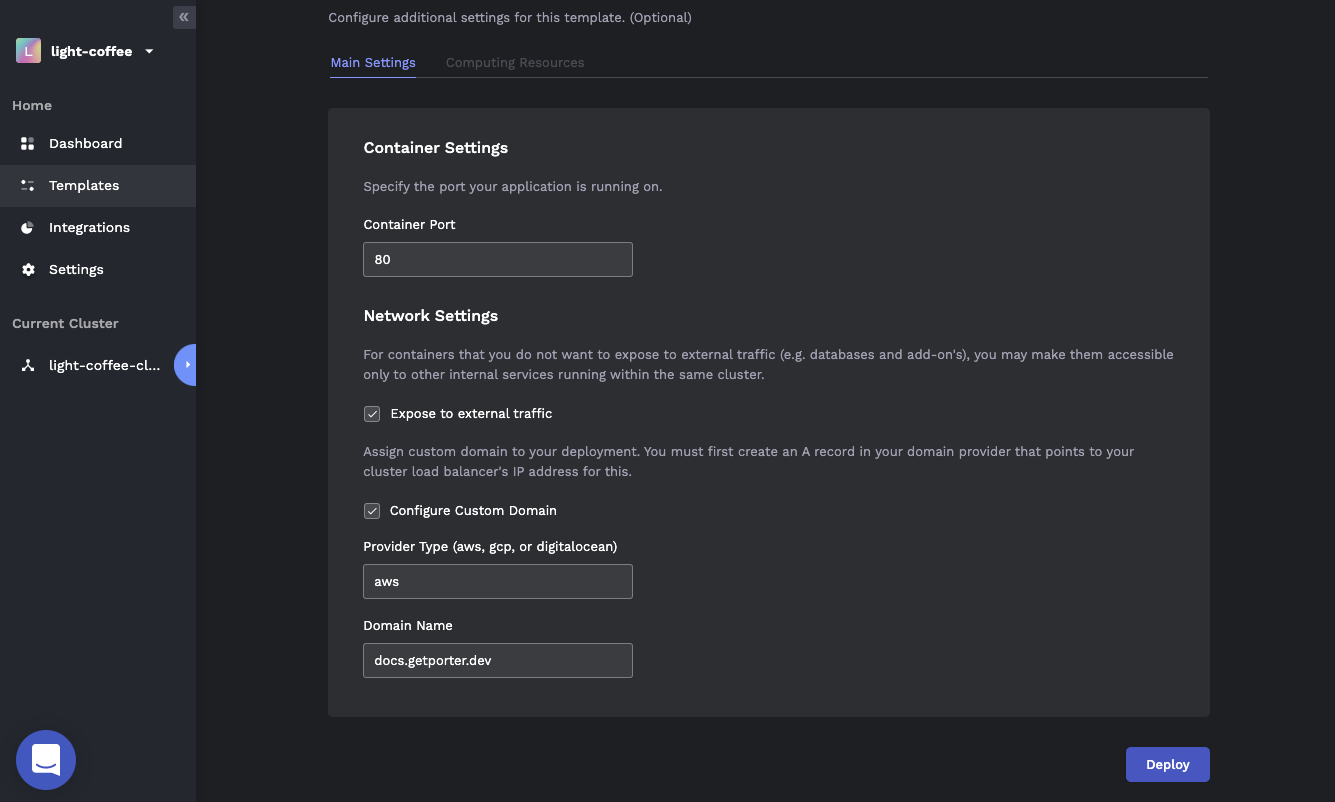
- Almost there! Now return to the Porter Dashboard and deploy the Docker template with custom domain. Click on the Configure Custom Domain option, then enter the Domain Name you made the DNS record for, then hit Deploy. It may take a few minutes for certificates to be approved. After the certificate has been approved, you will see your application running on the custom domain secured with HTTPS.
- Optional. To point the
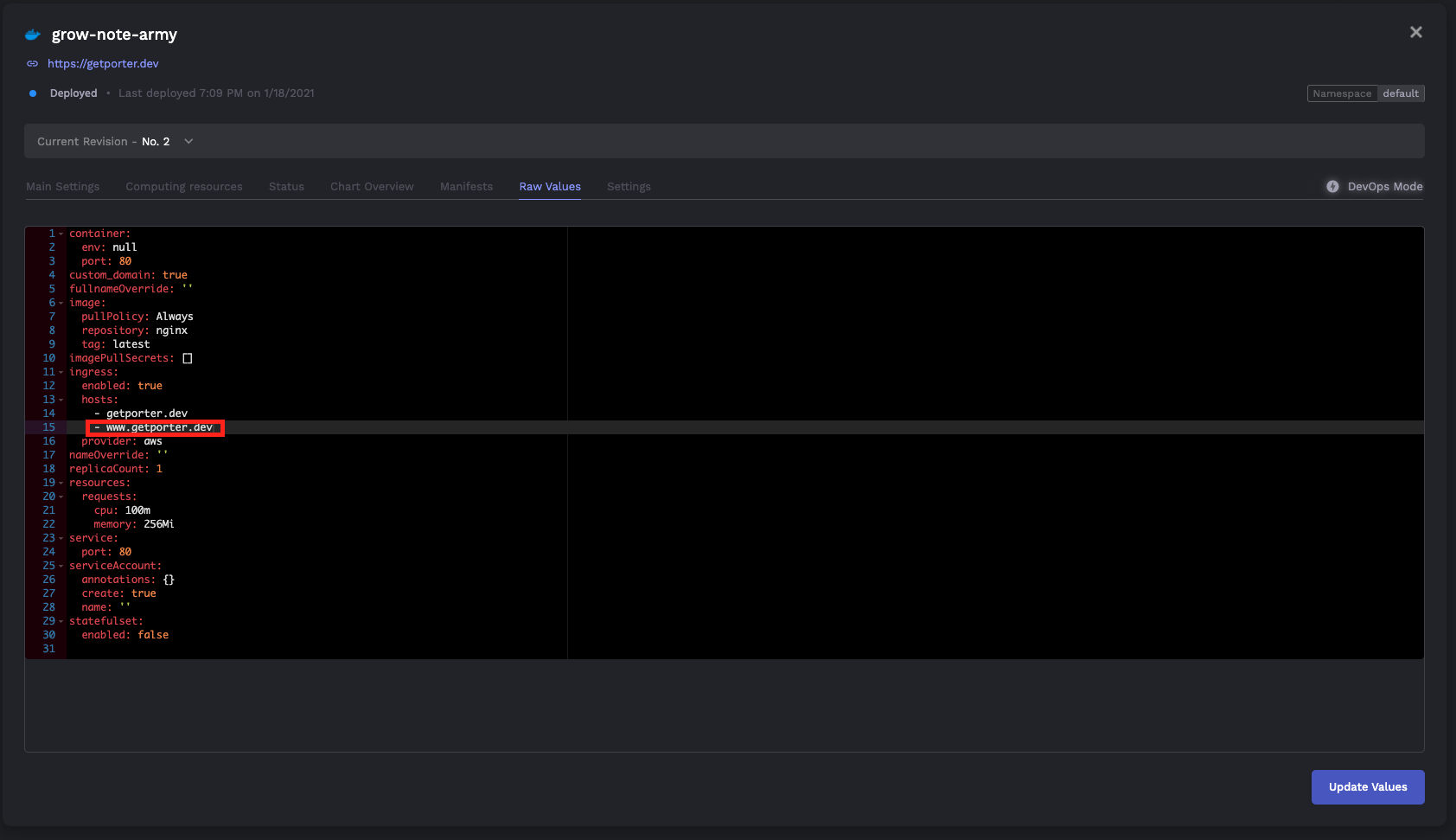
wwwsubdomain to the deployed container along with the domain apex, you need to create a CNAME record for thewwwsubdomain just like you did in step 5, then configure the Ingress of the deployed container to accept both the root domain and thewwwsubdomain.
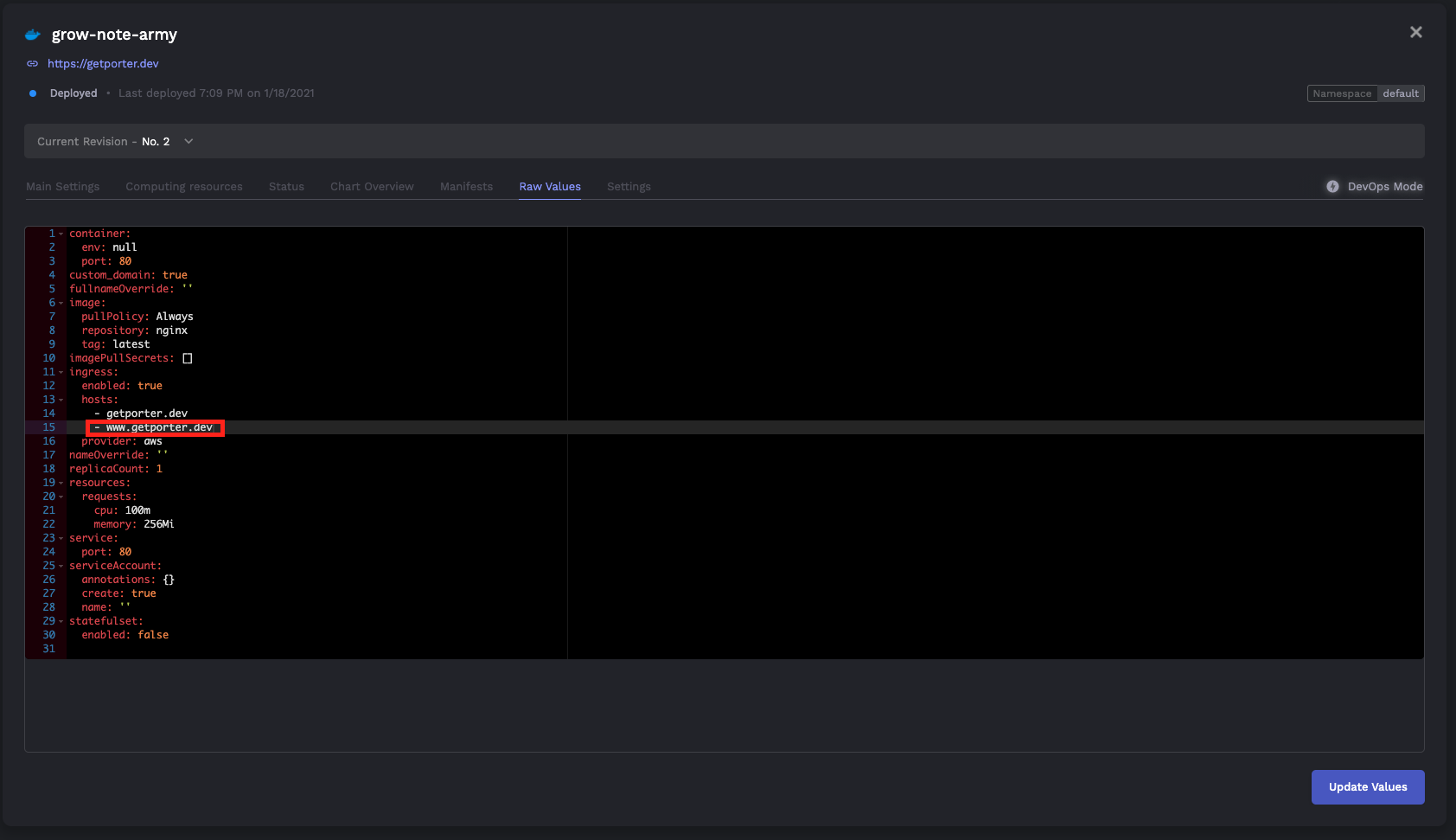
To do this, toggle DevOps Mode on your deployed container and select the Raw Values tab. Add the www subdomain to the ingress.hosts field as shown below, then hit Deploy. Again, it may take up to 15 minutes for the change to be reflected.
Digital Ocean
Digital Ocean's Kubernetes cluster automatically assigns a load balancer with static IP to all ingresses of the cluster. You simply have to create an A record that points to the static IP of this load balancer.
- Once Porter has provisioned the cluster on Digital Ocean, you will see a load balancer created on the Digital Ocean dashboard. Copy the static IP of this load balancer.
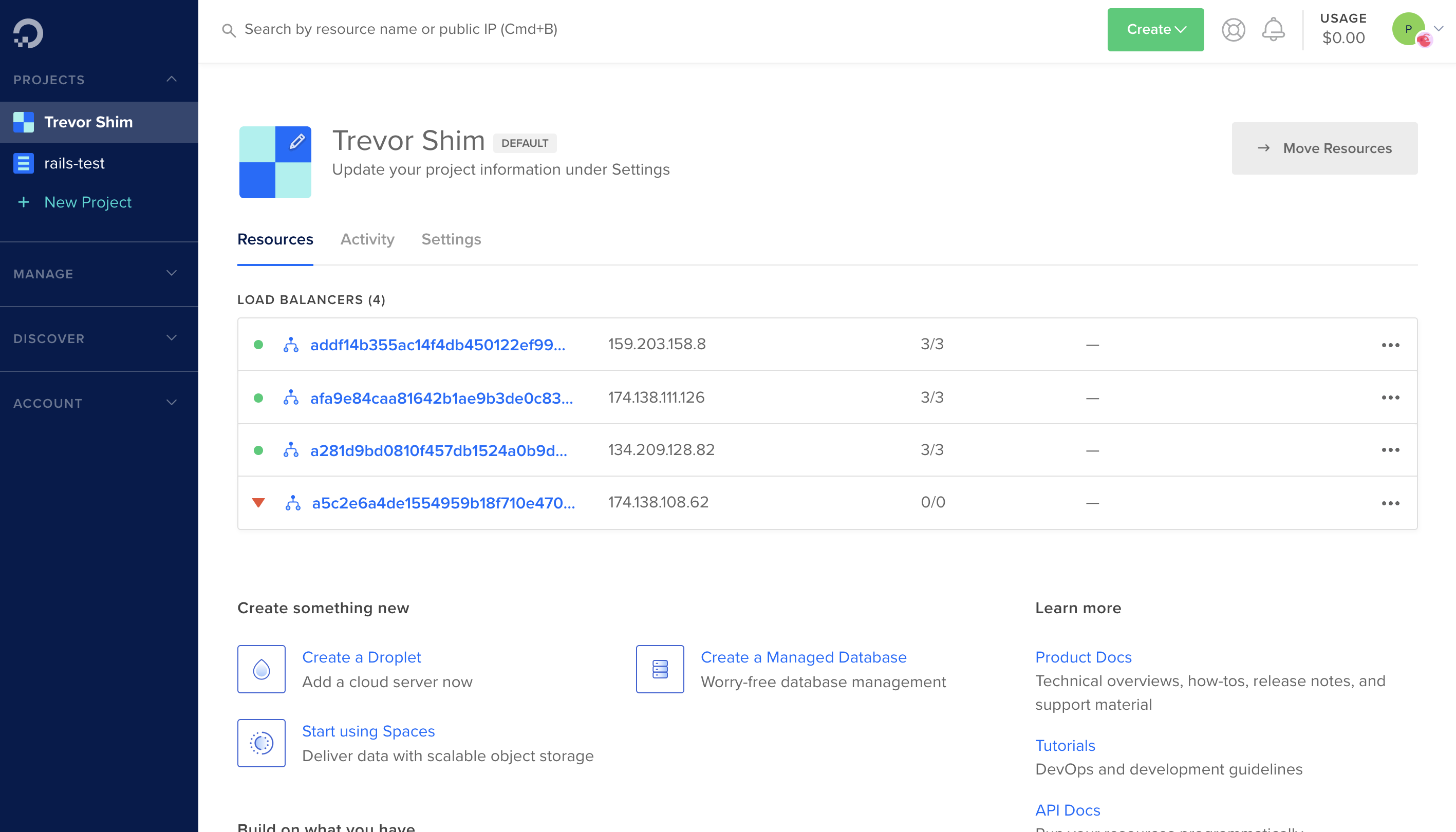
Go to your DNS provider and create an A record that points your domain to the static IP copied above. It may take around 15 minutes for DNS propagation to complete. You can use the DNS checker to view progress.
Once DNS propagation is complete, deploy the HTTPS Issuer template to the
cert-managernamespace from the Porter Dashboard. Enter the email you'd like to receive any updates about the certificate that will be issued (e.g. expiry date).
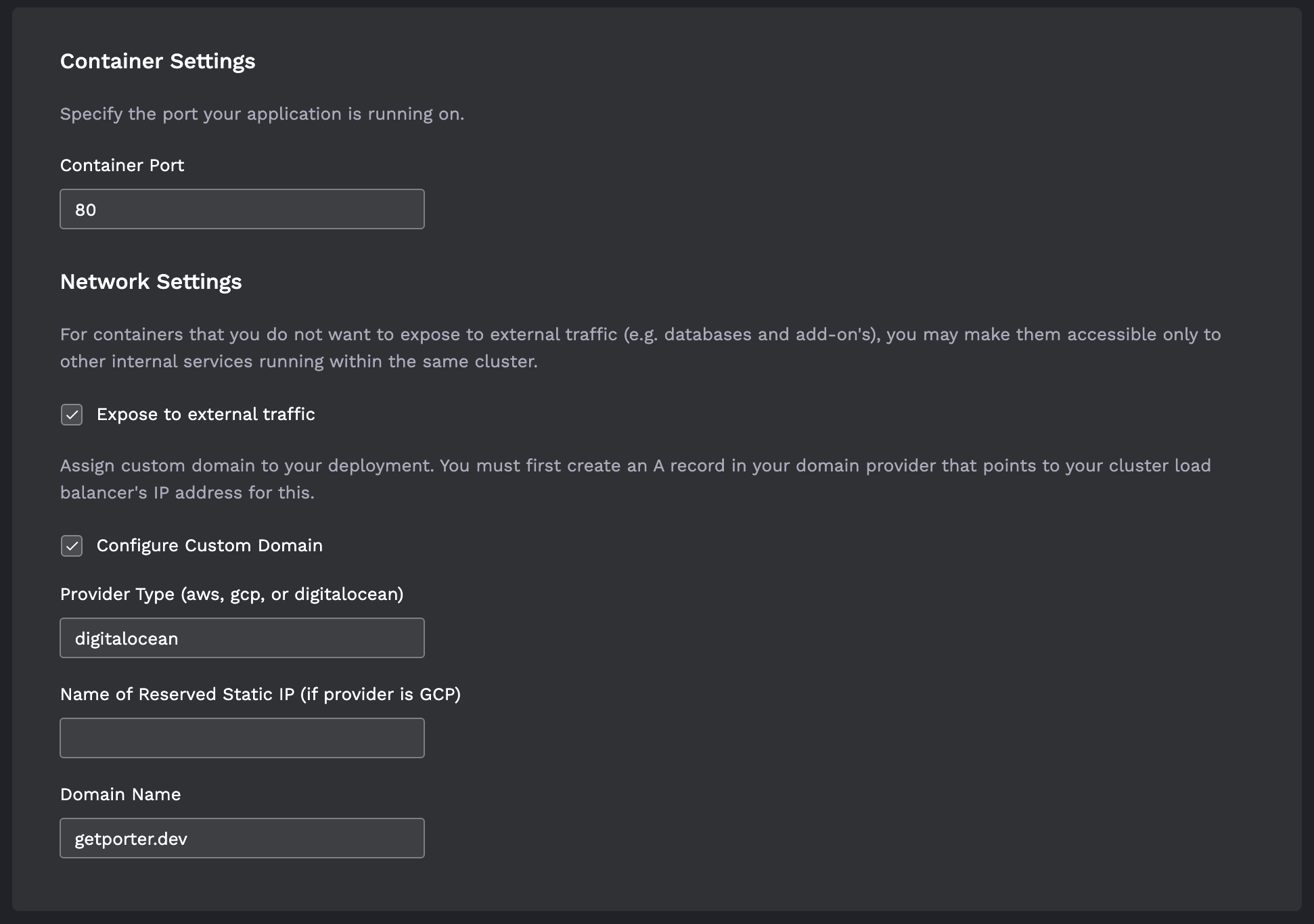
- Deploy a Docker template from the Porter dashboard with the Configure Custom Domain option. Type in "digitalocean" as your provider and your domain name without the protocol (i.e. https:// or http://), then hit deploy.
- Optional. To point the
wwwsubdomain to the deployed container along with the domain apex, you need to create an A record for thewwwsubdomain just like you did in step 2, then configure the Ingress of the deployed container to accept both the root domain and thewwwsubdomain.
To do this, toggle DevOps Mode on your deployed container and select the Raw Values tab. Add the www subdomain to the ingress.hosts field as shown below, then hit Deploy. Again, it may take around 15 minutes for the change to be reflected.
Google Cloud Platform (GCP)
During cluster provisioning, Porter automatically reserves a static IP and assigns it to a load balancer that forwards traffic to the nginx-ingress controller. To configure custom domains and HTTPS, you simply need to create an A record that points your domain to the static IP that has been reserved.
Visit the External IP addresses section on Google Cloud Console. You'll see an IP with a name that looks like
k8s-${cluster_name}-cluster-lb. Copy this IP address.Go to your DNS provider and create an A record that points your domain to the static IP you have copied from step 1. It may take around 15 minutes for DNS propagation to complete. You can use the DNS checker to view progress.
Once DNS propagation is complete, deploy the HTTPS Issuer template to the
cert-managernamespace from the Porter Dashboard. Enter the email you'd like to receive any updates about the certificate that will be issued (e.g. expiry date).
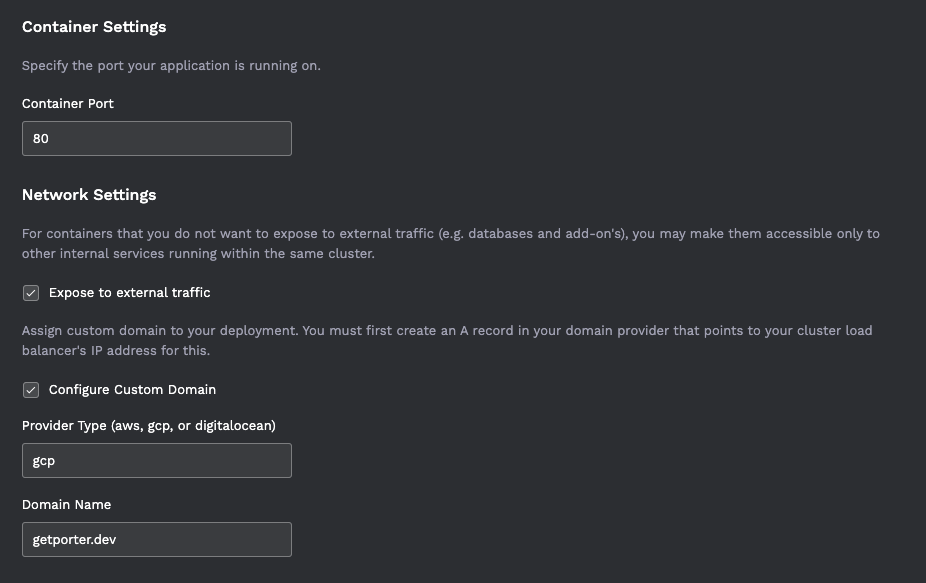
- After you've deployed the HTTPS Issuer, deploy a Docker template from the Porter dashboard with the Configure Custom Domain option. Type in "gcp" as your provider and your domain name without the protocol (i.e. https:// or http://). Then hit deploy.
- Optional. To point the
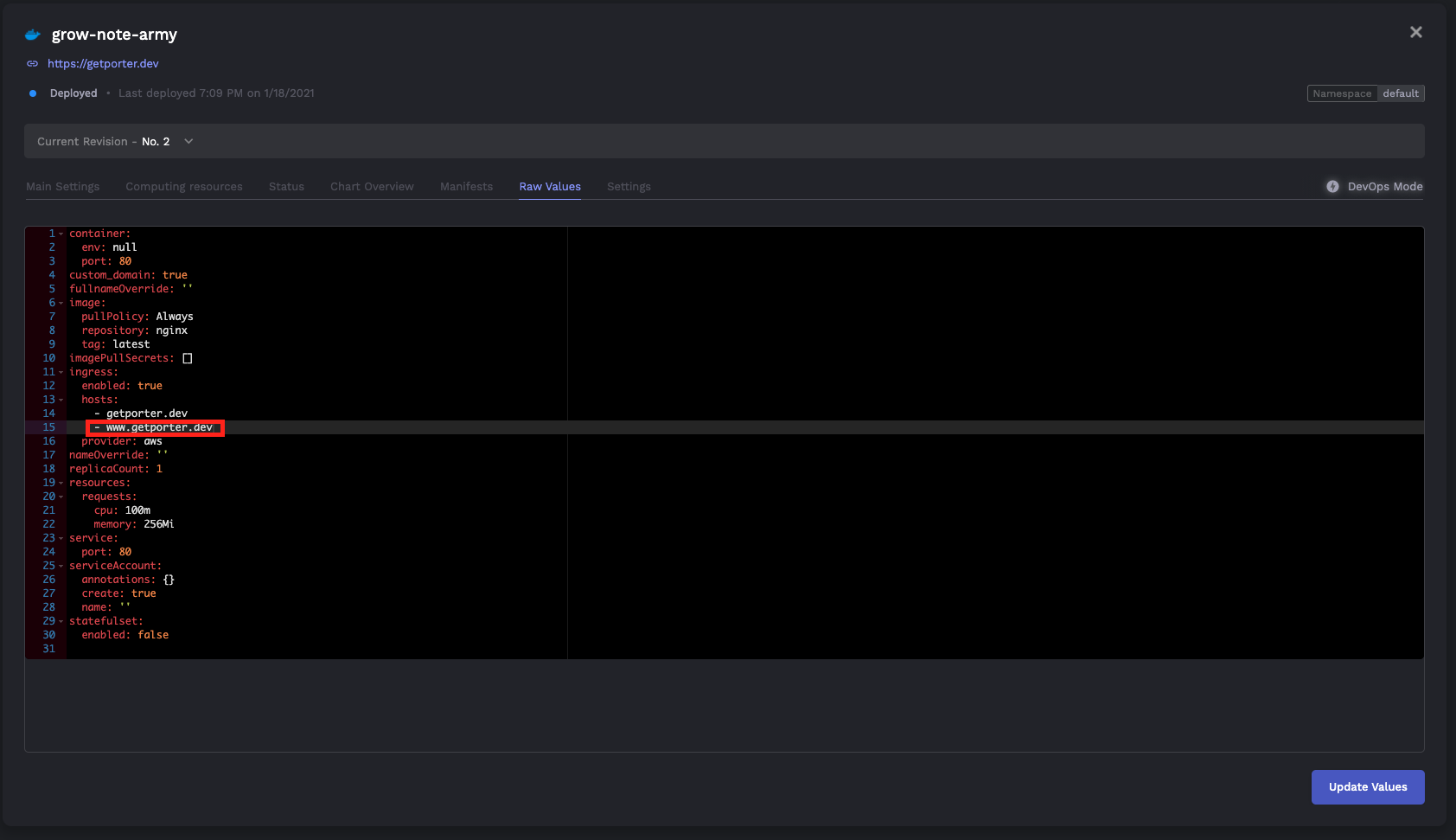
wwwsubdomain to the deployed container along with the domain apex, you need to create an A record for thewwwsubdomain just like you did in step 2, then configure the Ingress of the deployed container to accept both the root domain and thewwwsubdomain.
To do this, toggle DevOps Mode on your deployed container and select the Raw Values tab. Add the www subdomain to the ingress.hosts field as shown below, then hit Deploy. Again, it may take around 15 minutes for the change to be reflected.
Wildcard Domains
It is possible to set up a wildcard domain so that you don't have to keep creating DNS records every time you create a deployment. At the moment, this is only supported on Digital Ocean clusters.
Digital Ocean
Prerequisites
From your DNS provider, point the nameservers of your domain to Digital Ocean. You can find provider specific ways to do this here.
Create a personal access token on Digital Ocean. Visit this direct link to create a token. If this doesn't work, see this documentation.
Setting up the Wildcard Domain
Once the nameservers of your domain have been swapped out, create an A record for your wildcard domain. Make sure that the A record you create points at the load balancer attached to the Kubernetes cluster provisioned through Porter.
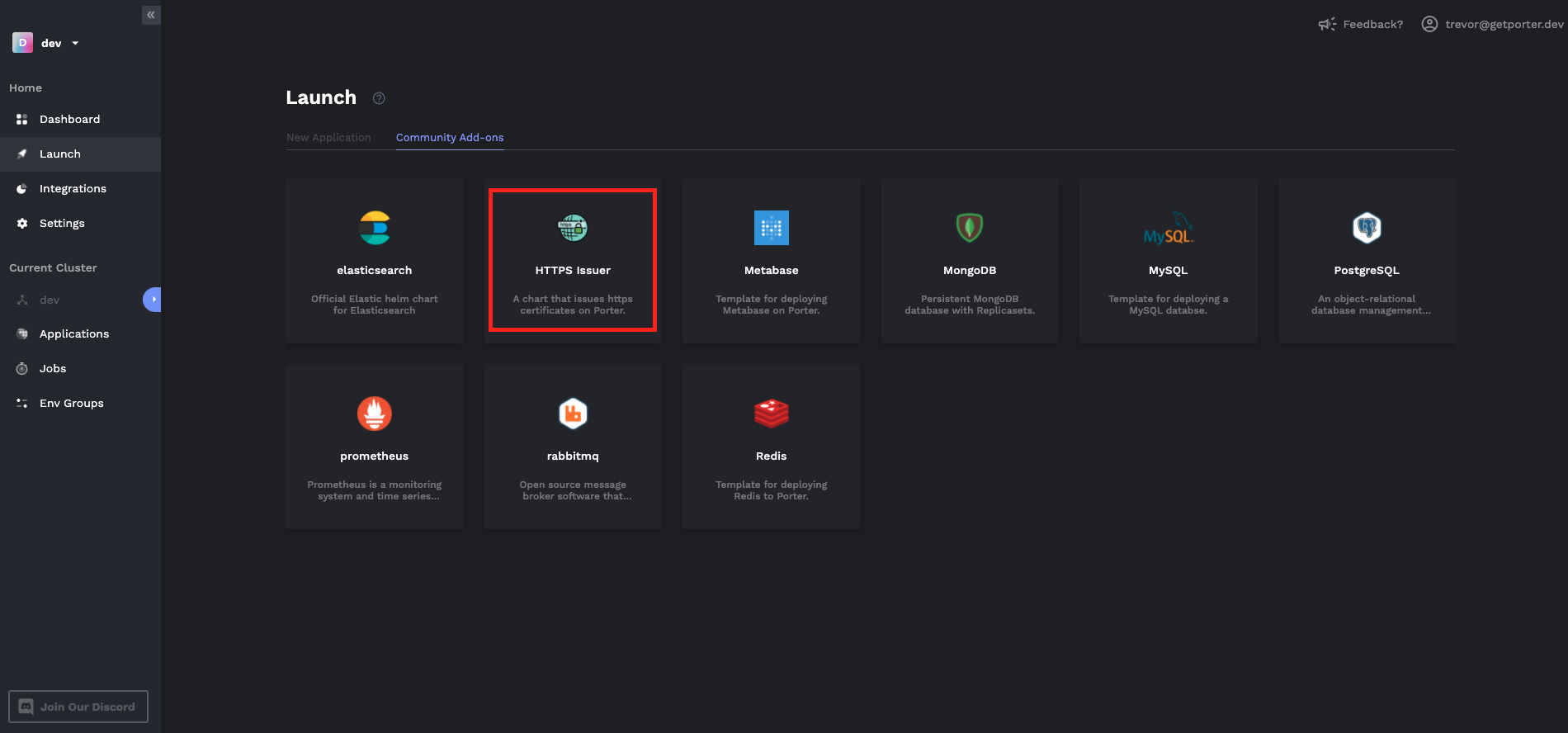
Once DNS propagation is complete, deploy the HTTPS Issuer template to the
cert-managernamespace from the Porter Dashboard.
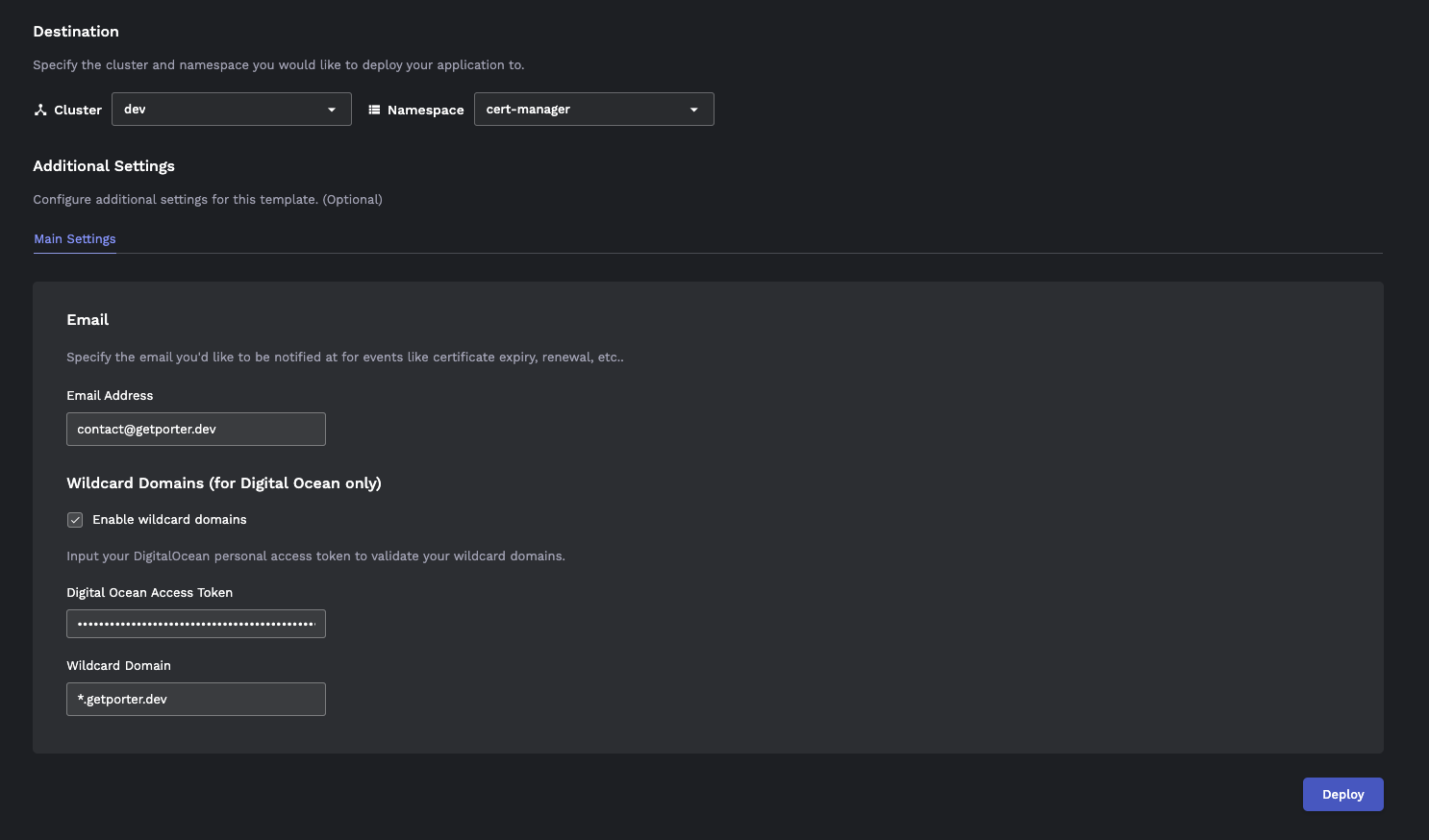
- Enter the email you'd like to receive any updates about the certificate that will be issued (e.g. expiry date). Enable the wildcard domain, copy your personal access token and input the wildcard domain you have made the A record for in step 1. Then hit the Deploy button.
It might take a few minutes for the HTTPS Issuer instance to be ready. To be safe, wait 5~10 minutes before you start creating deployments that use the wildcard domain.
Using the wildcard domain
- From the Web Service view, click Enable Custom Domains. Put in the name of the domain you'd like to expose your web service on and make sure it matches the wildcard domain you have configured in the previous section. Then toggle the Use wildcard domain option.
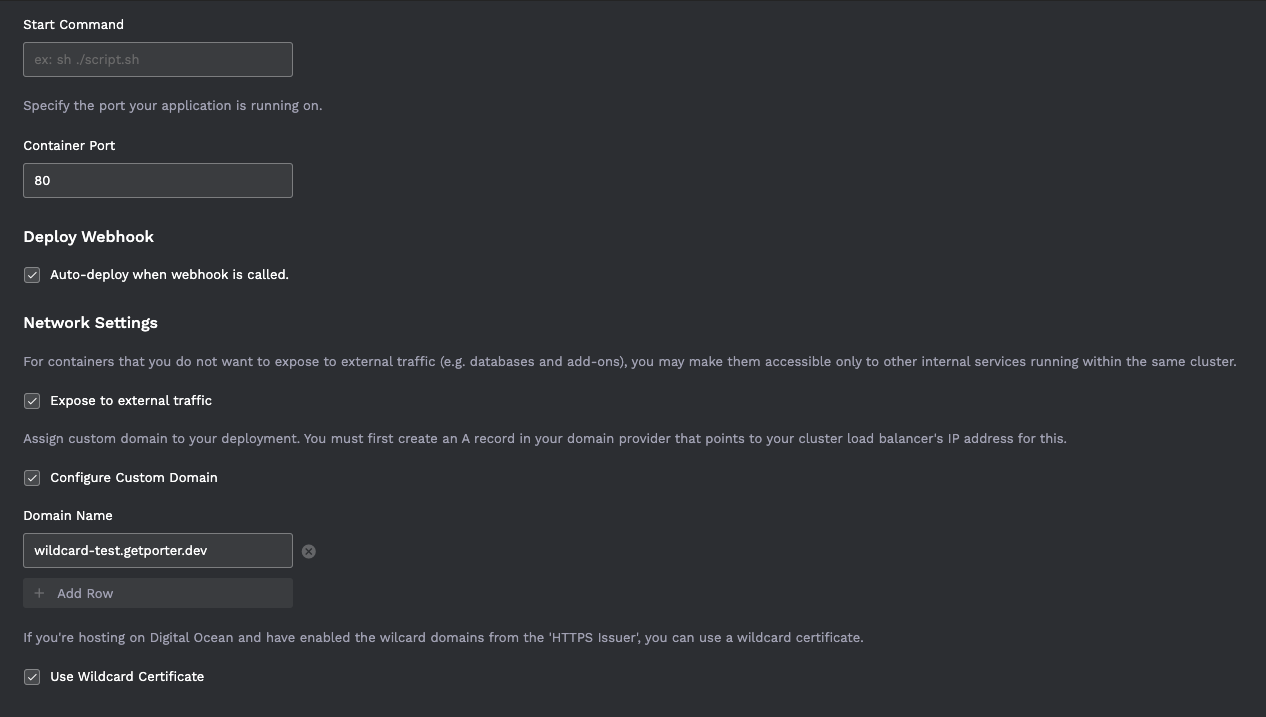
After you hit deploy, it might take a few minutes for the endpoint to be secured with HTTPS. Once that's done, you will be able to access endpoints on the domain you have specified.
With wildcard domain enabled, you can create deployments and expose them on domains without having to create another DNS record, as long as the domain matches the wildcard domain.
Choosing between A and CNAME records
A basic rule of thumb you can follow whilst trying to choose between setting up an A records as opposed to a CNAME record for your cluster, is to see how your cluster's load balancer is exposed to the Internet. If your load balancer exposes a public IP, you should use an A record for your custom domain that points to the public IP - as is the case with GKE. If your load balancer exposes a FQDN, then you should use a CNAME record - this is common with EKS clusters that use AWS Network Load Balancers/Application Load Balancers.