
gcp.md 4.4 KB
Quick Installation
Porter runs on a Kubernetes cluster in your own Google Cloud account. You can provision a cluster through Porter by providing the credentials of a GCP service account.
🚧
Quick Installation uses Owner permissions to set up Porter. You can optionally specify the minimum IAM policies for provisioning both a cluster and registry.
Prerequisites
To use Porter on GCP, you must first enable some APIs on your project.
- Navigate to the APIs & Services tab of your project.
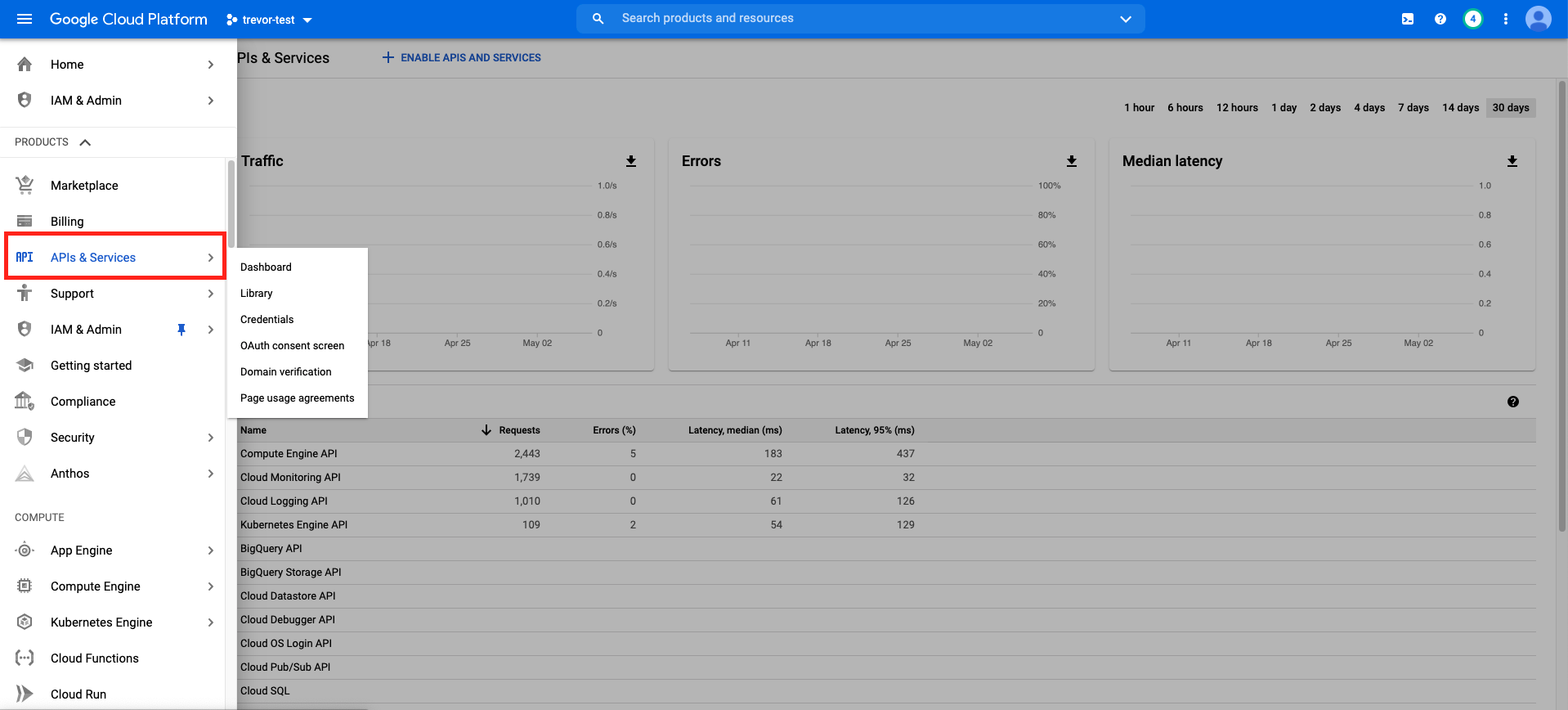
- Click on the Enable APIs and Services button at the top. This will bring up a catalog of APIs that you can enable on GCP. Enable the following four APIs:
- Compute Engine API
- Kubernetes Engine API
- Cloud Resource Manager API
- Container Registry API
It might take a few minutes for each of these APIs to be enabled. Once you can confirm that all four APIs are enabled from the APIs & Services tab, proceed to the next section.
Provisioning the Resources
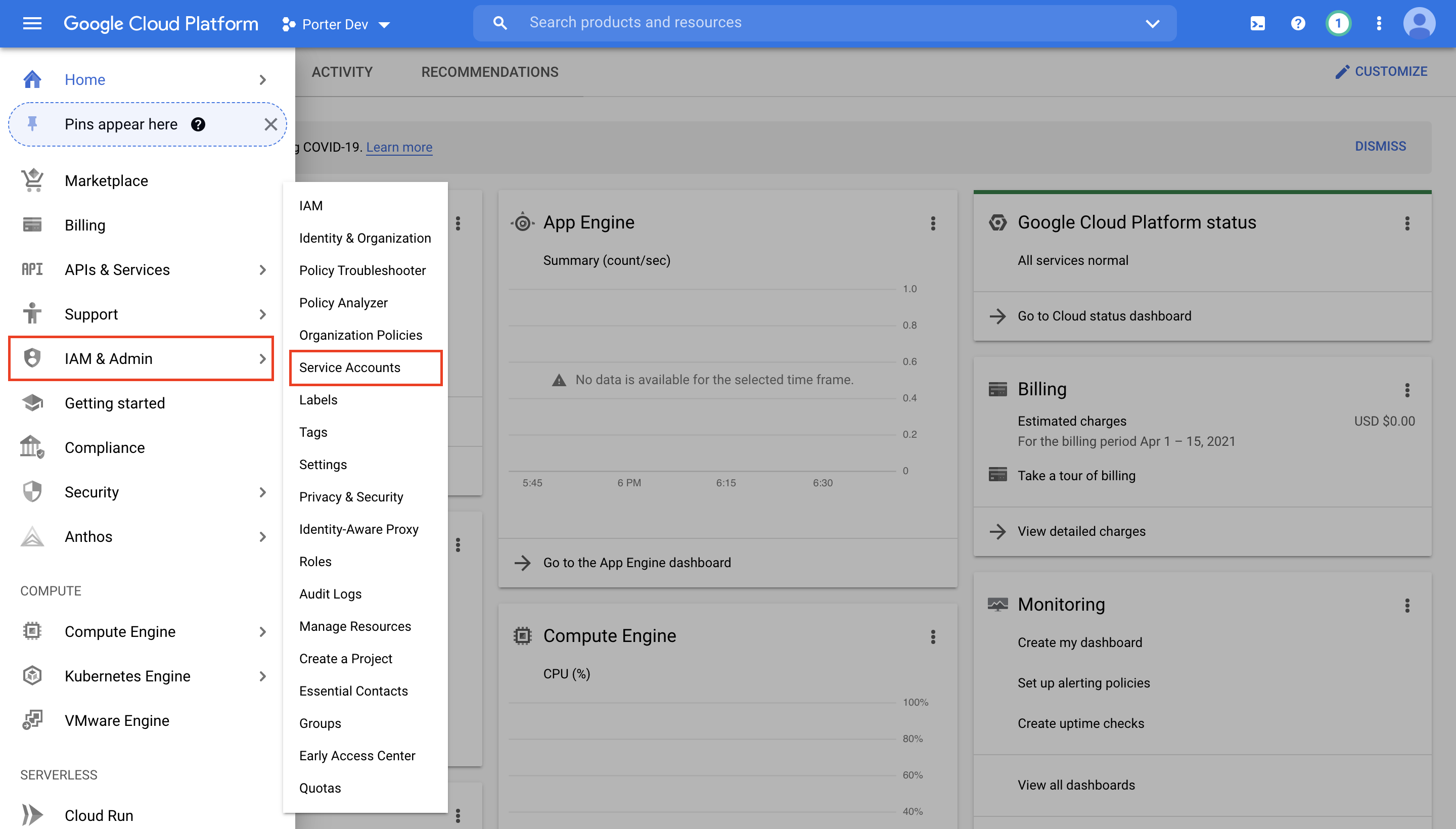
- First, go to your Google Cloud console and navigate to IAM & Admin -> Service Accounts:
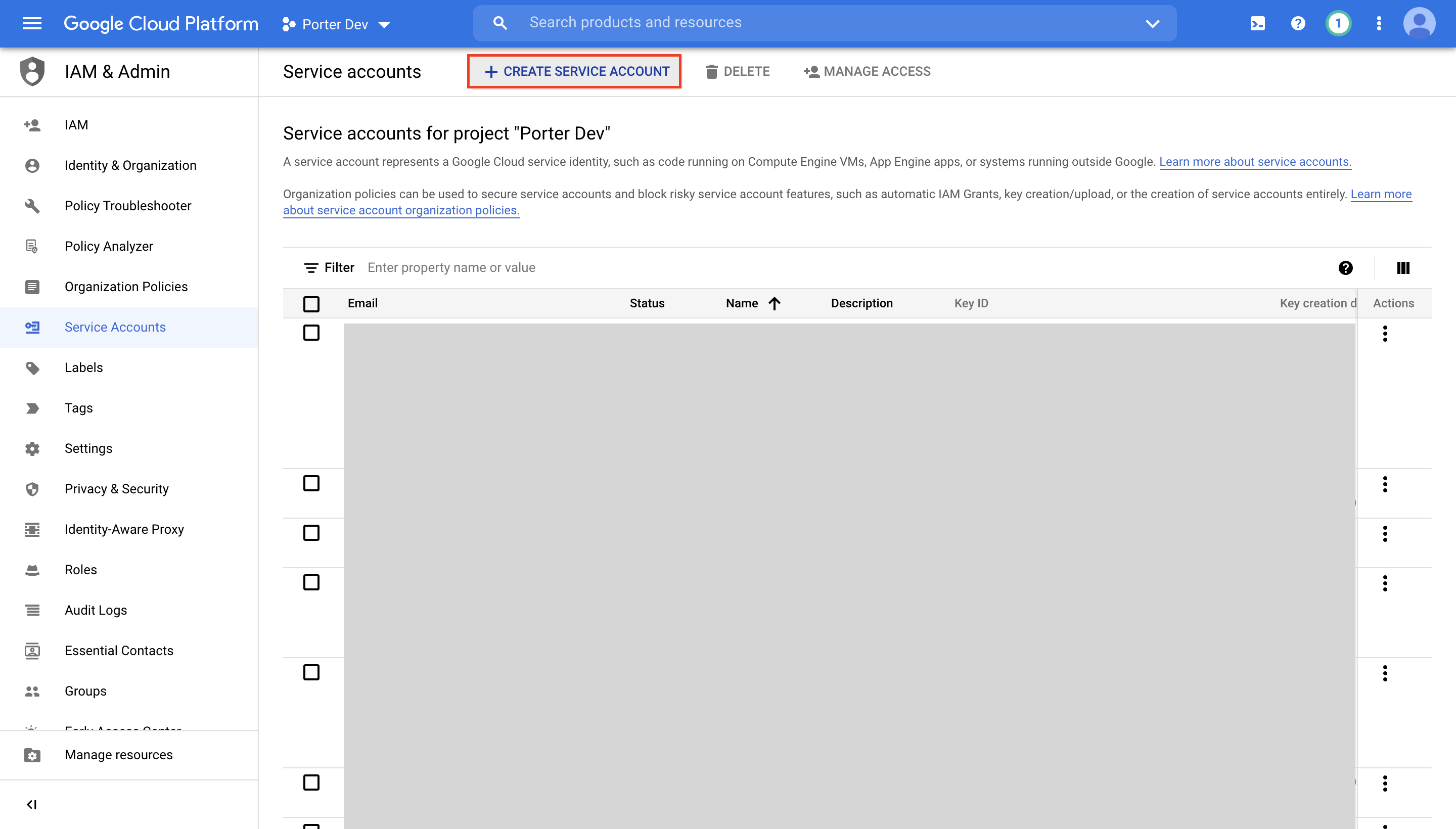
- Select Create Service Account:
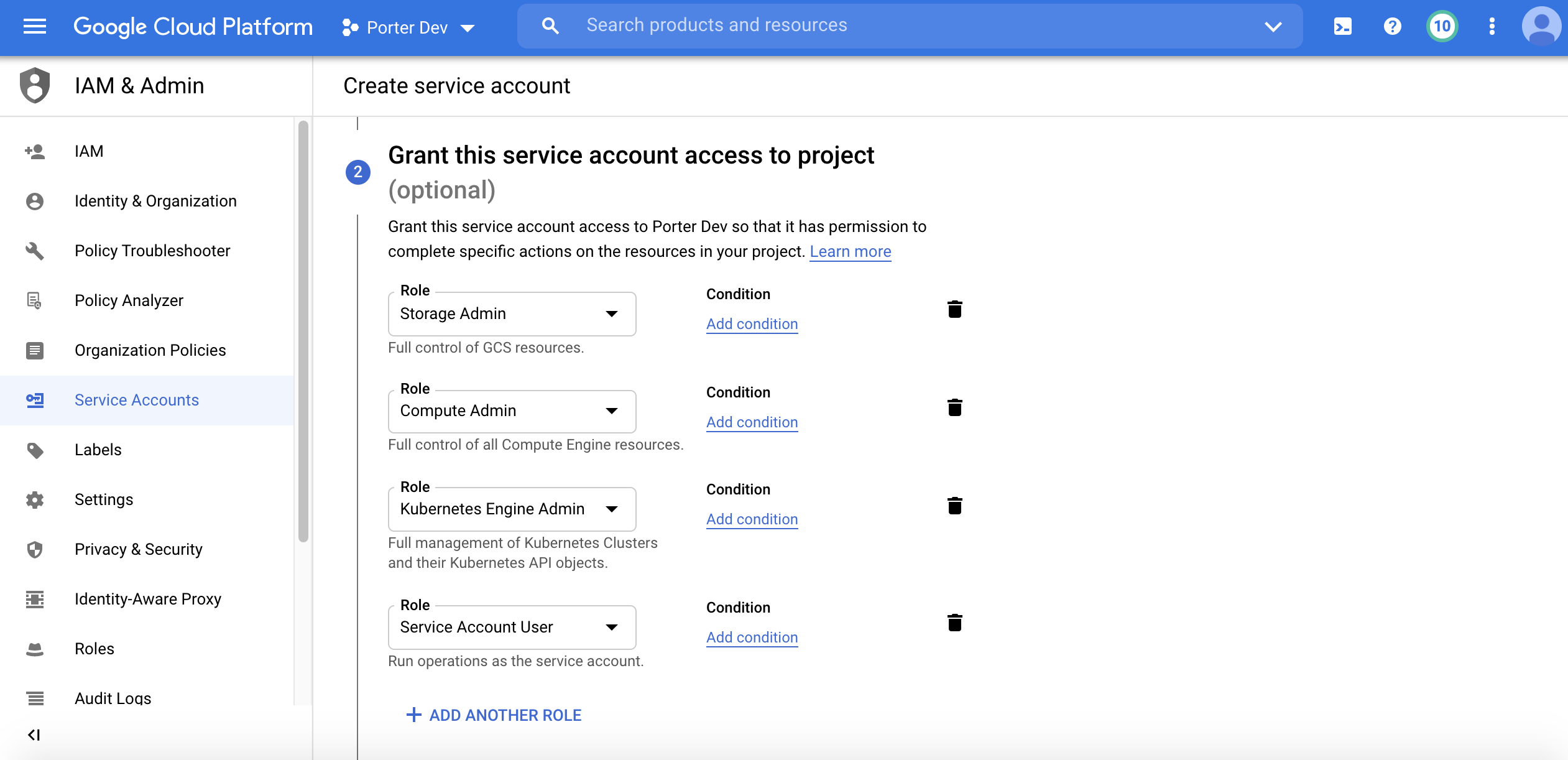
- After naming your service account, grant the service account these four permissions: Cloud Storage > Storage Admin, Compute Engine > Compute Admin, Kubernetes Engine > Kubernetes Engine Admin, and Service Accounts > Service Account User. Select Done to create the service account.
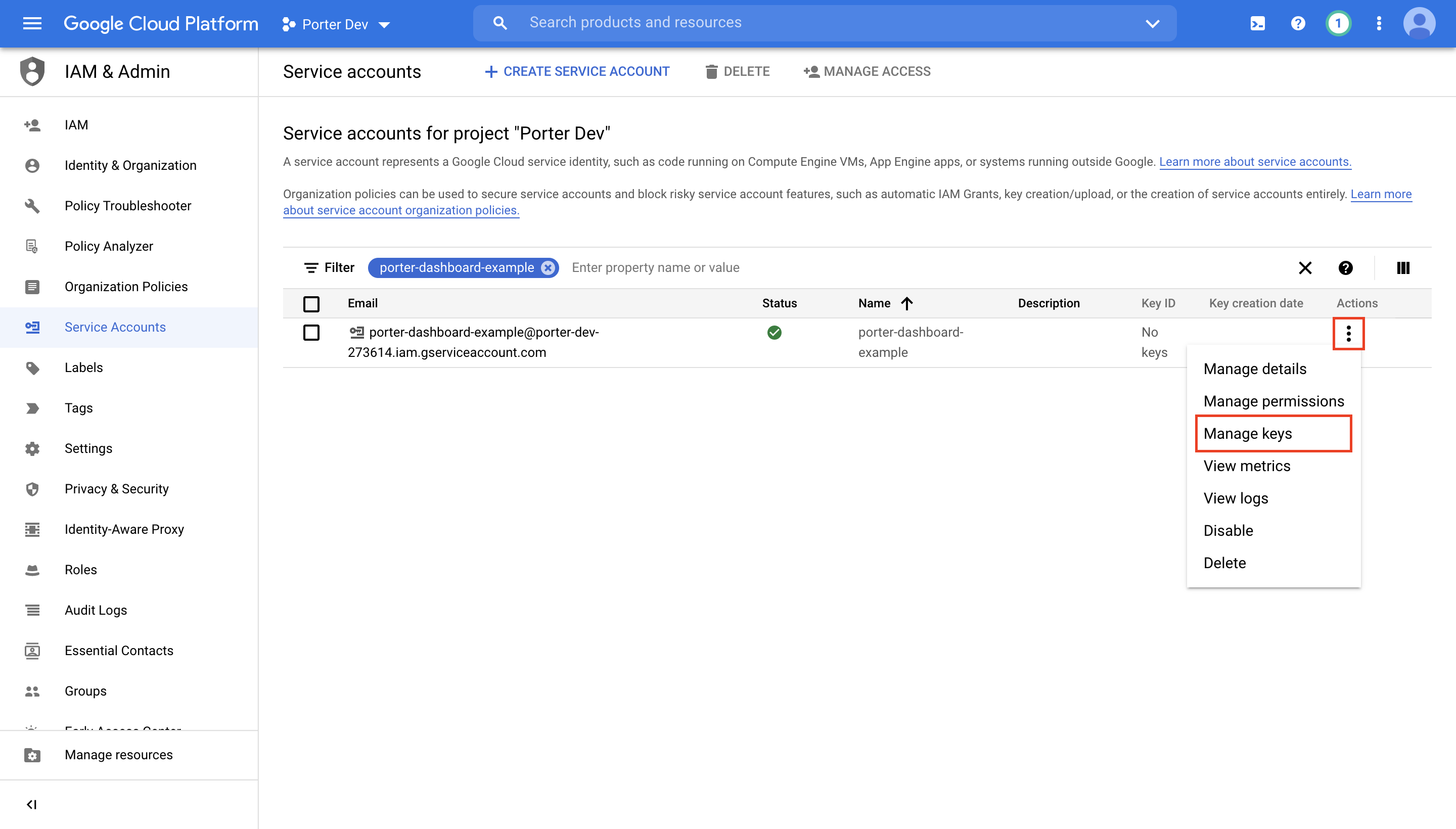
- Once the service account has been created, under Actions select Manage keys.
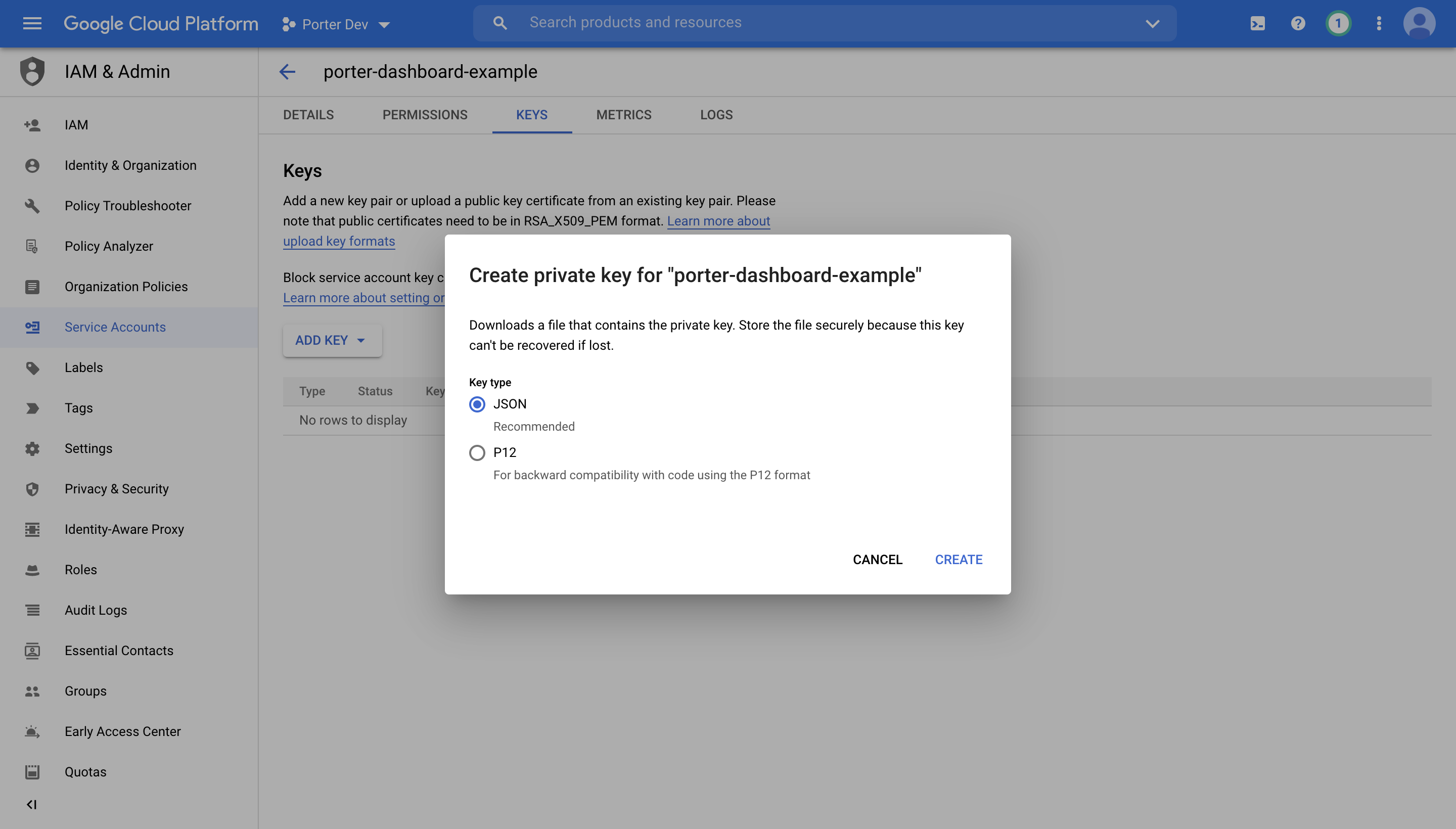
- Select ADD KEY -> Create new key and then choose JSON as your key type. After creation, your JSON key will automatically be downloaded as a file.
- Copy the contents of your JSON key file into Porter's GCP Credentials form along with your preferred GCP region and project ID:
📘
You can find your GCP project ID by navigating to console.cloud.google.com. After being automatically redirected, your project ID will appear at the end of the URL as well as under Project Info on the dashboard.
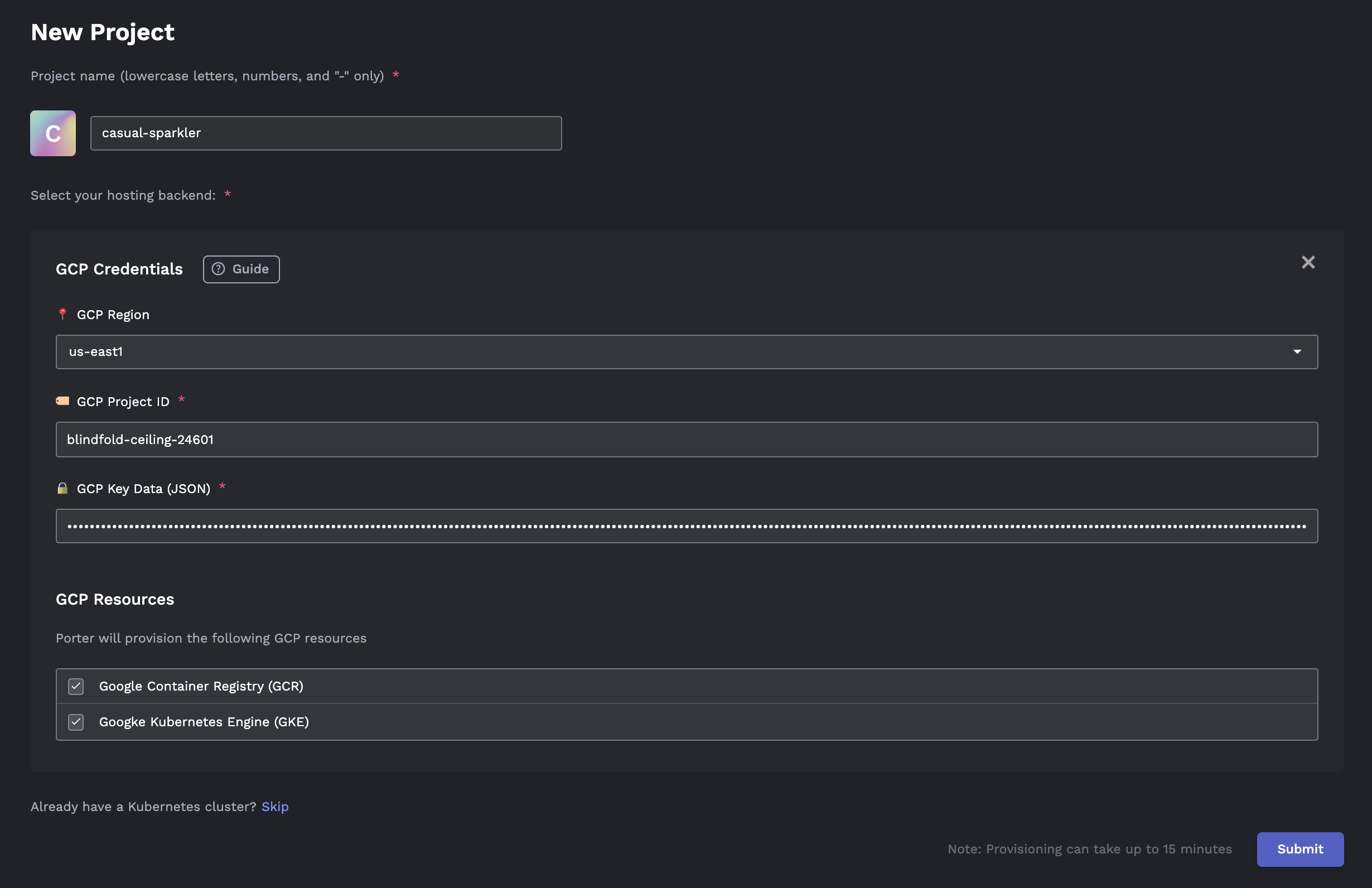
After clicking Submit from Porter, installation will begin automatically.
Deleting Provisioned Resources
🚧 GCP Deletion Instability
Deleting resources on GCP via Porter may result in dangling resources. After clicking delete, please make sure to check your GCP console to see if all resources have properly been removed. You can remove any dangling resources via either the GCP console or the gcloud CLI.
We recommend that you delete all provisioned resources through Porter as well as confirm resources have been deleted from the GCP console. This will ensure that you do not get charged on GCP for lingering resources.
To delete resources, click on Cluster Settings from the Cluster Dashboard.

Click Delete Cluster to remove the cluster from Porter and delete resources in your GCP console. It may take up to 30 minutes for these resources to be deleted from your GCP console.
Note that you can only delete cluster resources that have been provisioned via Porter from the dashboard.
