
deploying-from-the-cli.md 11 KB
🚧
Deploying applications from the CLI is a
betafeature at the moment. It may not be entirely stable or work for all possible combinations of builds/deployments. Please bring any issues to the Github or Discord so we can fix them as quickly as possible.
Creating a New Application
Overview
To create a new application via the Porter CLI, you can run:
porter create [kind] --app [app-name]
Required args/flags:
kindcan be one ofweb,worker, orjobapp-namemust be a set of lowercase letters or digits separated by-
Each kind of application has a set of default values which can be overwritten. For example, web applications have the port set to 80. To overwrite this, for example to port 3000, create the following file values.yaml:
container:
  port: 3000
And then run the command:
porter create web --app web-test --values ./values.yaml
Go to the common configuration options section to view values.yaml files for common use-cases. You can also view all possible configuration options in the values.yaml files of the respective applications: web, worker, and job.
Deploying from Local Files
The default behavior of porter create is to use the local filesystem to build, push, and deploy a Docker image. For example, to create a new web application from the current directory, you can simply run:
porter create web --app web-test
Porter will look for a Dockerfile located at the root of the current directory. If a Dockerfile is found, Porter will use the default Docker container registry linked to the Porter project to deploy the application. If a Dockerfile is not found, Porter will use a Cloud-Native Buildpack to build your application.
To point to a Dockerfile, you should pass the relative path to the Dockerfile from the root directory of the source code:
porter create web --app web-test --dockerfile /my/nested/Dockerfile
To use a cloud-native buildpack instead of a Dockerfile, you can specify the method directly:
porter create web --app web-test --method pack
Deploying from Github
By default, Porter will use the local filesystem to build, push, and deploy your application. Alternatively, if you have a local Git repository whose origin is set to a Github repository that matches one linked on Porter, you can pass in the --source flag to deploy your app:
porter create web --app web-test --source github
If your local branch is set to track changes from an upstream remote branch, Porter will try to use the connected remote and remote branch as the Github repository to link to. Otherwise, Porter will use the remote given by origin, and the same branch name as your local branch.
Deploying from a Docker Registry
The CLI also supports deploying directly from a Docker image which is hosted on a connected Docker registry. Simply specify --source registry and the application image via the --image tag:
porter create web --app web-test --source registry --image gcr.io/snowflake-12345/web-test:latest
Updating an Existing Application
Overview
You can update an existing application that was deployed from either the dashboard or the CLI. The root command for updating an application is:
porter update --app [app-name]
Where app-name is the name of a web, worker, or job application on the Porter dashboard. The default behavior of this command is to build a new image using the local filesystem, push this image to the connect image repository, and re-deploy the application on the Porter dashboard. However, each of these steps can be configured.
As with the porter create command, you can update the configuration that an application uses by passing in the --values flag, which should pass the filepath to a values.yaml file. Note that this command merges the values.yaml file with your existing configuration, so you should only specify options that you would like to modify. For example, the following values.yaml file:
container:
  port: 8080
Would only update the container port to 8080, while keeping your existing configuration, after running the command:
porter update --app --values ./values.yaml
Go to the common configuration options section to view values.yaml files for common use-cases. You can also view all possible configuration options in the values.yaml files of the respective applications: web, worker, and job.
Building from Local Files
The default behavior of this command will vary depending on if the application already has a Github repository source specified:
- If this application has a linked Github repository source, it will use the build settings from the linked source. That is, if the Github build settings specify a Dockerfile, this command will use the path to that Dockerfile.
- If the application does not have a linked source, this command will default to using a Dockerfile located at the root of the directory, at the path
./Dockerfile.
These default behaviors can be overwritten through a combination of the --method flag, the --dockerfile flag, and the --path flag:
Building from Github
If you specify --source github, this command will look for a remote Github repository that has been linked to this application. If one is found, the command will download an archive of the Github repository from the latest commit of the linked branch, and will use that as the filesystem to build from.
Updating Configuration without Building
If you would only like to update the configuration for your application via a values.yaml file (without building a new image), you can do so with the following command:
porter update config --app [app-name] --values [values-file]
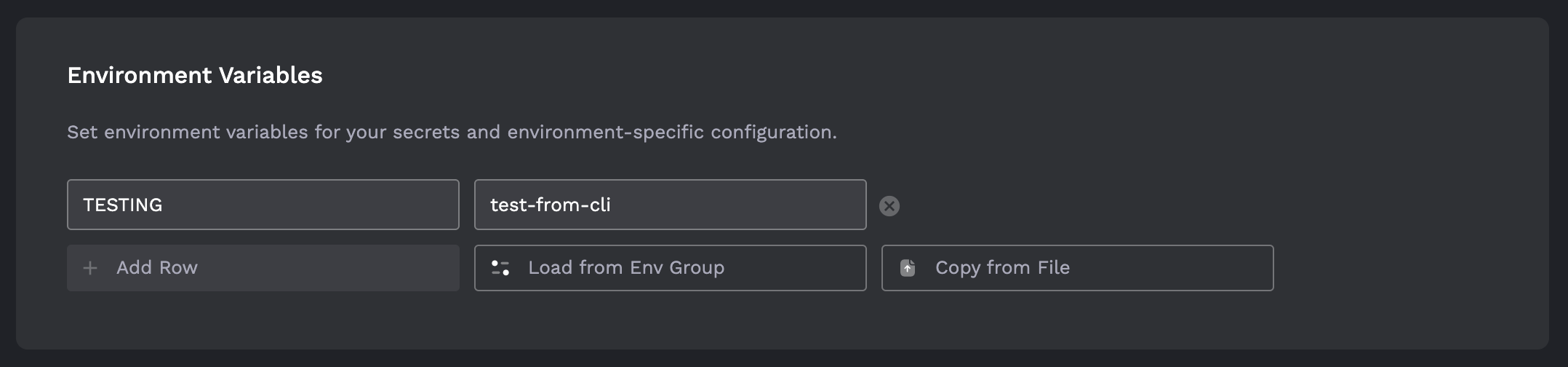
For example, to update the app web-test, and to programmatically set the environment variables for that application, create a file called web-test-values.yaml with the following structure:
container:
  env:
    normal:
      TESTING: test-from-cli
If I then run porter update config --app web-test --values web-test-values.yaml, I will now see the new values in the application:
Common Configuration Options
Container Port
container:
  port: 3000
Container Start Command
container:
  command: npm start
[web] Un-exposing a Web Application
This configuration only applies to web applications.
ingress:
  enabled: false
[web] Exposing a Web Application on a Custom Domain
This configuration only applies to web applications.
ingress:
  custom_domain: true
  hosts:
  - my-app.example.com
Writing Custom Deployment Pipelines
While this will be a subject of a separate guide soon, this section provides an overview of how you might use certain subcommands to build your own deployment pipeline. By default, the command porter update performs four steps: gets the environment variables for the application, builds a new Docker container from the source files, pushes a new Docker image to the remote registry, and calls a Porter endpoint to re-deploy the application. However, we designed this command to be modular: if you would like to add intermediate steps in your own build process, you can call different porter update sub-commands separately:
porter update get-env- prints the build environment variables to the terminal or a file.porter update build- builds the Docker container used for deployment.porter update push- pushes the Docker container used for deployment to a remote registry.porter update config- calls a Porter endpoint to re-deploy the application with new configuration.
porter update get-env
Gets environment variables for a deployment for a specified application given by the --app flag. By default, env variables are printed via stdout for use in downstream commands:
porter update get-env --app example-app | xargs
Output can also be written to a dotenv file via the --file flag, which should specify the destination path for a .env file. For example:
porter update get-env --app example-app --file .env
porter update build
Builds a new version of the application specified by the --app flag. Depending on the configured settings, this command may work automatically or will require a specified --method flag.
If you have configured the Dockerfile path and/or a build context for this application, this command will by default use those settings, so you just need to specify the --app flag:
porter update build --app example-app
If you have not linked the build-time requirements for this application, the command will use a local build. By default, the cloud-native buildpacks builder will automatically be run from the current directory. If you would like to change the build method, you can do so by using the --method flag, for example:
porter update build --app example-app --method docker
When using --method docker, you can specify the path to the Dockerfile using the --dockerfile flag. This will also override the Dockerfile path that you may have linked for the application:
porter update build --app example-app --method docker --dockerfile ./prod.Dockerfile
porter update push
Pushes a new image for an application specified by the --app flag. This command uses the image repository saved in the application config by default. For example, if an application "nginx" was created from the image repo "gcr.io/snowflake-123456/nginx", the following command would push the image "gcr.io/snowflake-123456/nginx:new-tag":
porter update push --app nginx --tag new-tag
This command will not use your pre-saved authentication set up via docker login, so if you are using an image registry that was created outside of Porter, make sure that you have linked it via porter connect.
porter update config
Updates the configuration for an application specified by the --app flag, using the configuration given by the --values flag. This will trigger a new deployment for the application with new configuration set. Note that this will merge your existing configuration with configuration specified in the --values file. For example:
porter update config --app example-app --values my-values.yaml
You can update the configuration with only a new tag with the --tag flag, which will only update the image that the application uses if no --values file is specified:
porter update config --app example-app --tag custom-tag