# Quick Installation
Porter runs on a Kubernetes cluster in your own AWS account. You can provision a cluster through Porter by inputting the credentials of your AWS IAM account. You can also delete all resources provided by Porter with one-click.
> 🚧
>
> Quick Installation uses **AdministratorAccess** permissions to set up Porter. You can optionally specify the minimum IAM policies for provisioning a cluster and registry.
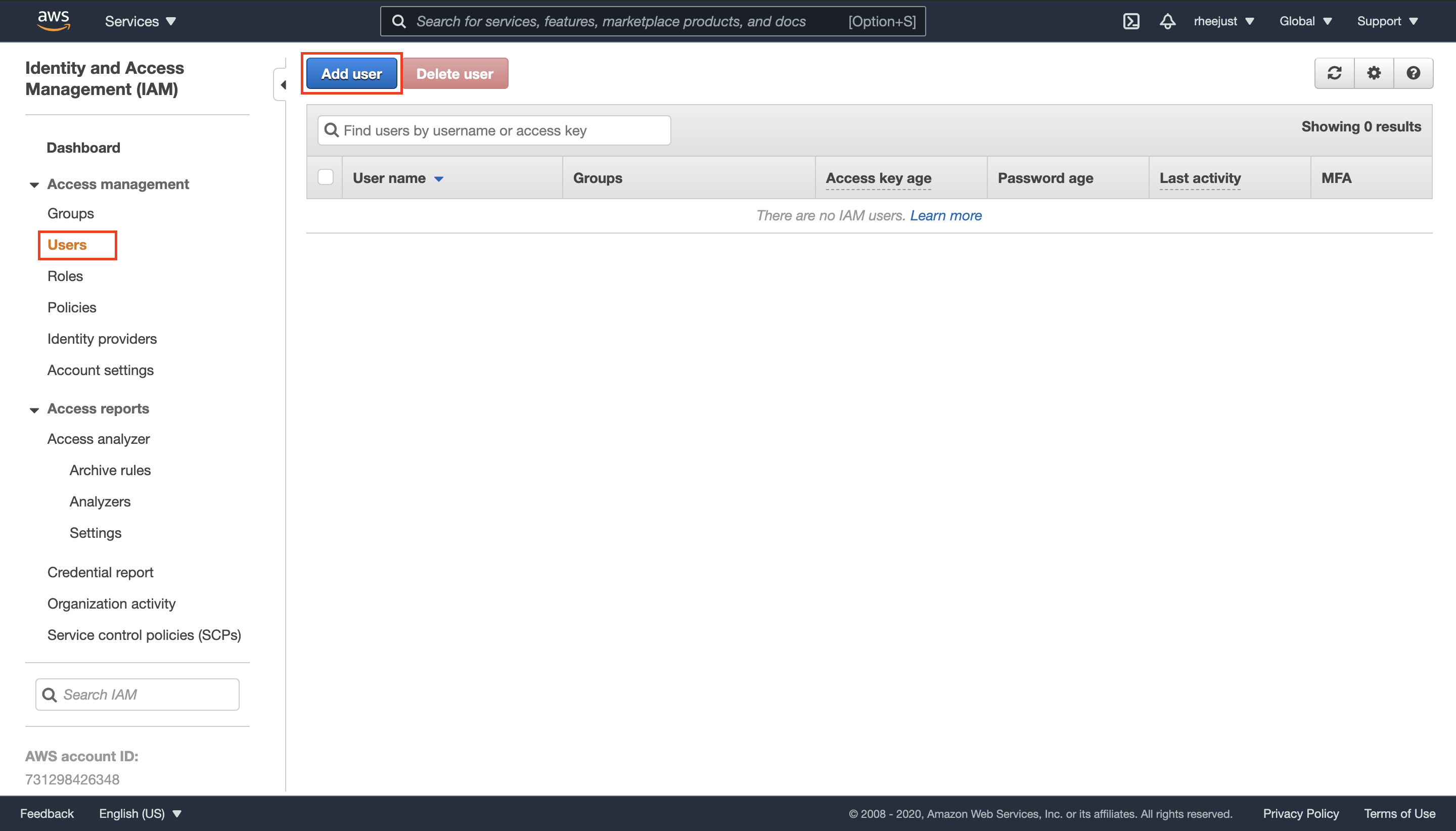
1. To create a new user, go to your AWS console and navigate to **IAM** -> **Users** and select **Add user**:
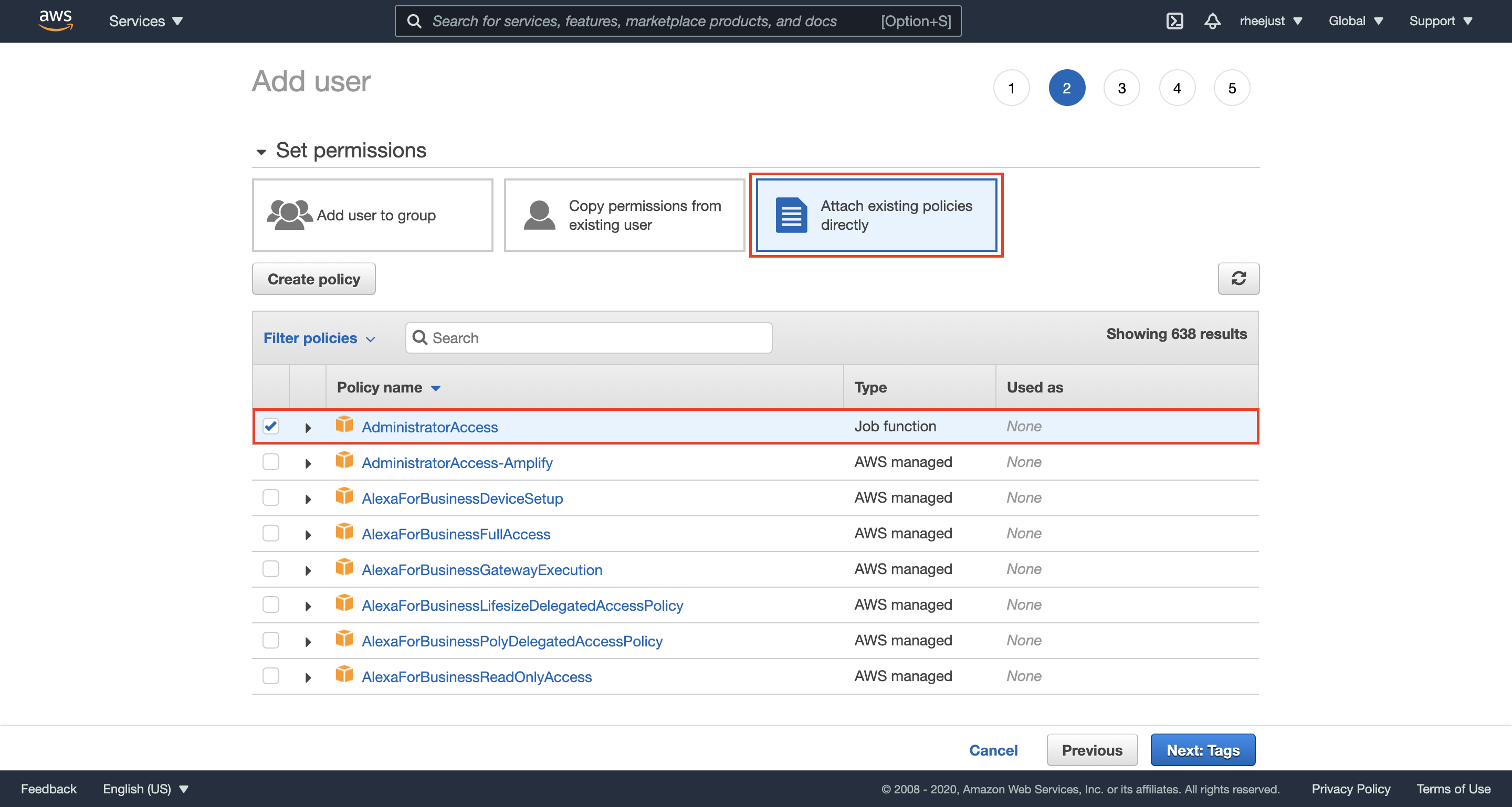
2. Give your user a name and select **Programmatic access**. After selecting **Next**, you will be prompted to set permissions for your user, choose **Attach existing policies directly** and select the **AdministratorAccess** policy:
Optionally, if you don't want to grant Porter **AdministratorAccess**, you can follow these additional steps to configure the minimum required policy **(otherwise, skip to step 3).**
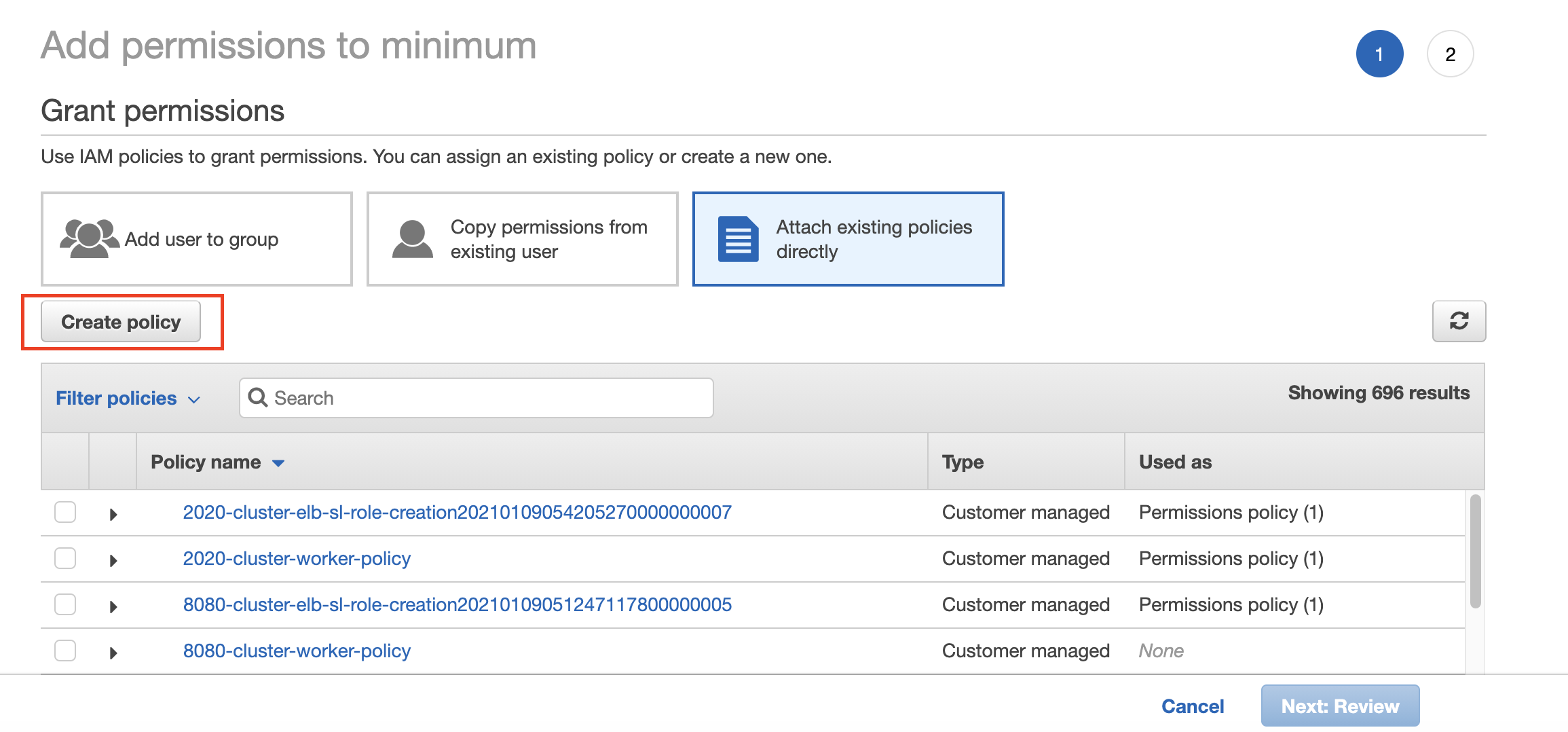
To instead specify the minimum required policy, select **Attach existing policies directly**, and click on **Create Policy**.
You will be prompted to enter your custom policy. Click on the **JSON** tab.
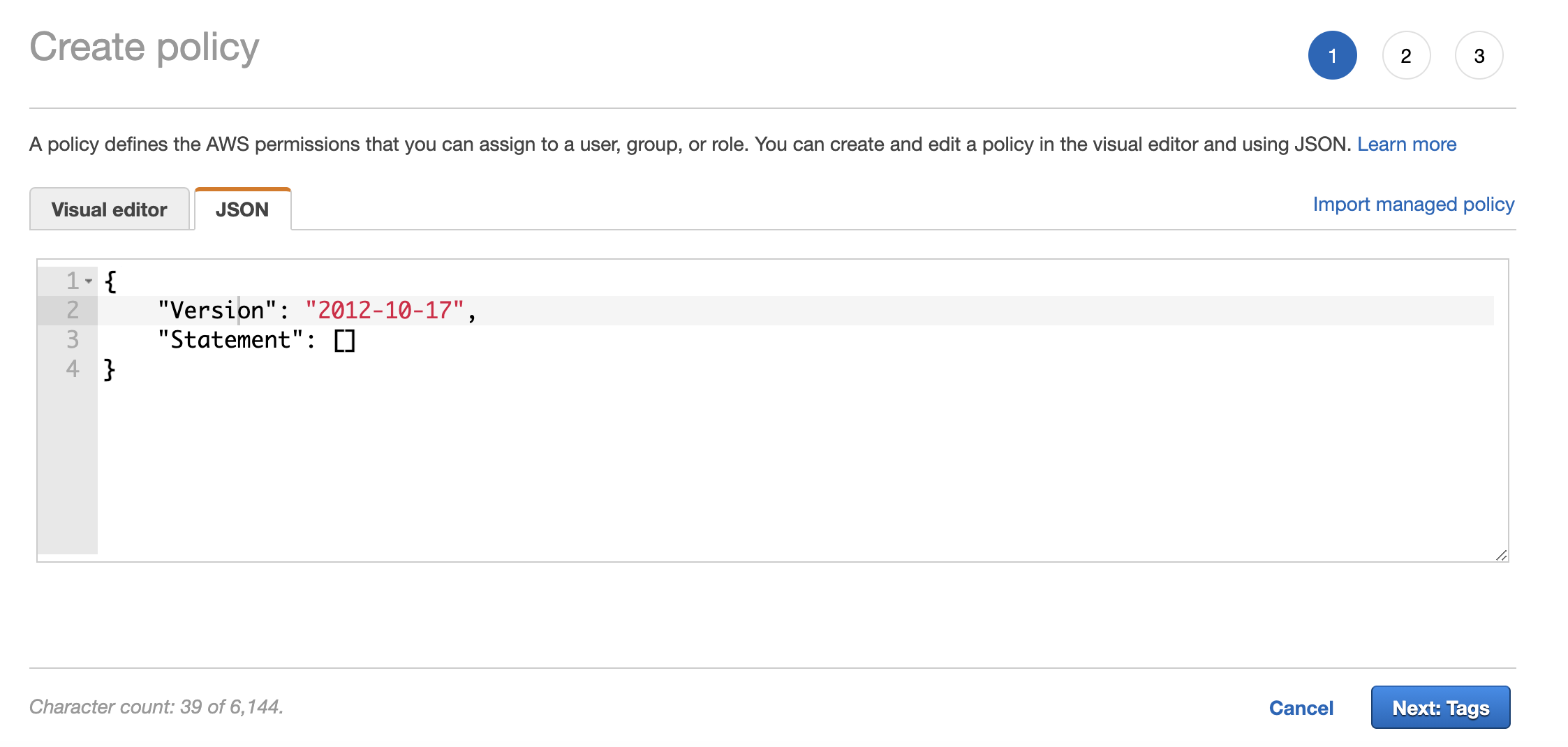
Copy and paste the below JSON to the field.
```json
{
"Version": "2012-10-17",
"Statement": [
{
"Sid": "VisualEditor0",
"Effect": "Allow",
"Action": [
"autoscaling:AttachInstances",
"autoscaling:CreateAutoScalingGroup",
"autoscaling:CreateLaunchConfiguration",
"autoscaling:CreateOrUpdateTags",
"autoscaling:DeleteAutoScalingGroup",
"autoscaling:DeleteLaunchConfiguration",
"autoscaling:DeleteTags",
"autoscaling:Describe*",
"autoscaling:DetachInstances",
"autoscaling:SetDesiredCapacity",
"autoscaling:UpdateAutoScalingGroup",
"autoscaling:SuspendProcesses",
"ec2:AllocateAddress",
"ec2:AssignPrivateIpAddresses",
"ec2:Associate*",
"ec2:AttachInternetGateway",
"ec2:AttachNetworkInterface",
"ec2:AuthorizeSecurityGroupEgress",
"ec2:AuthorizeSecurityGroupIngress",
"ec2:CreateDefaultSubnet",
"ec2:CreateDhcpOptions",
"ec2:CreateEgressOnlyInternetGateway",
"ec2:CreateInternetGateway",
"ec2:CreateNatGateway",
"ec2:CreateNetworkInterface",
"ec2:CreateRoute",
"ec2:CreateRouteTable",
"ec2:CreateSecurityGroup",
"ec2:CreateSubnet",
"ec2:CreateTags",
"ec2:CreateVolume",
"ec2:CreateVpc",
"ec2:CreateVpcEndpoint",
"ec2:DeleteDhcpOptions",
"ec2:DeleteEgressOnlyInternetGateway",
"ec2:DeleteInternetGateway",
"ec2:DeleteNatGateway",
"ec2:DeleteNetworkInterface",
"ec2:DeleteRoute",
"ec2:DeleteRouteTable",
"ec2:DeleteSecurityGroup",
"ec2:DeleteSubnet",
"ec2:DeleteTags",
"ec2:DeleteVolume",
"ec2:DeleteVpc",
"ec2:DeleteVpnGateway",
"ec2:Describe*",
"ec2:DetachInternetGateway",
"ec2:DetachNetworkInterface",
"ec2:DetachVolume",
"ec2:Disassociate*",
"ec2:ModifySubnetAttribute",
"ec2:ModifyVpcAttribute",
"ec2:ModifyVpcEndpoint",
"ec2:ReleaseAddress",
"ec2:RevokeSecurityGroupEgress",
"ec2:RevokeSecurityGroupIngress",
"ec2:UpdateSecurityGroupRuleDescriptionsEgress",
"ec2:UpdateSecurityGroupRuleDescriptionsIngress",
"ec2:CreateLaunchTemplate",
"ec2:CreateLaunchTemplateVersion",
"ec2:DeleteLaunchTemplate",
"ec2:DeleteLaunchTemplateVersions",
"ec2:DescribeLaunchTemplates",
"ec2:DescribeLaunchTemplateVersions",
"ec2:GetLaunchTemplateData",
"ec2:ModifyLaunchTemplate",
"ec2:RunInstances",
"eks:CreateCluster",
"eks:DeleteCluster",
"eks:DescribeCluster",
"eks:ListClusters",
"eks:UpdateClusterConfig",
"eks:UpdateClusterVersion",
"eks:DescribeUpdate",
"eks:TagResource",
"eks:UntagResource",
"eks:ListTagsForResource",
"eks:CreateFargateProfile",
"eks:DeleteFargateProfile",
"eks:DescribeFargateProfile",
"eks:ListFargateProfiles",
"eks:CreateNodegroup",
"eks:DeleteNodegroup",
"eks:DescribeNodegroup",
"eks:ListNodegroups",
"eks:UpdateNodegroupConfig",
"eks:UpdateNodegroupVersion",
"eks:AssociateEncryptionConfig",
"iam:AddRoleToInstanceProfile",
"iam:AttachRolePolicy",
"iam:CreateInstanceProfile",
"iam:CreateOpenIDConnectProvider",
"iam:CreateServiceLinkedRole",
"iam:CreatePolicy",
"iam:CreatePolicyVersion",
"iam:CreateRole",
"iam:DeleteInstanceProfile",
"iam:DeleteOpenIDConnectProvider",
"iam:DeletePolicy",
"iam:DeletePolicyVersion",
"iam:DeleteRole",
"iam:DeleteRolePolicy",
"iam:DeleteServiceLinkedRole",
"iam:DetachRolePolicy",
"iam:GetInstanceProfile",
"iam:GetOpenIDConnectProvider",
"iam:GetPolicy",
"iam:GetPolicyVersion",
"iam:GetRole",
"iam:GetRolePolicy",
"iam:List*",
"iam:PassRole",
"iam:PutRolePolicy",
"iam:RemoveRoleFromInstanceProfile",
"iam:TagOpenIDConnectProvider",
"iam:TagRole",
"iam:UntagRole",
"iam:UpdateAssumeRolePolicy",
"logs:CreateLogGroup",
"logs:DescribeLogGroups",
"logs:DeleteLogGroup",
"logs:ListTagsLogGroup",
"logs:PutRetentionPolicy",
"kms:CreateAlias",
"kms:CreateGrant",
"kms:CreateKey",
"kms:DeleteAlias",
"kms:DescribeKey",
"kms:GetKeyPolicy",
"kms:GetKeyRotationStatus",
"kms:Get*",
"kms:ListAliases",
"kms:ListResourceTags",
"kms:ScheduleKeyDeletion",
"kms:TagResource",
<<<<<<< Updated upstream
"kms:UntagResource"
=======
"kms:UntagResource",
"kms:EnableKeyRotation"
>>>>>>> Stashed changes
],
"Resource": "*"
}
]
}
```
Note: `kms:Get*` is only required if you have enabled KMS secret encryption whilst creating the cluster
Click on **Create a Policy** and give it a name to create a custom policy.
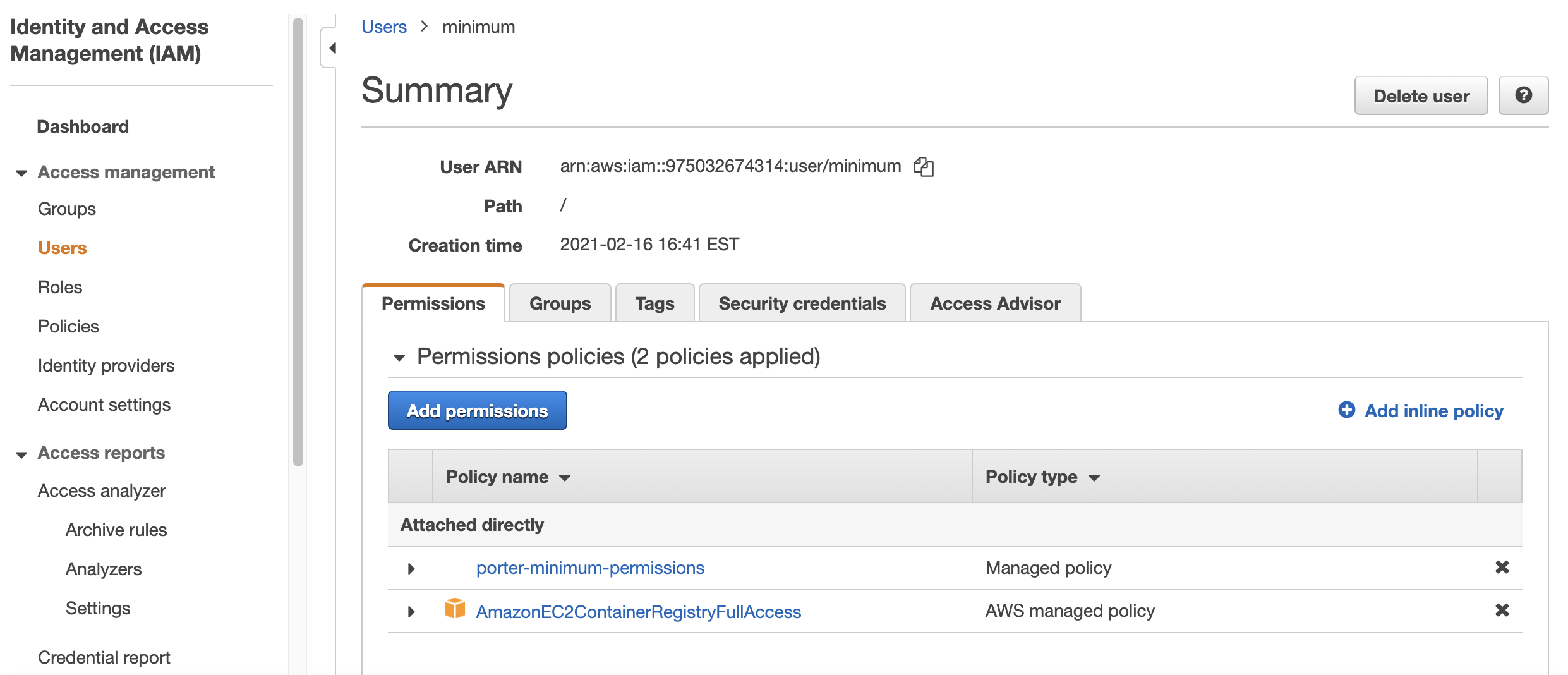
Once you've created the custom policy, attach this policy to your IAM user along with the `AmazonEC2ContainerRegistryFullAccess` policy. Permission policies for your IAM user should look like the image below. In this example, the custom policy has been named **porter-minimum-permissions**.
3. After creating the user, you will be shown an **Access key ID** and **Secret access key** for your new user. Copy both of these directly into Porter's AWS Credentials form along with your preferred AWS region:
> 📘
>
> You can find your default AWS region by navigating to [console.aws.amazon.com](https://console.aws.amazon.com). After being automatically redirected, your region will appear at the start of the URL.
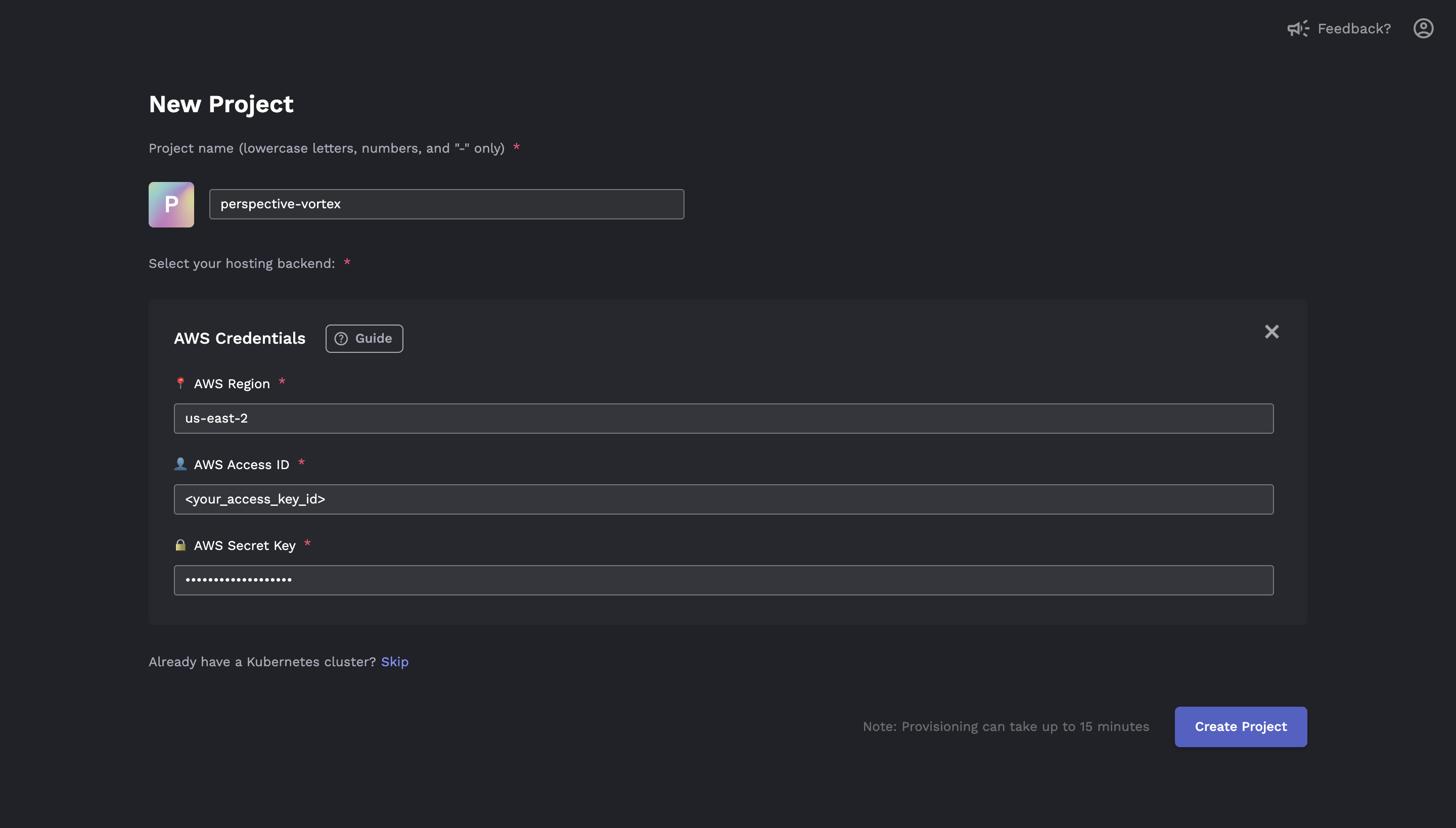
After clicking **Create Project** from Porter, installation will begin automatically.
# Deleting Provisioned Resources
> 🚧 AWS Deletion Instability
>
> Deleting resources on AWS via Porter may result in dangling resources. After clicking delete, please make sure to check your AWS console to see if all resources have properly been removed. You can remove any dangling resources via either the AWS console or the CLI.
Because it is difficult to keep track of all the resources created by Porter, we recommend that you delete all provisioned resources through Porter. This will ensure that you do not get charged on AWS for lingering resources.
To delete resources, click on **Cluster Settings** from the **Cluster Dashboard**.

Click **Delete Cluster** to remove the cluster from Porter and delete resources in your AWS console. It may take up to 30 minutes for these resources to be deleted from your AWS console.
**Note that you can only delete cluster resources that have been provisioned via Porter.**

For a guide on how to delete the dangling resources, see [Deleting Dangling Resources.](deleting-dangling-resources).