# Enabling Slack Integrations
For order to set up a Slack integration on a self-hosted version of Porter, you must create a new Slack app in your workspace for sending Porter notifications.
## Step 1: Create Application and Environment Variables
Navigate to [https://api.slack.com/apps](https://api.slack.com/apps), and click **Create New App**. On the modal that pops up, select **From Scratch** and then enter your app name and workspace you want to develop in. On the page for the application, scroll down to **App Credentials** and take note of the following two values:
 Copy these values into the following environment variables in your installation:
```
SLACK_CLIENT_ID=
SLACK_CLIENT_SECRET=
```
## Step 2: Setting up OAuth
The app also needs to be able to perform the OAuth flow with the right callback link. To do this,
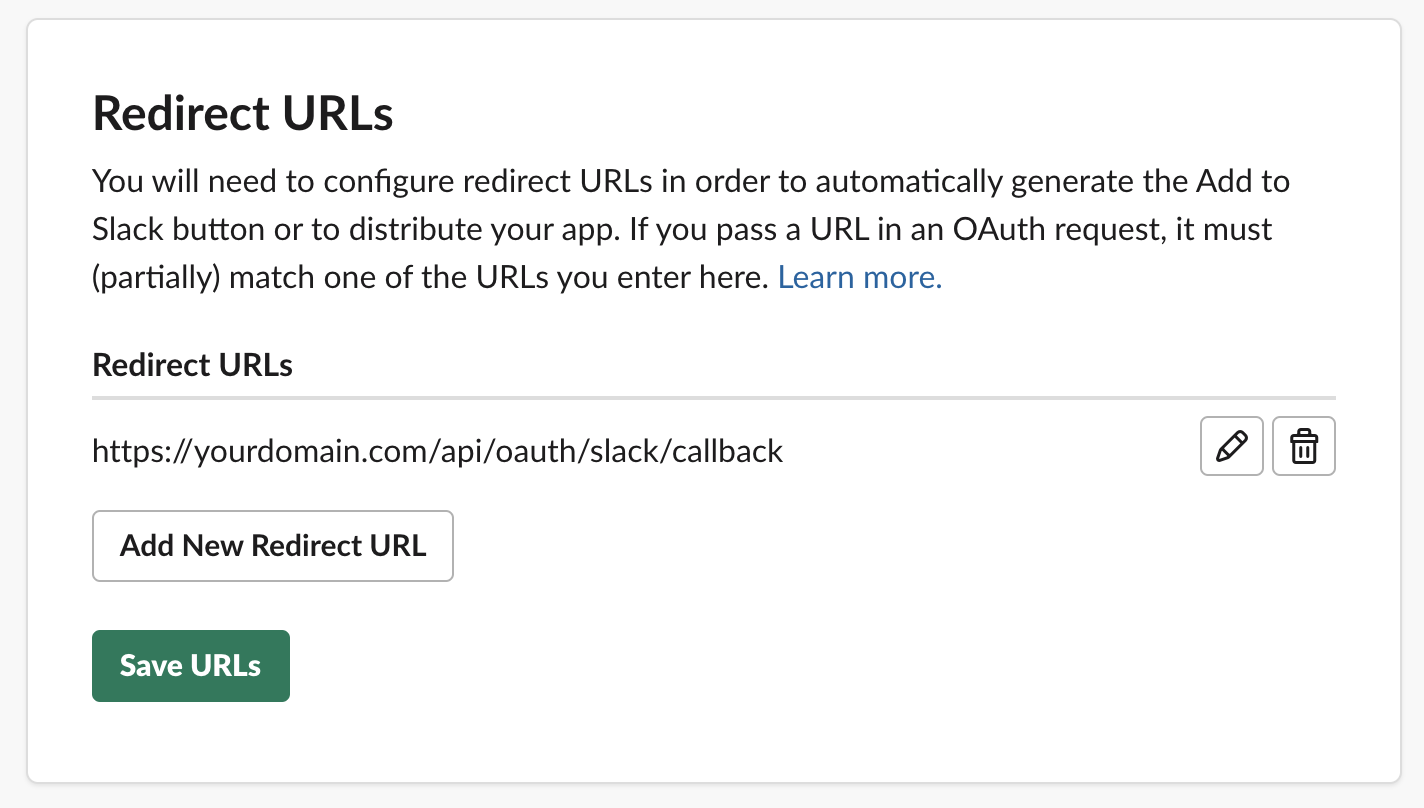
navigate to **OAuth & Permissions** in the Slack developer settings and add the url `https://yourdomain.com/api/oauth/slack/callback` to the list of redirect URLs:
That's it! You can now follow [this guide](https://docs.porter.run/docs/setting-up-slack-notifications) for setting up Slack notifications in Porter.
Copy these values into the following environment variables in your installation:
```
SLACK_CLIENT_ID=
SLACK_CLIENT_SECRET=
```
## Step 2: Setting up OAuth
The app also needs to be able to perform the OAuth flow with the right callback link. To do this,
navigate to **OAuth & Permissions** in the Slack developer settings and add the url `https://yourdomain.com/api/oauth/slack/callback` to the list of redirect URLs:

That's it! You can now follow [this guide](https://docs.porter.run/docs/setting-up-slack-notifications) for setting up Slack notifications in Porter.