# Google Container Registry (GCR) Connection
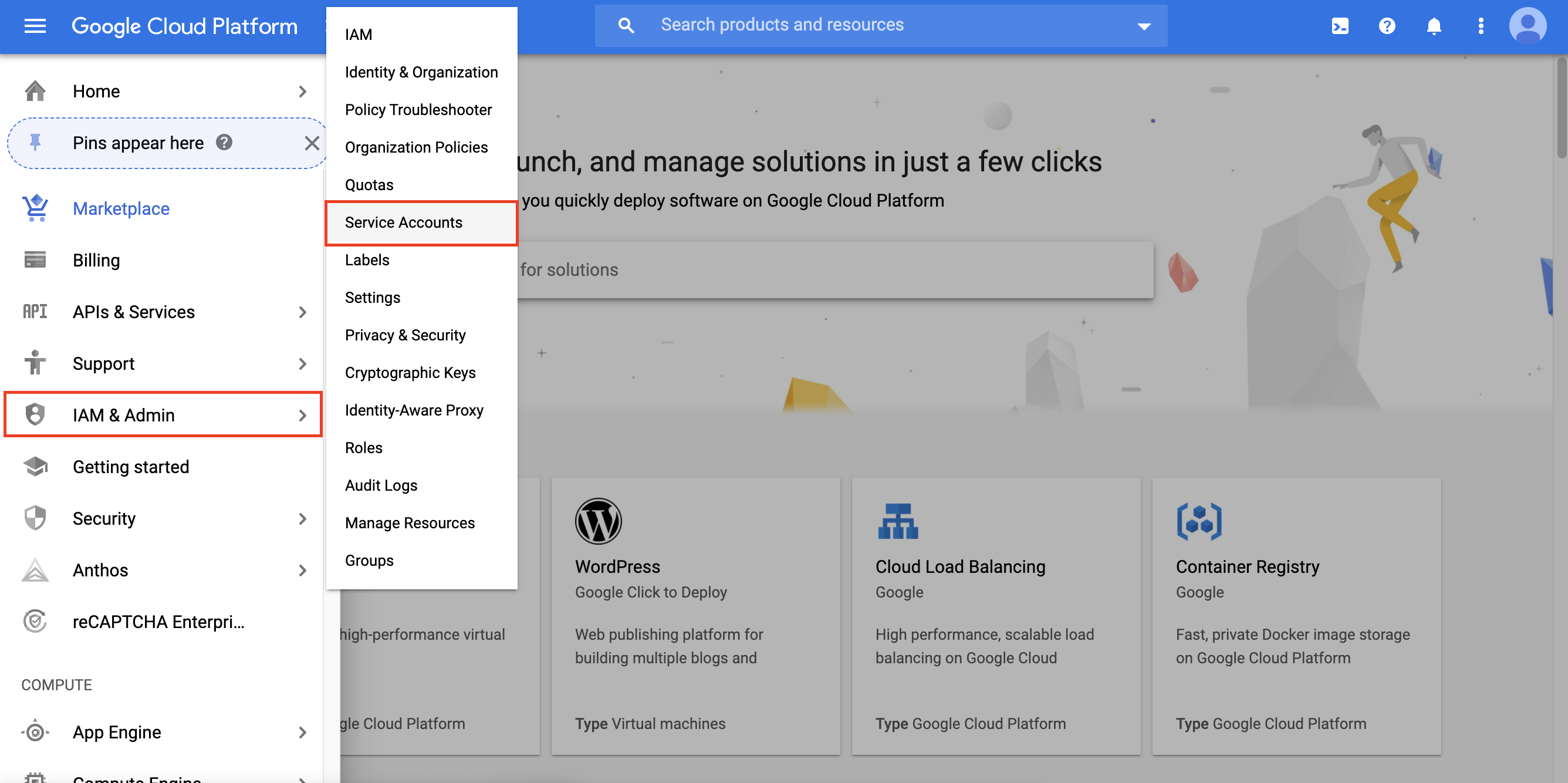
To authenticate a private GCR registry, you will first need a Google Cloud service account with registry viewing permissions. To create a new service account, go to your Google Cloud console and navigate to the **IAM & Admin** tab in the navigation menu and select **Service Accounts**:
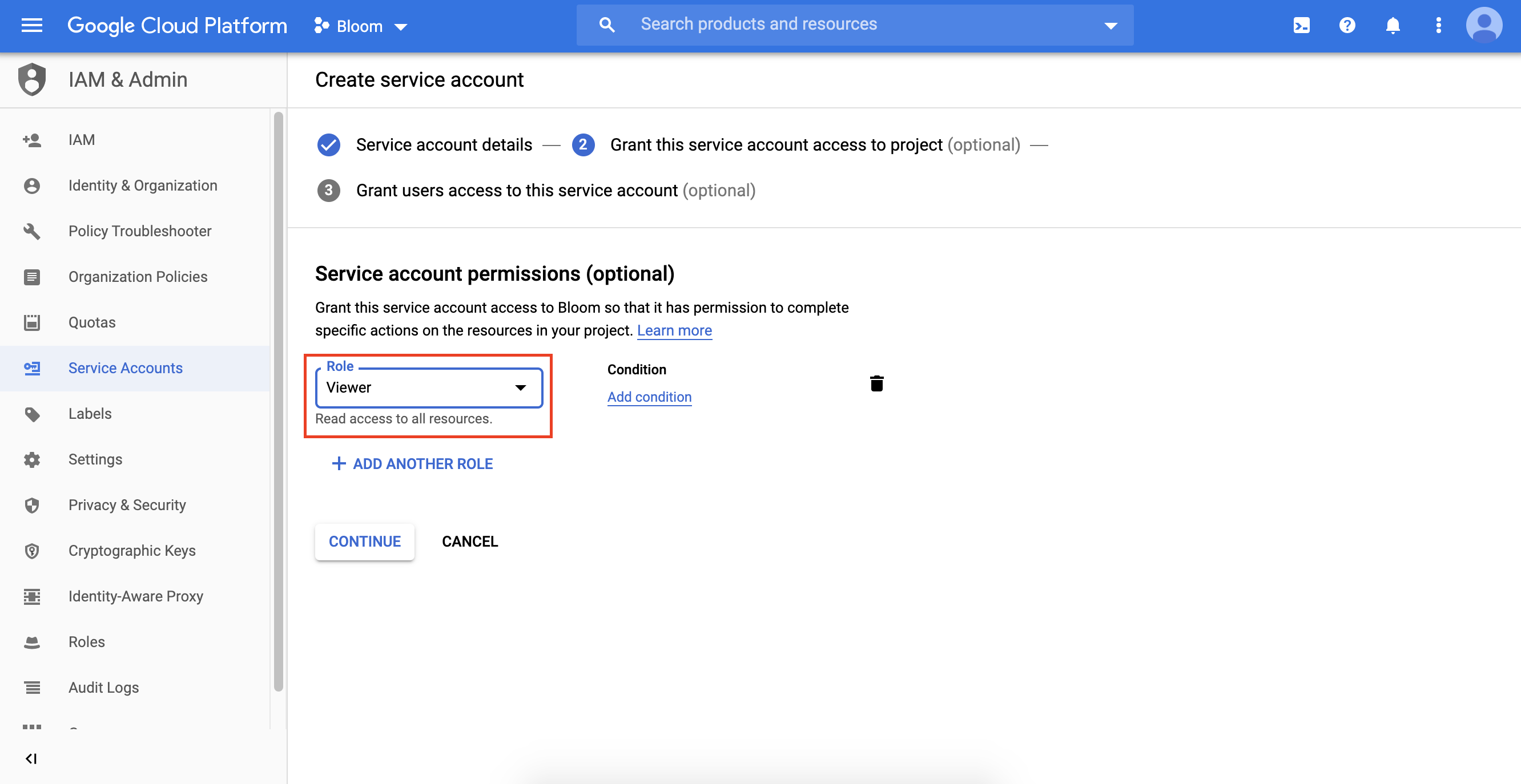
 Select **Create Service Account** and provide a name and brief description for the new service account. Next, choose the role **Viewer** when you are prompted to grant permissions to your service account:
 After the service account has been created, you need to create a JSON key for your service account by going to **Actions** -> **Create key** and then selecting JSON as your key type. Once your JSON key file has downloaded, use the `porter connect gcr` command to add the registry to your project.
For example, for a key named `gcp-key-file.json` on Mac:
```diff
$ cd ~/Downloads
$ porter connect gcr
Please provide the full path to a service account key file.
Key file location: ./gcp-key-file.json
+ created gcp integration with id 3
Give this registry a name: gcr-registry
+ created registry with id 16 and name gcr-test
+ Set the current registry id as 16
```
Having issues authenticating your private registry? You can reach us at [contact@getporter.dev](mailto:contact@getporter.dev).
After the service account has been created, you need to create a JSON key for your service account by going to **Actions** -> **Create key** and then selecting JSON as your key type. Once your JSON key file has downloaded, use the `porter connect gcr` command to add the registry to your project.
For example, for a key named `gcp-key-file.json` on Mac:
```diff
$ cd ~/Downloads
$ porter connect gcr
Please provide the full path to a service account key file.
Key file location: ./gcp-key-file.json
+ created gcp integration with id 3
Give this registry a name: gcr-registry
+ created registry with id 16 and name gcr-test
+ Set the current registry id as 16
```
Having issues authenticating your private registry? You can reach us at [contact@getporter.dev](mailto:contact@getporter.dev).